---
title: "Share Instagram Business account with multiple users"
description: "Discover how to add multiple users to your Instagram Business account and improve collaboration and management. Follow our step-by-step guide now."
canonical: "https://sleekflow.io/en-gb/blog/instagram-business-account-multiple-users"
html_lang: "en-gb"
date_modified: "2026-02-05T03:23:41.315Z"
og_title: "Adding Multiple Users to Instagram Business Account"
og_description: "Discover how to add multiple users to your Instagram Business account and improve collaboration and management. Follow our step-by-step guide now."
og_image: "https://images.ctfassets.net/tu2uwzoyozk8/jv7U36Ukh9EPuG26vYfRg/37254a153c2feca5c6b003922293bf06/Website-Cover-SleekFlow.jpg?w=1200&q=90"
---
```json
{
"@context": "https://schema.org",
"@type": "BlogPosting",
"headline": "Adding Multiple Users to Instagram Business Account",
"description": "Discover how to add multiple users to your Instagram Business account and improve collaboration and management. Follow our step-by-step guide now.",
"url": "https://sleekflow.io/en-gb/blog/instagram-business-account-multiple-users",
"dateModified": "2026-02-05T03:23:41.315Z",
"image": "https://images.ctfassets.net/tu2uwzoyozk8/jv7U36Ukh9EPuG26vYfRg/37254a153c2feca5c6b003922293bf06/Website-Cover-SleekFlow.jpg?w=1200&q=90",
"breadcrumb": {
"@type": "BreadcrumbList",
"itemListElement": [
{
"@type": "ListItem",
"position": 1,
"name": "Home",
"item": "https://sleekflow.io/en-gb"
},
{
"@type": "ListItem",
"position": 2,
"name": "Blog",
"item": "https://sleekflow.io/en-gb/blog"
},
{
"@type": "ListItem",
"position": 3,
"name": "Adding Multiple Users to Instagram Business Account",
"item": "https://sleekflow.io/en-gb/blog/instagram-business-account-multiple-users"
}
]
}
}
```
# Share Instagram Business account with multiple users
*Yu Huan — Assistant Content Manager*
Instagram has become an essential platform for businesses to connect with their target customers. Sharing an Instagram Business account with multiple users can help businesses manage their accounts more efficiently and collaborate more effectively.
## Why allow multiple users on your Instagram Business account
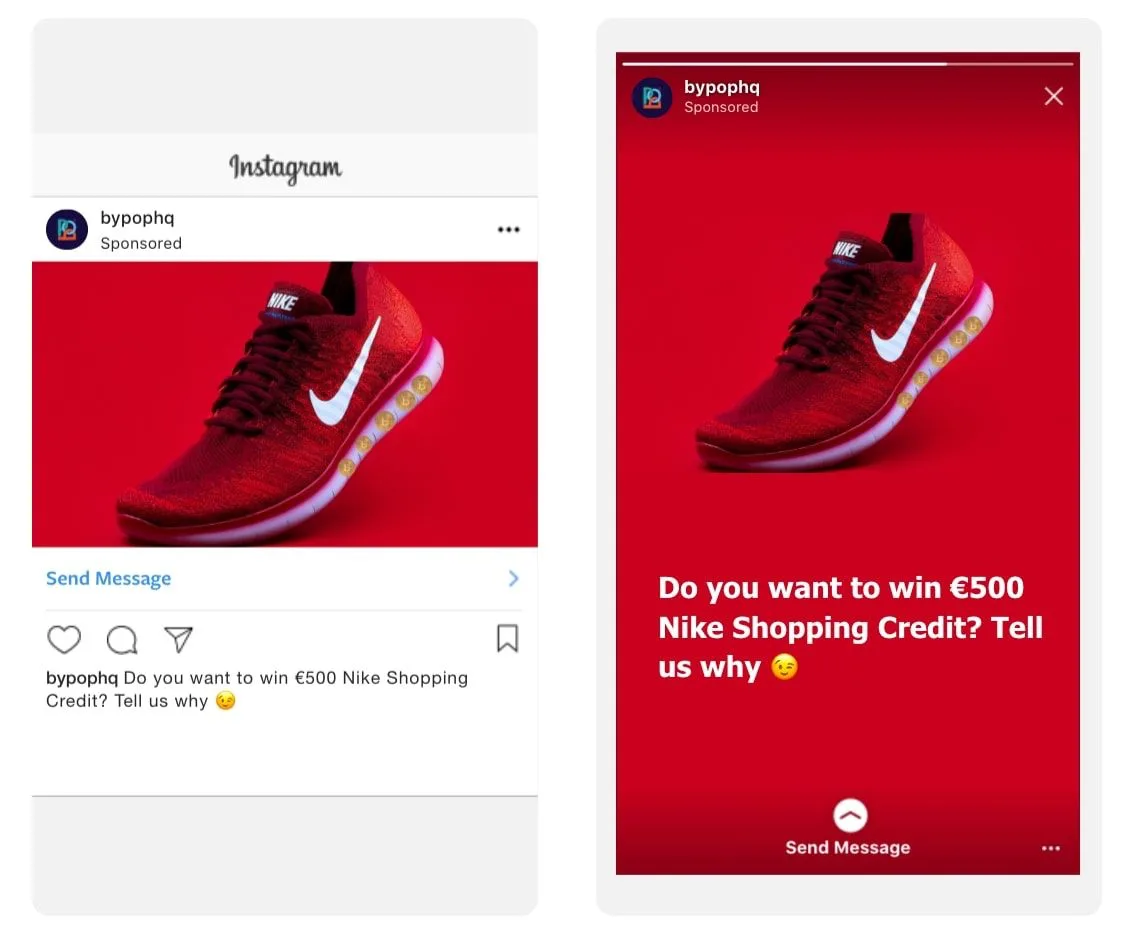
Sharing an Instagram Business account with multiple users can provide several benefits for businesses. With multiple users, businesses can:
- Manage the account more efficiently with role and permissions assigned
- Collaborate and communicate better with proper delegation of tasks among team members
- Prevent the loss of account access
## How to have multiple users on one Instagram Business account
To set up multiple users on an Instagram Business account, follow these simple steps:
1. Open the Instagram app and go to your profile.
1. Tap the three horizontal lines in the top right corner and select "**Settings**" at the bottom.
1. Select "**Account**" > "**Add Account**".
1. Enter the login information for the additional account you want to add to your Instagram Business account.
1. Once the account is added, you can switch between accounts by tapping the three lines in the top right corner and selecting the desired account.
> Make sure to [switch your account to an Instagram Business account](/en-gb/blog/how-to-switch-to-business-account-on-Instagram) to have multiple users on one Instagram Business account.
## How many accounts can you have on IG?
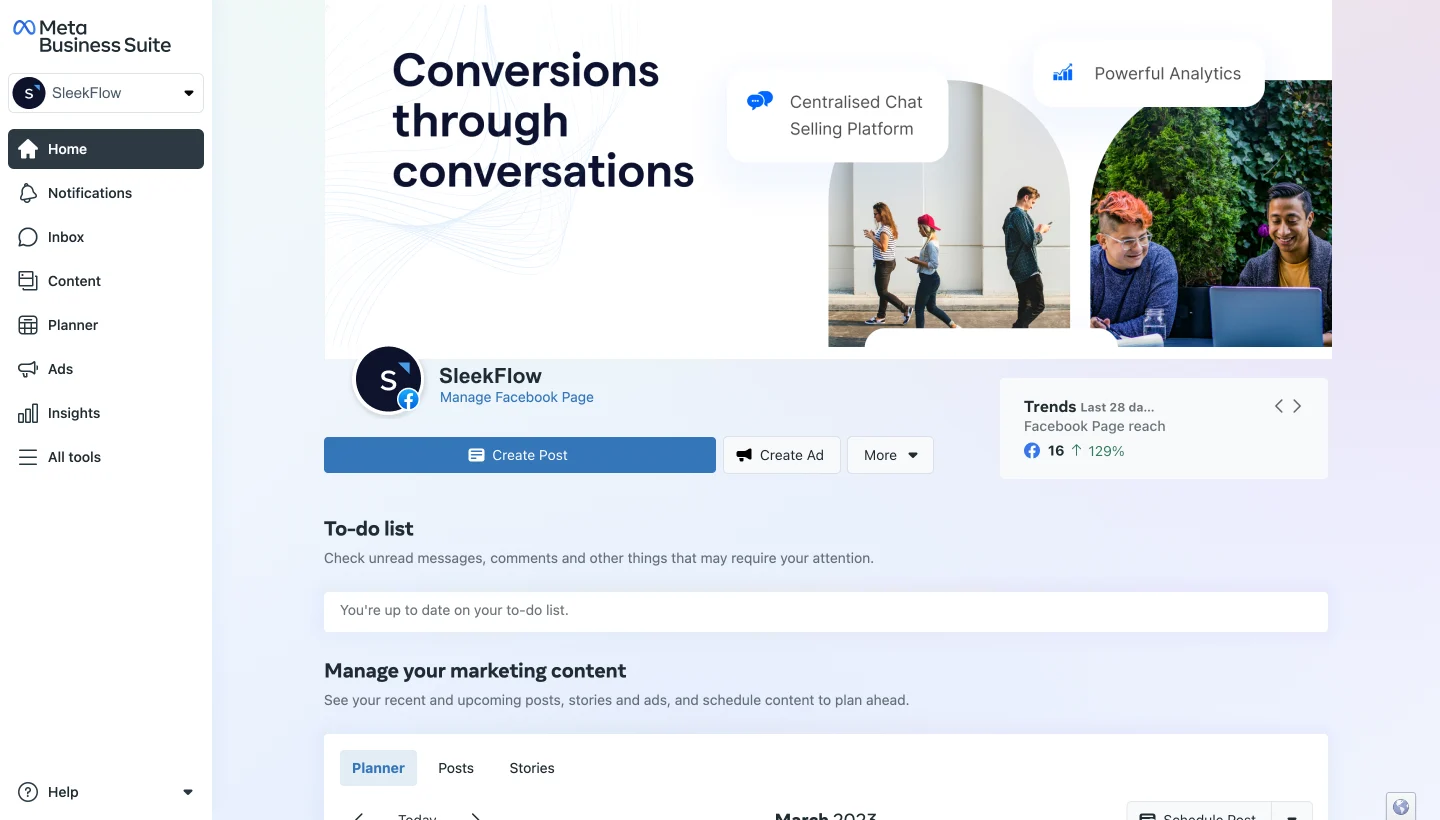
Instagram allows you to have **up to 5 Instagram accounts** on the same device. This means that you can manage up to five Instagram Business accounts on your phone or tablet. You can assign roles and permissions to each user added:
- Admin: manage all aspects of the account, including adding and removing users, and editing account information
- Editor: create and publish posts, view insights
- Moderator: respond to comments and messages, view insights
- Advertiser: create and run ads, view insights
- Analyst: view insights, once roles have been assigned, implement a [social media approval plan](https://planable.io/blog/social-media-approval-process/) to streamline the content creation and publication process.
*Need more users on your Instagram Business account? Jump to the section: *[*Adding multiple users on your Instagram Business account for enterprises*](/en-gb/blog/instagram-business-account-multiple-users)
## Adding multiple users to your Instagram Business account: assigning roles
To assign a role to a user, follow these steps:
1. Go to your profile and tap the three horizontal lines in the top right corner.
1. Tap on "**Settings**" at the bottom.
1. Select "**Account**" > "**Invite Users**".
1. Enter the username or email address of the user you want to invite.
1. Select the role you want to assign.
1. Tap "**Send**".
## Adding multiple users on your Instagram Business account: a solution for enterprises
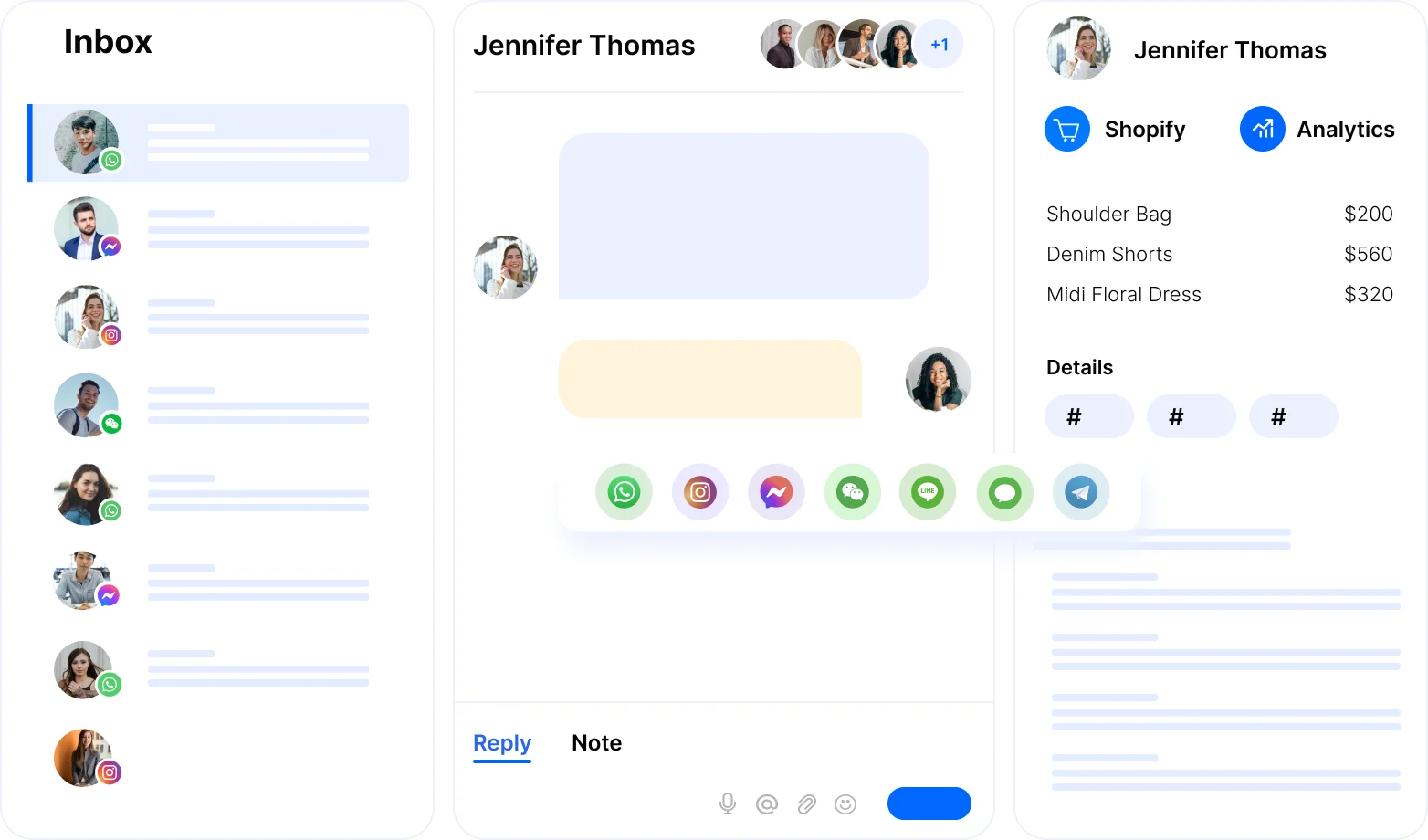
If you’re a business looking to scale quickly or an enterprise with a large team, having an Instagram Business account with only 5 users is definitely not enough. This is why you need to use [Instagram API](https://developers.facebook.com/docs/instagram-api/) to incorporate efficient social media management into your workflows. With Instagram API integrated, you will be able to:
- Connect your CRM platform
- Set up advanced automation rules such as auto-assignment of chats
- Build a customized chatbot that suits your customers
- Personalized customer interactions for loyalty
While Instagram API is free, and a great resource for enterprises to manage their Instagram Business accounts, it does not have an interface and cannot be used on its own. In other words, you will need your own app and developers to manage the Instagram API.
## Discover the power of Instagram with SleekFlow\!
Unlock the SleekFlow strategies that will take your Instagram game to the next level!
[Instagram with SleekFlow](https://sleekflow.io/channels-integrations/instagram)
On [SleekFlow](/en-gb/), you can share an Instagram account with as many users as you need. Your employees from sales, marketing, and customer service can access the same Instagram Business account anytime, anywhere, and perform a seamless handover process whenever their assistance is required. You can then reduce the response time for your customers and improve client satisfaction.
## Best practices for managing a shared Instagram Business account

When managing a shared Instagram Business account, it's important to establish clear guidelines and protocols to ensure that the account is being managed effectively. Here are some best practices to consider:
- Establish responsibilities for each team member and [auto-assign conversations](/en-gb/flow-builder) according to roles
- Ensure that a channel is used for consistent internal communication and set expectations and goals (e.g. [SleekFlow Inbox](/en-gb/inbox) has an Internal Notes function that allows team members to have internal chat discussions in the customer chatbox, all without having the message displayed to the customer)
- Use tools to [manage post and chat replies automatically](/en-gb/blog/product-update-instagram-facebook-auto-reply-comment)
- Create a content calendar to plan out posts in advance
- Monitor the account regularly and [analyze metrics](https://napoleoncat.com/blog/social-media-analytics-tools/) to determine the success of the social media strategy
By following these best practices, businesses can ensure that their shared Instagram Business account is being managed effectively and that they are making the most of this powerful social media platform.
*Need a better strategy? Explore our *[*Instagram marketing guide*](/en-gb/blog/instagram-marketing)* or *[*social CRM guide*](/en-gb/blog/social-crm)*.*
Sharing your Instagram Business account with multiple users is a great way to improve collaboration and account management. With our step-by-step guide, you can easily set up multiple users and start collaborating with your team members. So, what are you waiting for? Start managing a shared Instagram Business account and make the most of this powerful social media platform.
## Want to outcompete your peers with SleekFlow's help?
Book your personalised demo with SleekFlow today and unlock the potential of seamless communication
[Book a Demo](https://sleekflow.io/book-a-demo)
[View Pricing](https://sleekflow.io/pricing)
### How to add an admin to Instagram?
To add an admin to your Instagram account, follow these steps:
- Open the Instagram app and log into your account.
- Navigate to your profile and tap the three horizontal lines in the top right corner.
- Select "Settings" and then "Account."
- Tap "Roles" or "Business Account" (depending on your account type).
- Choose "Add Admin" or "Assign a New Role."
- Enter the username of the person you want to add as an admin.
- Select the role you want to assign and confirm.
### How to have multiple users on one Instagram account?
To allow multiple users to manage a single Instagram account:
- Ensure your account is set up as a business or creator account.
- Go to your profile and tap the three horizontal lines in the top right corner.
- Select "Settings," then "Account," and choose "Roles" or "Business Account."
- Assign different roles (Admin, Editor, etc.) to various users by entering their usernames.
- Each user will need to log in with their own credentials and accept the invitation to manage the account.
This setup is ideal for teams managing a single Instagram account, enabling collaborative work.
### How many Instagram accounts can I have?
Instagram allows you to have up to five accounts linked to a single device. To manage multiple accounts:
- Go to your profile and tap your username at the top of the screen.
- Select "Add Account" from the dropdown menu.
- Log in to your existing account or create a new one.
You can easily switch between accounts by tapping your username and selecting the account you want to use, streamlining your social media management.
### How to add another Instagram account?
To add another Instagram account on your device:
- Open the Instagram app and go to your profile.
- Tap your username at the top of the screen.
- Select "Add Account" from the dropdown menu.
- Choose to log in with an existing account or create a new one.
Managing multiple Instagram accounts on one device helps you keep personal and professional activities separate and organized.
These steps ensure you can effectively manage multiple accounts and users, enhancing your Instagram experience.