---
title: "WhatsApp Business Multiple Users: limits, options, and best setup for growing teams"
description: "Learn how to use WhatsApp Business with multiple users, compare the app, Meta Verified and API, and see when a shared inbox like SleekFlow makes sense for growing teams."
canonical: "https://sleekflow.io/en-sg/blog/how-to-use-whatsapp-business-with-multiple-users-the-complete-guide"
html_lang: "en-sg"
date_modified: "2026-05-06T09:27:54.341Z"
og_title: "WhatsApp Business multiple users: app vs Meta Verified vs API"
og_description: "Learn how to use WhatsApp Business with multiple users, compare the app, Meta Verified and API, and see when a shared inbox like SleekFlow makes sense for growing teams."
og_image: "https://images.ctfassets.net/tu2uwzoyozk8/jv7U36Ukh9EPuG26vYfRg/37254a153c2feca5c6b003922293bf06/Website-Cover-SleekFlow.jpg?w=1200&q=90"
---
```json
{
"@context": "https://schema.org",
"@type": "BlogPosting",
"headline": "WhatsApp Business multiple users: app vs Meta Verified vs API",
"description": "Learn how to use WhatsApp Business with multiple users, compare the app, Meta Verified and API, and see when a shared inbox like SleekFlow makes sense for growing teams.",
"url": "https://sleekflow.io/en-sg/blog/how-to-use-whatsapp-business-with-multiple-users-the-complete-guide",
"dateModified": "2026-05-06T09:27:54.341Z",
"image": "https://images.ctfassets.net/tu2uwzoyozk8/jv7U36Ukh9EPuG26vYfRg/37254a153c2feca5c6b003922293bf06/Website-Cover-SleekFlow.jpg?w=1200&q=90",
"breadcrumb": {
"@type": "BreadcrumbList",
"itemListElement": [
{
"@type": "ListItem",
"position": 1,
"name": "Home",
"item": "https://sleekflow.io/en-sg"
},
{
"@type": "ListItem",
"position": 2,
"name": "Blog",
"item": "https://sleekflow.io/en-sg/blog"
},
{
"@type": "ListItem",
"position": 3,
"name": "WhatsApp Business multiple users: app vs Meta Verified vs API",
"item": "https://sleekflow.io/en-sg/blog/how-to-use-whatsapp-business-with-multiple-users-the-complete-guide"
}
]
}
}
```
# WhatsApp Business Multiple Users: limits, options, and best setup for growing teams
*Joy Liu — Head of Marketing*
## Summary
- Yes, WhatsApp Business can support multiple users, but the right setup depends on your team size, message volume, and collaboration needs.
- The WhatsApp Business app works for very small teams, especially when one person or a few people handle conversations with minimal handoffs.
- Meta Verified offers a middle-ground option by expanding device access and adding features like chat assignment in supported setups.
- The WhatsApp Business Platform API is best for growing teams, because it enables shared inboxes, routing, CRM integration, automation, analytics, and better conversation ownership.
- For businesses using WhatsApp across sales, support, and marketing, platforms like SleekFlow help multiple users collaborate at scale without duplicated replies, missed follow-ups, or limited visibility.
Yes, multiple users can use the same WhatsApp Business account, but the best setup depends on how many conversations your team handles and how much control you need.
For very small teams, the [WhatsApp Business app](https://faq.whatsapp.com/647349420360876) may be enough. For teams that need more devices, [Meta Verified](https://faq.whatsapp.com/3872729742954601) can expand access in supported markets. But if you need structured ownership, routing, reporting, CRM sync, or a shared inbox for sales and support, the [WhatsApp Business Platform API](https://developers.facebook.com/documentation/business-messaging/whatsapp/overview) is usually the better long-term choice.
This guide breaks down the differences between the WhatsApp Business app, Meta Verified, and the WhatsApp Business Platform, so you can choose the right setup for your business and avoid outgrowing your tools too quickly.
## **Can multiple users use the same WhatsApp Business account?**
Yes, but there are different ways to do it.
The simplest option is the WhatsApp Business app, which lets businesses use a single primary phone and link additional devices for additional access. This works for small teams that only need basic replying.
For businesses that need a bit more flexibility, Meta Verified for WhatsApp Business can increase the number of linked devices and add features such as chat assignment in eligible setups.
For growing teams, the WhatsApp Business Platform API is the most scalable option. Instead of relying on linked devices alone, it lets businesses connect WhatsApp to a shared inbox, such as SleekFlow, where multiple team members can manage conversations with greater visibility, control, and automation.
| **Option** | **Best for** | **Access model** | **Main strengths** | **Main limitations** |
| --- | --- | --- | --- | --- |
| WhatsApp Business app | Solo users and very small teams | One phone plus linked devices | Free, easy to set up, good for basic replies | Limited collaboration, limited control, no advanced routing or analytics |
| Meta Verified for WhatsApp Business | Small teams that need more device access | More linked devices and basic team handling | More flexibility than the free app, verified presence, and basic assignment features | Still not built for complex workflows, advanced automation, or enterprise reporting |
| WhatsApp Business Platform API with SleekFlow | Growing SMBs, mid-market teams, and enterprises | Shared inbox for multiple teammates across teams | Team collaboration, routing, automation, CRM sync, analytics, AI tools, and stronger governance | Requires setup through an official platform |
## Connect to WhatsApp Business API now\!
Connect to WhatsApp Business API and unlock powerful tools to engage your audience.
[Connect Now](https://sleekflow.io/channels-integrations/whatsapp)
## **When is the WhatsApp Business app enough?**
The WhatsApp Business app is still useful for micro businesses and lean teams.
If one owner or a very small team handles a manageable number of chats each day, the app can be a practical starting point. It gives you core business features such as a business profile, quick replies, labels, and product catalog tools. For many local businesses, that is enough in the early stage.
The app also works well when the same people handle most conversations from start to finish. If the business does not need formal routing, cross-team collaboration, performance reporting, or CRM syncing, keeping things simple can make sense.
### **The WhatsApp Business app works best when:**
- Your team is small and sits close together
- One person usually owns each conversation from start to finish
- You do not need advanced automation or chat distribution
- You are not yet managing WhatsApp across sales, support, and marketing at the same time
### **Limitations of the WhatsApp business app for growing teams**
*The limitations usually show up before businesses expect them.*
As message volume grows, linked-device access is no longer the same as proper team collaboration. Teams start running into duplicated replies, missed follow-ups, weak visibility into who owns a conversation, and limited reporting on response quality.
This becomes a bigger issue when WhatsApp is used across departments. Sales wants to qualify leads quickly. Support needs clean ownership and context. Marketing wants to measure campaign outcomes. The native app is not designed to give all of those teams the same operational view.
For purchase decision-makers, the real question is not only how many users can log in. It is whether your team can manage conversations without confusion, protect customer data, and measure performance as the business scales.
## **Meta Verified: the bridge between WhatsApp Business and WhatsApp Business API**
[Meta Verified on WhatsApp](https://faq.whatsapp.com/794517045178057) is a paid subscription service for businesses that provides a blue checkmark badge, impersonation protection, and enhanced support to build trust. It helps close some of the gap between the free app and a full API setup with features such as verified badges, multi-device usage and multi-agent features like chat assignment.
Meta Verified can increase the number of linked devices and add multi-agent features like chat assignment. That makes it a reasonable middle step for smaller teams that want more flexibility but are not ready to adopt a shared inbox platform yet.
That said, Meta Verified is still closer to an enhanced app experience than a full customer-conversation platform. It does not replace the need for structured routing, deep CRM integration, broad workflow automation, or advanced analytics.
### **Meta Verified is a fit when:**
- You need more device access than the free app allows
- Your team is still relatively small
- You want a lighter operational setup
- You do not yet need full workflow automation or deep reporting
## **Why the WhatsApp Business Platform API is the best fit for multiple users**
Once WhatsApp becomes a serious business channel, the WhatsApp Business Platform API is usually the better path.
Instead of treating WhatsApp as a phone-based tool, the API lets you run it like a business communication channel. With a platform like SleekFlow, multiple teammates can work from one shared inbox, assign conversations, add collaborators, leave internal notes, automate repetitive tasks, and sync customer data with the rest of your stack.
That matters when speed, ownership, and customer context directly affect revenue and service quality.
### **What teams can do with a WhatsApp Business Platform API like SleekFlow**
- Create separate teams for sales, support, or different markets
- Assign conversations to owners and add collaborators when multiple stakeholders need visibility
- Use automations to route inquiries by team, language, source, or customer intent
- Connect WhatsApp with CRM systems like Salesforce, HubSpot, and Zoho CRM
- track response efficiency and business outcomes with conversation and conversion analytics
- Use AI writing and smart reply tools to improve speed and consistency
- manage multiple WhatsApp numbers and other messaging channels in one inbox
For enterprises and regulated businesses, this also creates a stronger governance foundation. Features like role-based access control, team-based permissions, IP whitelisting, and data masking are often more important than raw user count as teams grow.
### Real-life example: How HKBN uses SleekFlow to empower over 100 employees to collaborate efficiently
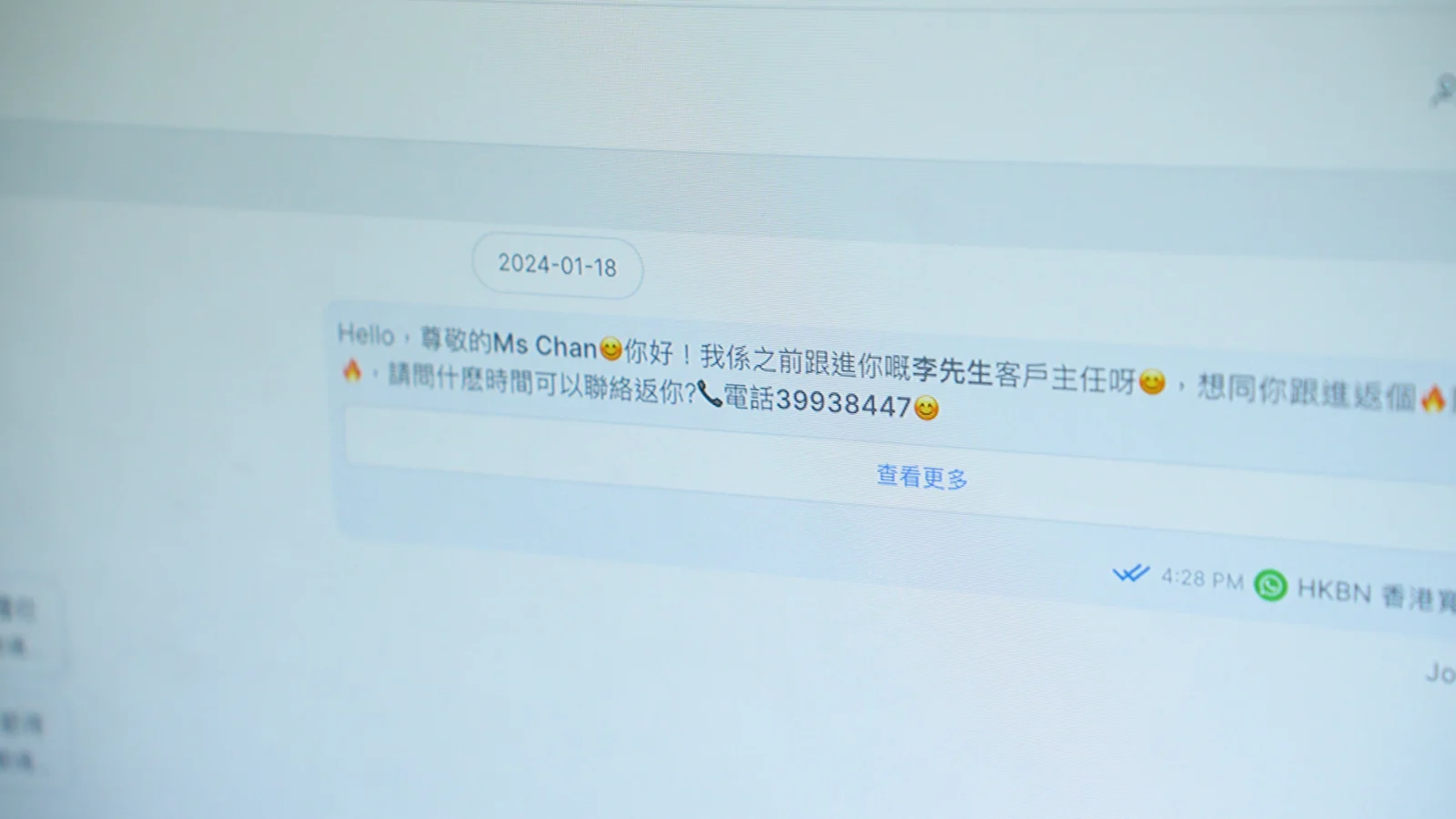
Hong Kong Broadband Network (HKBN), a leading integrated telecom and technology solutions provider, enables more than [100 customer service and sales representatives to manage customer conversations efficiently](/en-sg/customer-stories/hkbn) through a single WhatsApp API account. Instead of relying on rigid sales scripts, teams can engage in more natural, two-way conversations that strengthen customer relationships through personalised 1:1 interactions.
Because every conversation is backed by shared chat history and collaboration features, representatives can work together seamlessly without losing context. As a result, they achieved:
- **50% response rate**
- **35% conversion rate**
## **What features matter most when choosing a multi-user WhatsApp setup?**
The decision is not only about devices. It is about business readiness.
### **1. Clear ownership and collaboration**
A good setup should make it obvious who owns each conversation, who is helping, and what has already been done. Shared inboxes, assignment rules, collaborator access, and internal notes reduce duplicated or missed replies.
### **2. Routing and automation**
As inquiry volume grows, manual triage becomes expensive. Teams need [automatic routing](/en-sg/flow-builder) by language, team, source, branch, product line, or customer intent.
### **3. CRM and customer context**
[The Ultimate WhatsApp CRM guide: SleekFlow AI, Automated Workflows & HubSpot/Shopify Integration](https://www.youtube.com/watch?v=QZZchRq26ag)
If agents have to jump between tools, response quality suffers. CRM syncing helps teams see lead status, order details, deal stages, and history without switching tabs.
### **4. Reporting and accountability**
Decision-makers need more than inbox access. They need to know response time, workload distribution, peak conversation periods, and which conversations lead to revenue or resolution.
### **5. Security and access control**
Once several teams share access, permission control matters. Businesses should check role-based access, team-based access, masking for sensitive customer data, and connection security controls.
### **6. Omnichannel growth**
Many businesses outgrow a WhatsApp-only workflow. [A platform that also supports Instagram, Facebook Messenger, live chat, and other messaging channels ](/en-sg/inbox)can reduce tool sprawl and improve continuity across the customer journey.
## **How to set up WhatsApp Business multiple users on SleekFlow**
The exact setup depends on whether you are starting from the app or moving into the API, but the overall process is straightforward.
[How to use WhatsApp Business with multiple users](https://www.youtube.com/watch?v=tHhwrprhXbE)
### Team management
First of all, you can view all your teams, members, and team admins under the “[Team Management](https://docs.sleekflow.io/settings/team-management)” tab by accessing the “**Settings**” button on the top right.

If you want to create a new team, click on the “**Add Team**” button on the top right-hand corner of the screen.
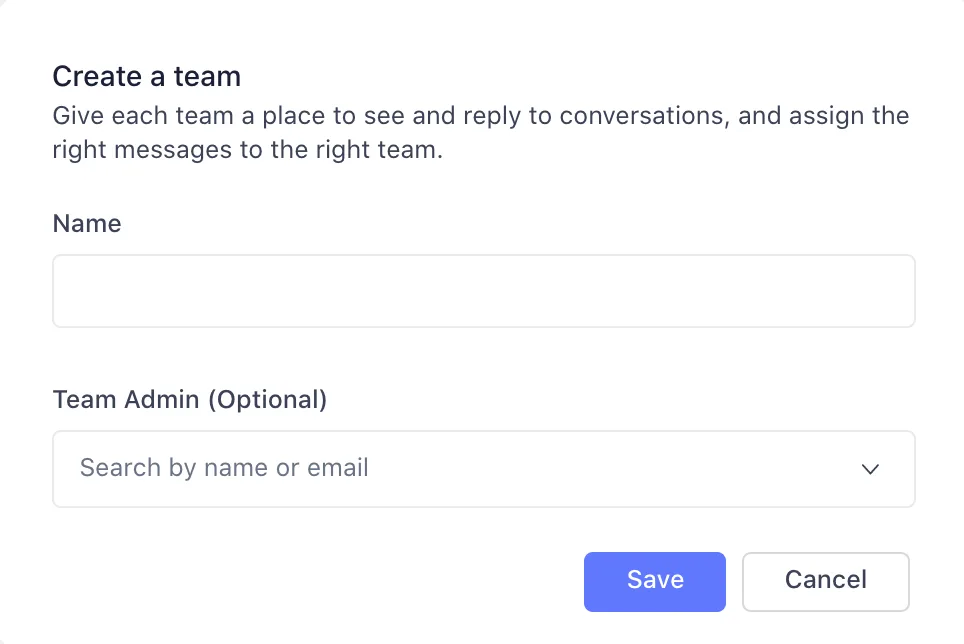
A popup to create a team will appear. Give the team a name and choose a team admin to create a new team. After pressing “**Save**”, the team will be created.
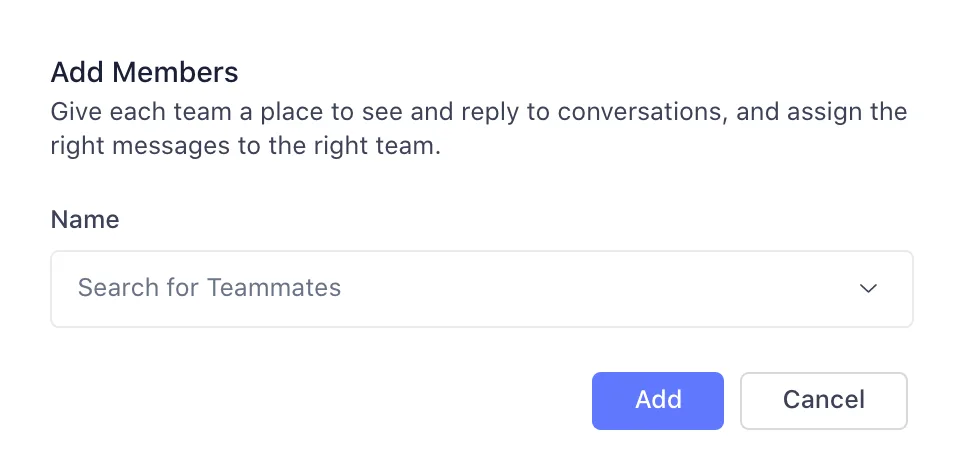
You can add members to your team by pressing the white “**Edit**” button while hovering over the teams.
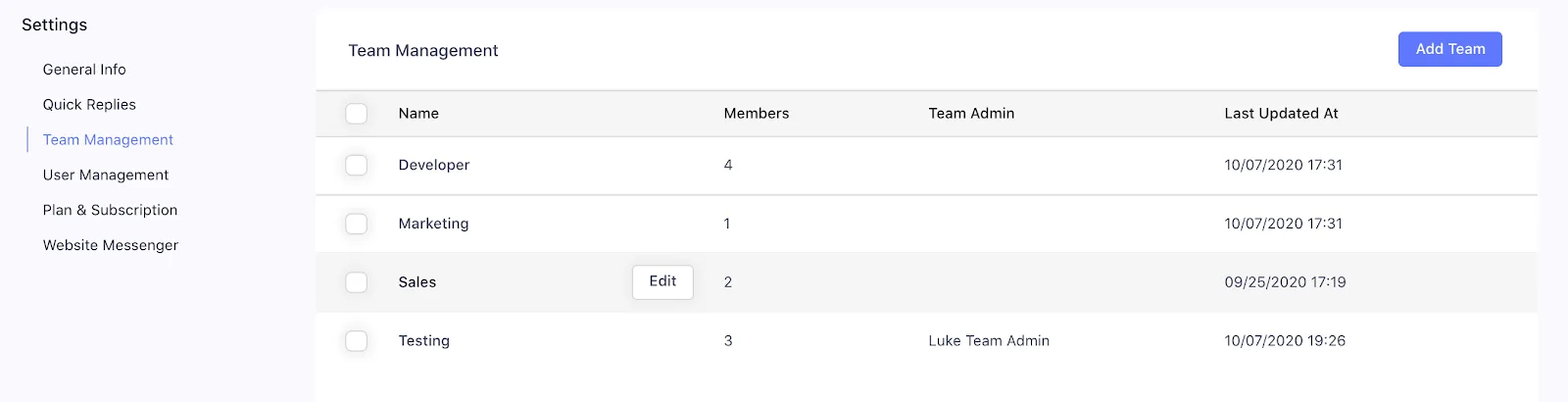
You can add members by pressing the “**Add Member**” button on the top right.

You can edit the group details by pressing the “**Edit**” button next to the “**Add Member**” button.
Select the teammates in the dropdown to add them to the team.
### The collaborator function
SleekFlow's collaborator function allows team members to co-own the conversation. As long as you are the collaborator, you will receive a notification whenever the customer sends you a message. This reduces the chance of overlooking any messages.
*See how the education center, *[*AfterSchool lets their teachers and tutor assistants co-own conversations*](/en-sg/customer-stories/afterschool-success-story)* with parents and students.*
### User management

View all your team members, along with their basic information and roles under the “[User Management](https://docs.sleekflow.io/settings/user-management)” tab by accessing the "**Settings**" button on the top right.
To invite a new user, click on the white “**+ Invite User**” button on the top right-hand corner of the screen.
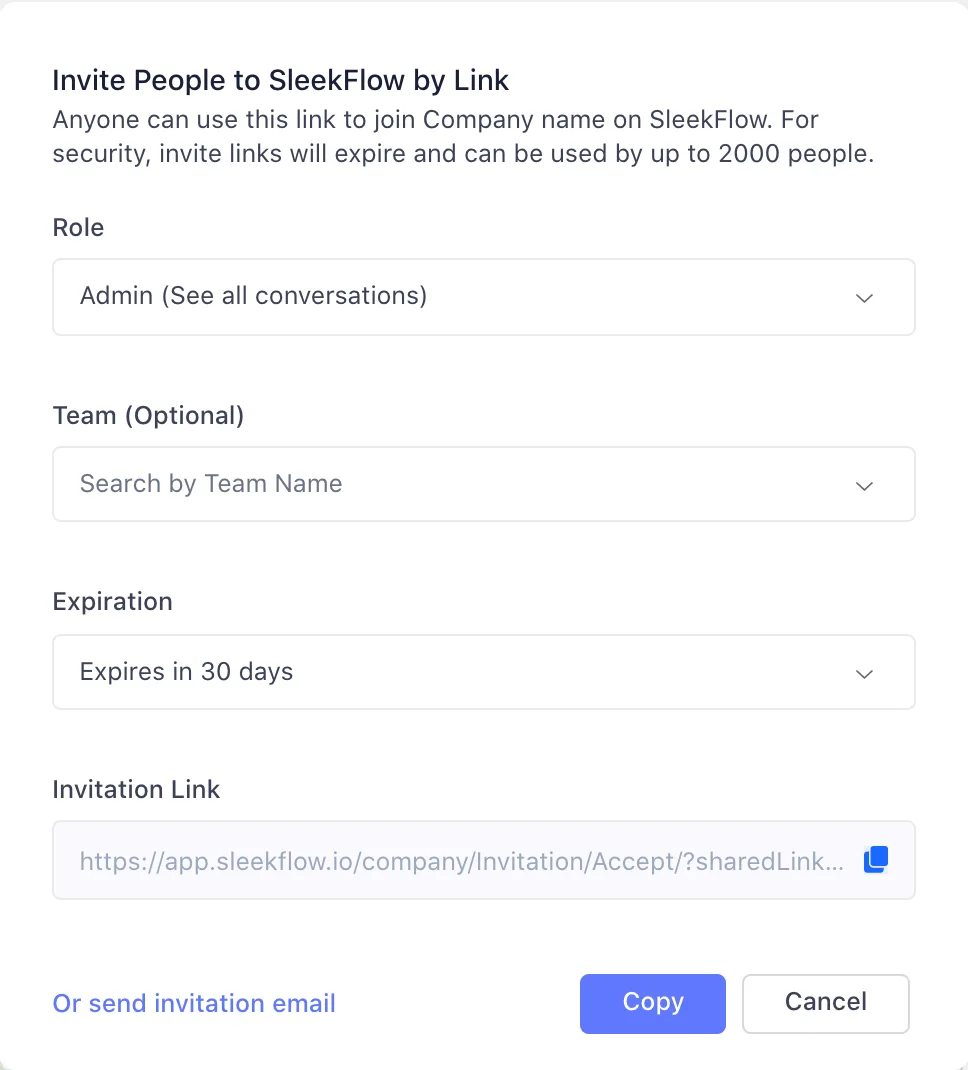
A popup to invite users will appear. Choose the correct role, select the expiration date and press the “**Copy**” button and paste the link for your team to register their accounts.
You can also press the bottom left of the pop-up to directly send an invitation email.
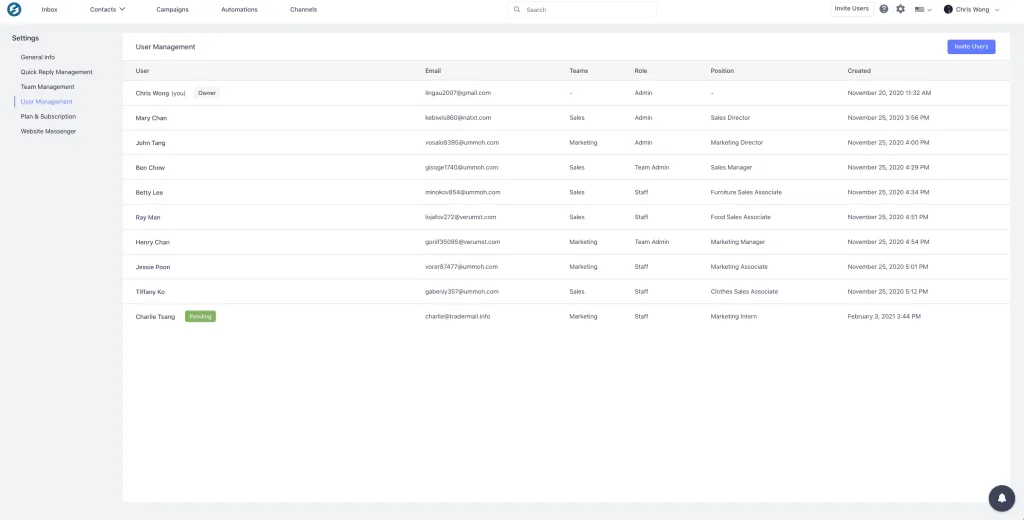
Once all fields have been filled in, click on the blue “**Send Invitations**” button at the bottom of the popup.
The new team member will be added to the list of users with a “**Pending**” tag. The “**Pending**” tag indicates that the team member has not accepted the invite and created an account on SleekFlow.
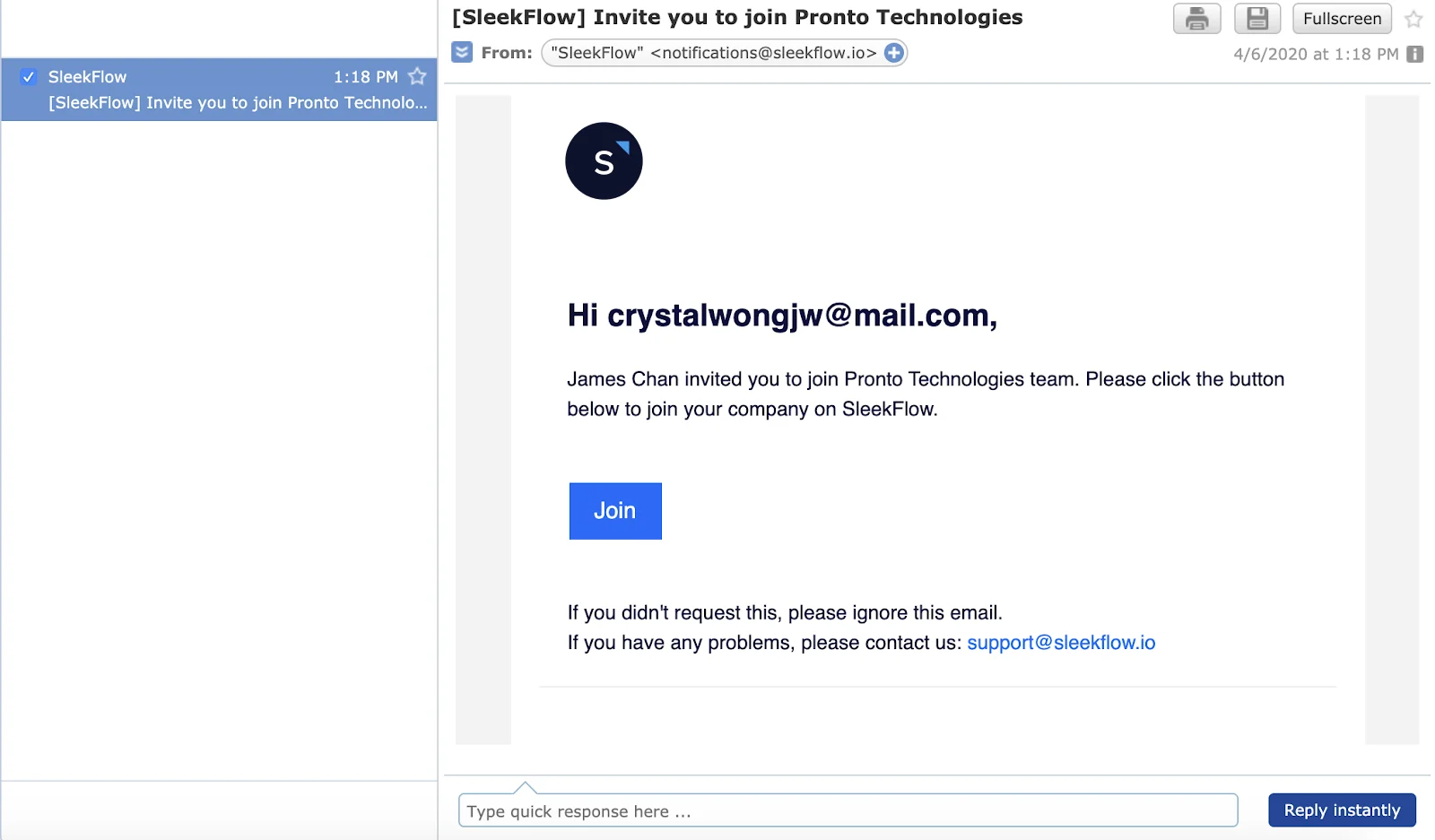
An email invite will be sent to the respective team members’ email inboxes. The invited team member should check both the email and junk or spam folders for the email invitation to join the team on SleekFlow. To join the team, simply click on the blue “**Join**” button in the email.
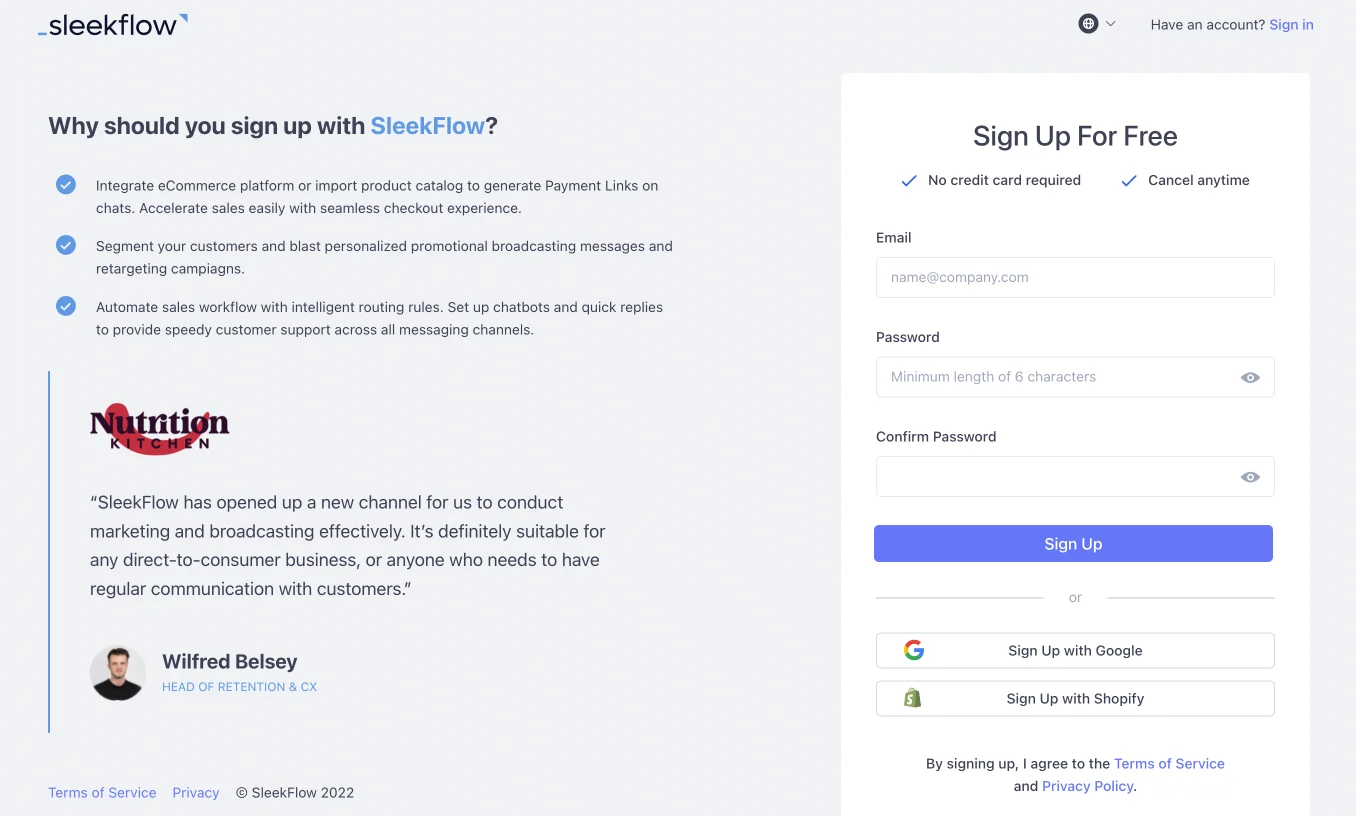
The new team member will be redirected to SleekFlow and will have to create a SleekFlow account in order to be added to the team. Fill in all the basic information and then click on the blue “**Join SleekFlow**” button at the bottom.
Once that is done, the new team member will be added to your list of users.
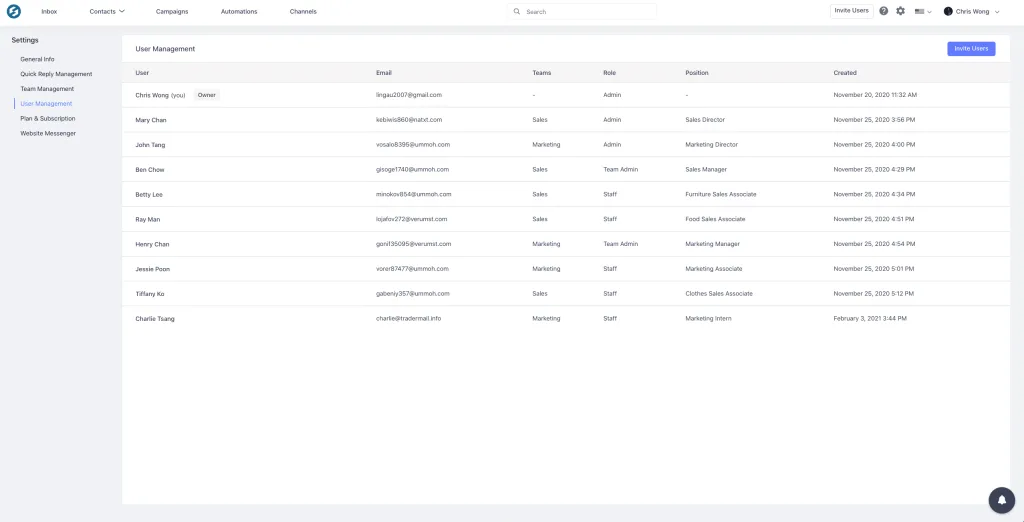
To edit a team member’s role and basic information, hover over the team member’s name and click on the “**Edit**” button.
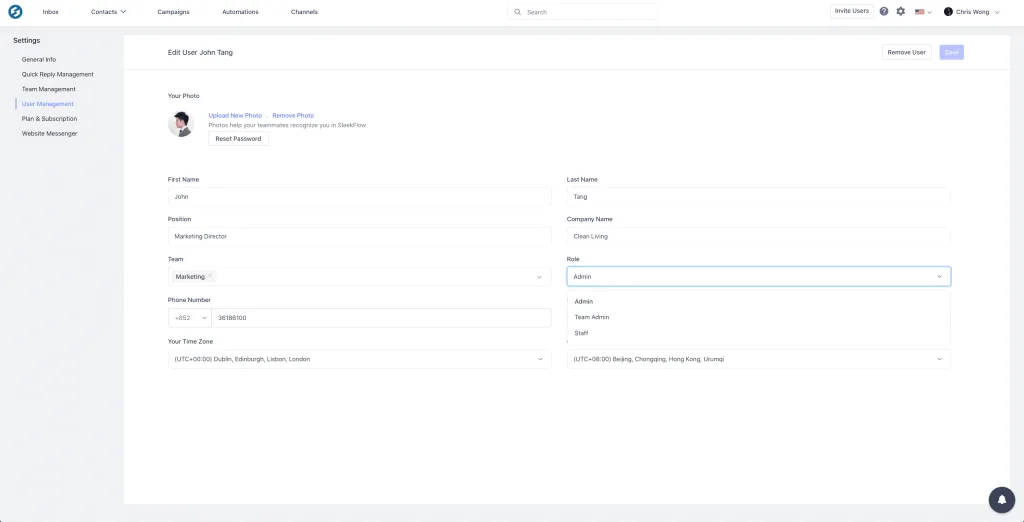
Make changes such as editing the team member’s profile picture, basic contact information, phone number, time zone, teams, and user roles.
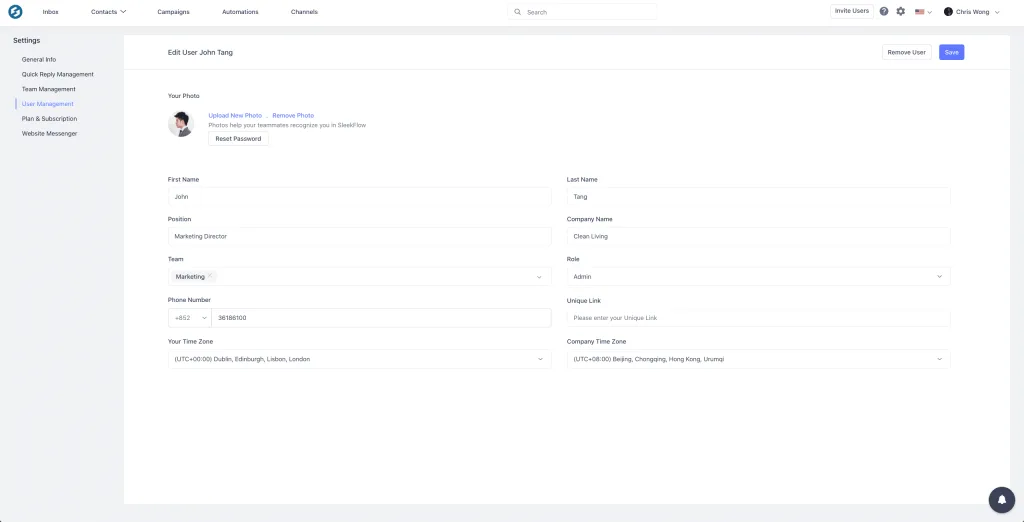
Once all edits have been completed, click on the blue “**Save**” button on the top right-hand corner of the screen.
## **Is SleekFlow the right choice for your team?**
SleekFlow is a strong fit for businesses that want WhatsApp to support multiple use cases.
If you only need simple replies from one or two people, the native app may still be enough. But if you want one platform for customer support, lead handling, broadcast campaigns, automation, CRM syncing, AI-assisted replies, and team collaboration, SleekFlow gives you more room to scale.
It is especially relevant for businesses that:
- Use WhatsApp across marketing, sales, and support.
- Need multiple teammates to work from one number without confusion.
- Want to centralize WhatsApp with Instagram, Messenger, live chat, and other channels.
- Need stronger governance and visibility as teams grow.
- Want to tie conversations more closely to pipeline, service, or revenue outcomes.
## Want to outcompete your peers with SleekFlow's help?
Book your personalised demo with SleekFlow today and unlock the potential of seamless communication
[Book a Demo](https://sleekflow.io/book-a-demo)
[View Pricing](https://sleekflow.io/pricing)
## Sitemap
See the full [sitemap](https://sleekflow.io/en-sg/sitemap.md) for all pages.