Guide to add WhatsApp Chat Button to any website


TL; DR: Quick Summary
- The WhatsApp chat widget is a floating button that allows website visitors to initiate direct conversations with a business, simplifying the inquiry process.
- You can easily install the widget by generating a unique snippet code through SleekFlow and pasting it into your website’s HTML, Google Tag Manager, or WordPress settings.
- Integrating WhatsApp allows businesses to continue conversations even after a lead has left the website, which improves sales conversions and helps recover abandoned shopping carts.
- By using automated AI chatbots and flow builders, you can provide instant support for FAQs and route complex inquiries to the right person 24/7.
As you browse a website, you may come across a floating widget at the lower corner of the screen. This widget typically appears as a WhatsApp chat icon or a button labeled with the name. It is a convenient communication tool that allows website visitors to initiate direct conversations with a business.
When you click on the widget:
A chat window will open.
You will be prompted to click on a ‘Chat with us’ button.
This button will then direct you to WhatsApp to start a conversation.
The WhatsApp chat widget is widely used by businesses to simplify the process of potential customers reaching out to them for assistance. However, some businesses don’t know how to embed WhatsApp chat in a website as they mistakenly believe that such integration demands technical and coding expertise.
In reality, many website-building platforms and content management systems offer free user-friendly plugins and WhatsApp website integration that make adding WhatsApp to a website as simple as a few clicks.
If you’re still wondering, “How to add WhatsApp live chat on my website”, you’ve landed at the right place.
How to add WhatsApp button to a website
SleekFlow’s WhatsApp chat widget is free and easy to access. Here’s how to install WhatsApp chat on a website:
Step 1: Create a WhatsApp chat widget
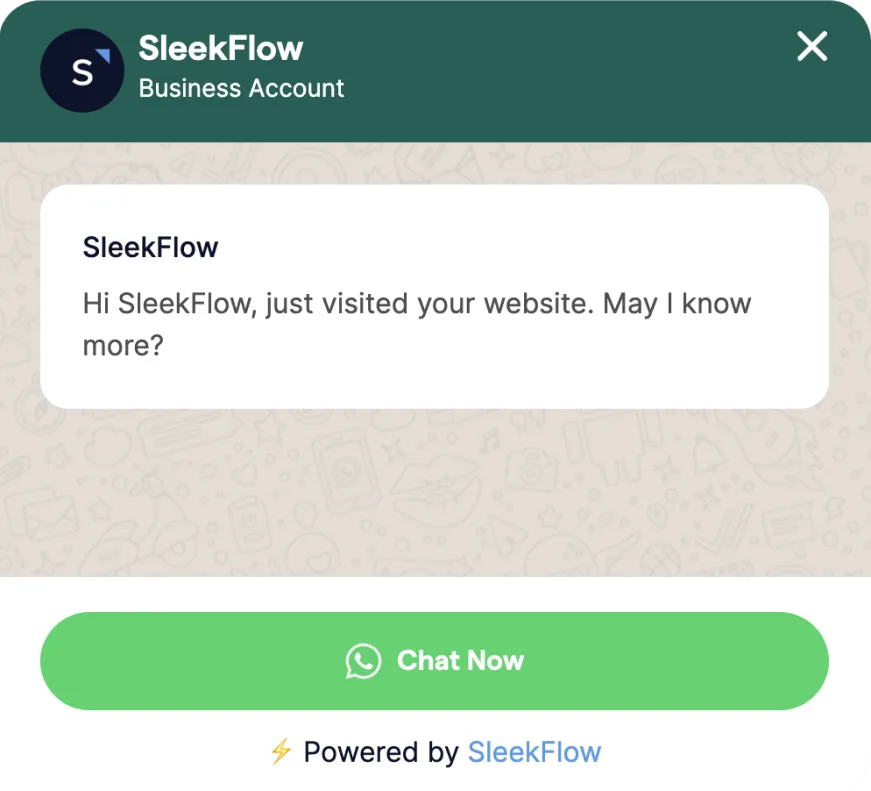
Creating a WhatsApp chat widget for your website typically involves using a third-party service such as SleekFlow or a tool that provides the necessary code and functionality. With SleekFlow, you can create your own WhatsApp widget by customizing the chat button and widget settings to match your brand.
Upon completing this process, you can search for a unique snippet code provided on the SleekFlow platform that will be used for the next step.
Step 2: Install the WhatsApp chat widget on your website
Depending on how your website was developed, you can consider these three options:
Option 1: Add unique snippet code to HTML
Look for your unique snippet code, then copy and paste it into your website’s HTML.
Paste it either before the </body> tag to make it visible on each selected page, or before the </header> or </footer> tags for all pages.
The widget should be visible in the bottom right corner of your website.
If your website is built on a third-party platform, the next option is more suitable for you.
Option 2: Google Tag Manager (GTM)
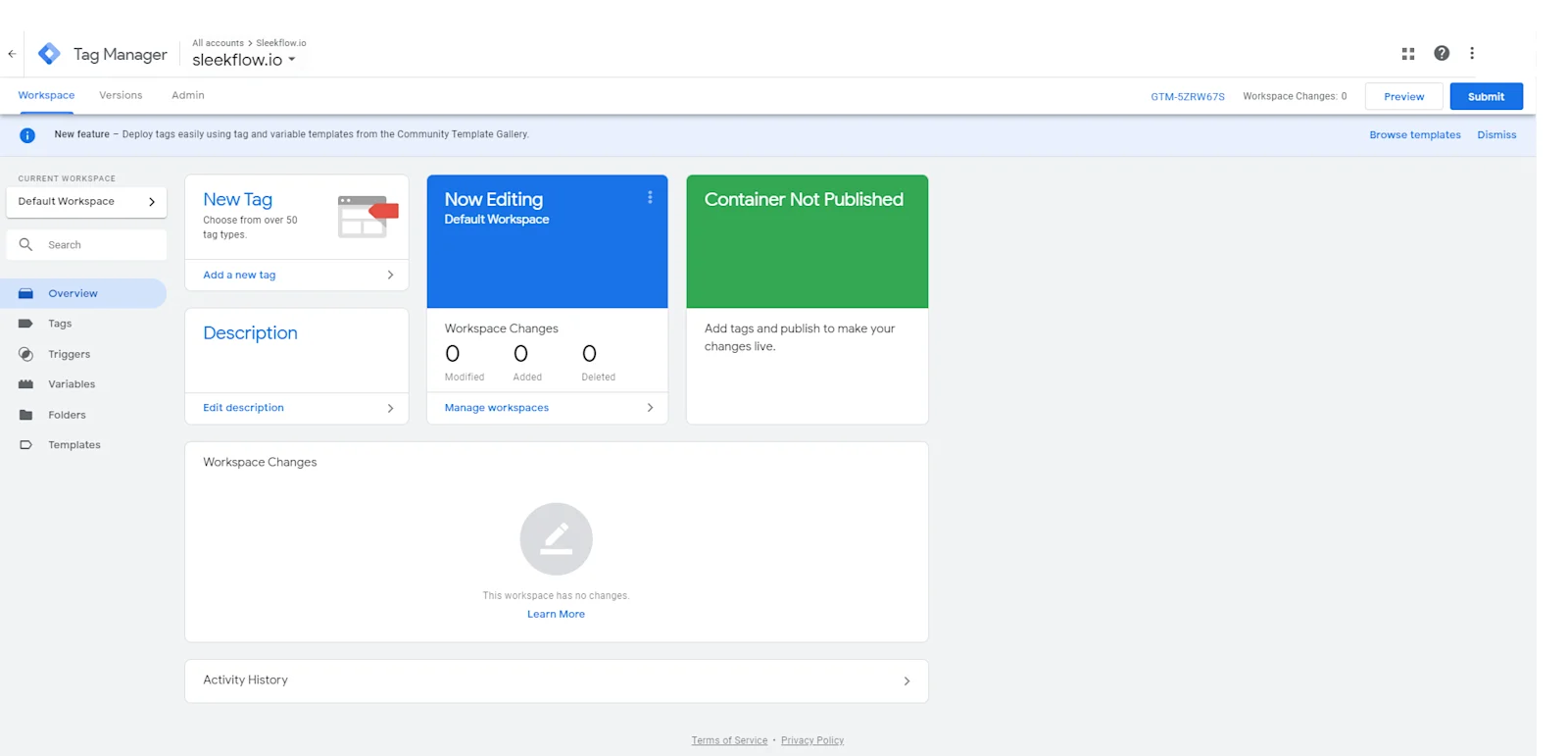
How to install live chat with Google Tag Manager:
1. Create an account on GTM
Enter your company name and country.
Select the "WEB" option.
Agree to the terms and conditions and click "YES."
2. Create a Tag
Click "Add a new tag" and name it (e.g., "Sleekflow widget Tag").
Click the edit pencil icon to edit the tag.
Choose "Custom HTML" for the tag type.
3. Add the Website Messenger Tracking Code
Search for the snippet code on the SleekFlow App, copy and paste it into the "HTML" block.
Click the "Triggering” or the pencil icon to set conditions for when the code should run.
4. Set Triggers for SleekFlow widget
Select the blank box next to "All Pages."
Click the blue "Add" button on the top right.
Click "Save."
5. Check and submit the Tag
Return to your GTM account page and check the SleekFlow tag.
Click the blue "Submit" button on the top right.
Your WhatsApp widget is now available on your website.
Option 3: WordPress website
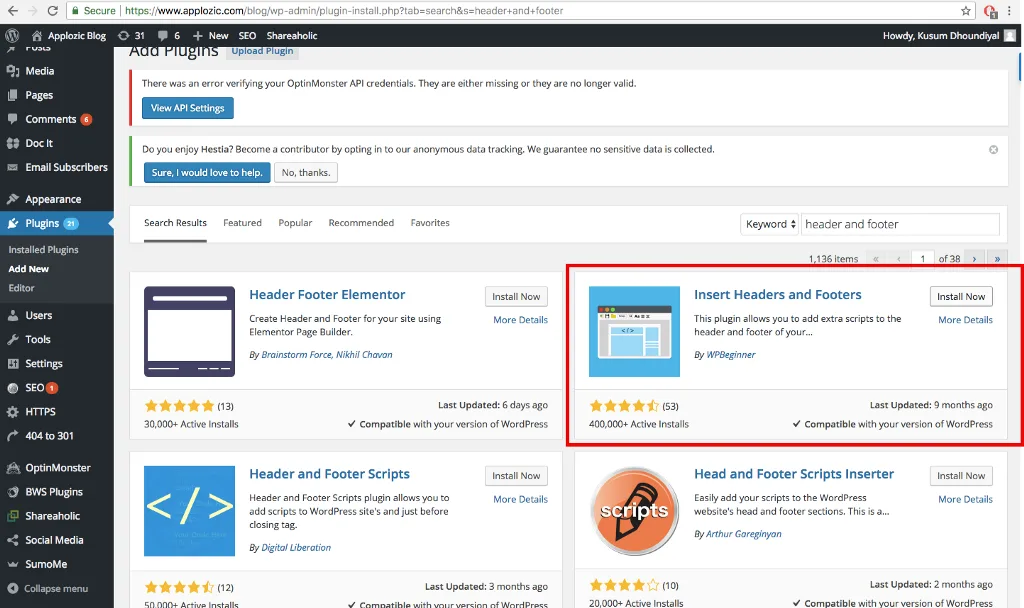
To complete this installation, you will need the SleekFlow tracking code and access to your WordPress Dashboard.
Below are the steps to integrate the WhatsApp widget into your WordPress website:
1. Log in to WordPress
Go to your website's WordPress admin dashboard.
Log in using your credentials.
2. Navigate to the Plugin Page
Click on "My Site" at the top left corner.
Then, click the "WP Admin" tab on the left.
3. Install the "Insert Headers and Footers" Plugin
In the left column, hover over "Plugins" and click "Add New."
Search for the "Insert Headers and Footers" plugin by WPBeginner.
Click "Install Now" and then "Activate" the plugin.
4. Open "Insert Headers and Footers" Settings
From the left menu, hover over "Settings."
Select the "Insert Headers and Footers" plugin from the submenu.
5. Add the Tracking Code
Find your unique snippet code on the SleekFlow platform.
Copy and paste the code into the "Script in Footer" section of the Header and Footer setting page.
Click the blue "Save" button at the bottom of the page.
6. Check the Chat Widget
Open your website to check the website messenger plugin; it should appear in the bottom-right corner.
Your website visitors can easily start chatting with your business.
Want to outcompete your peers with SleekFlow's help?
Book your personalised demo with SleekFlow today and unlock the potential of seamless communication
How to make full use of the WhatsApp chat widget
Now that we resolved the question: “How to add a WhatsApp live chat button on my website”, it’s time to look at ways to maximize the benefits of incorporating WhatsApp website integration. There are a few features that go well hand in hand with WhatsApp chat for business:
1. Apply for Meta verified badge
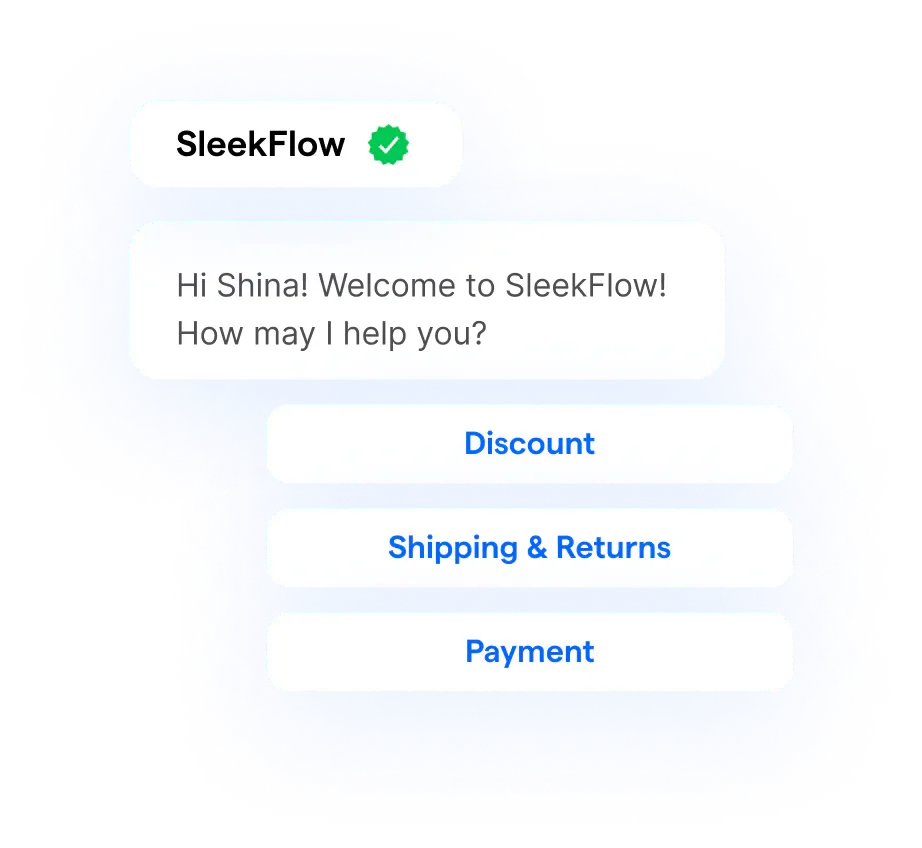
A verified badge on WhatsApp shows that Meta has verified the business account, which can help build trust and reduce the risk of impersonation.
A blue check on a WhatsApp Business account can help signal that:
the business has been verified by Meta
the account is more easily recognisable as an official business presence
customers can more confidently distinguish the business from imitators or scam accounts
For businesses, this can strengthen credibility and make customers feel more comfortable engaging on WhatsApp.
Talk to our team to get free support for your official WhatsApp Business blue tick verified application.
Discover how you can obtain WhatsApp’s blue tick badge on your profile.
2. WhatsApp chatbots
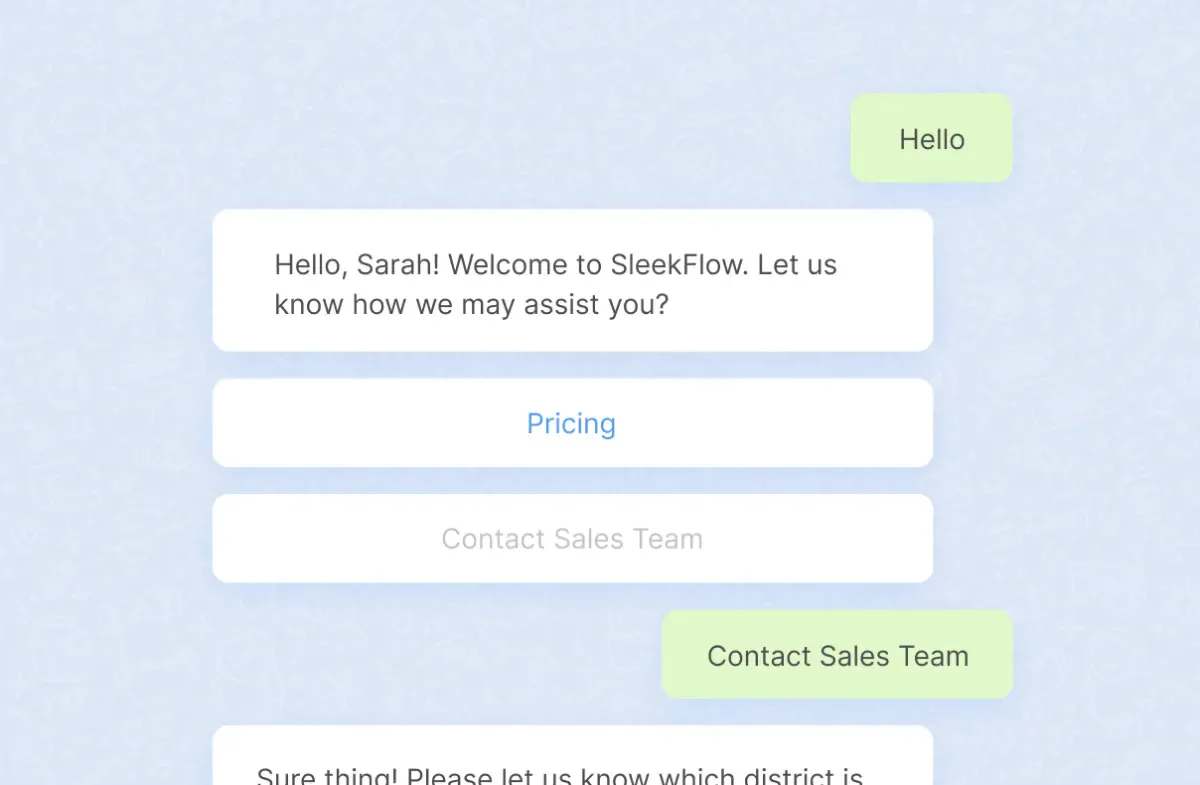
WhatsApp chatbots are automated programs that can respond to customer inquiries and perform predefined tasks. They are especially useful for:
Handling frequently asked questions
Providing immediate responses, even outside of business hours
Gathering initial information from customers
Transferring the conversation to a human agent for more complex or personalized assistance when needed
3. Flow builder for a smooth WhatsApp chat flow and work process
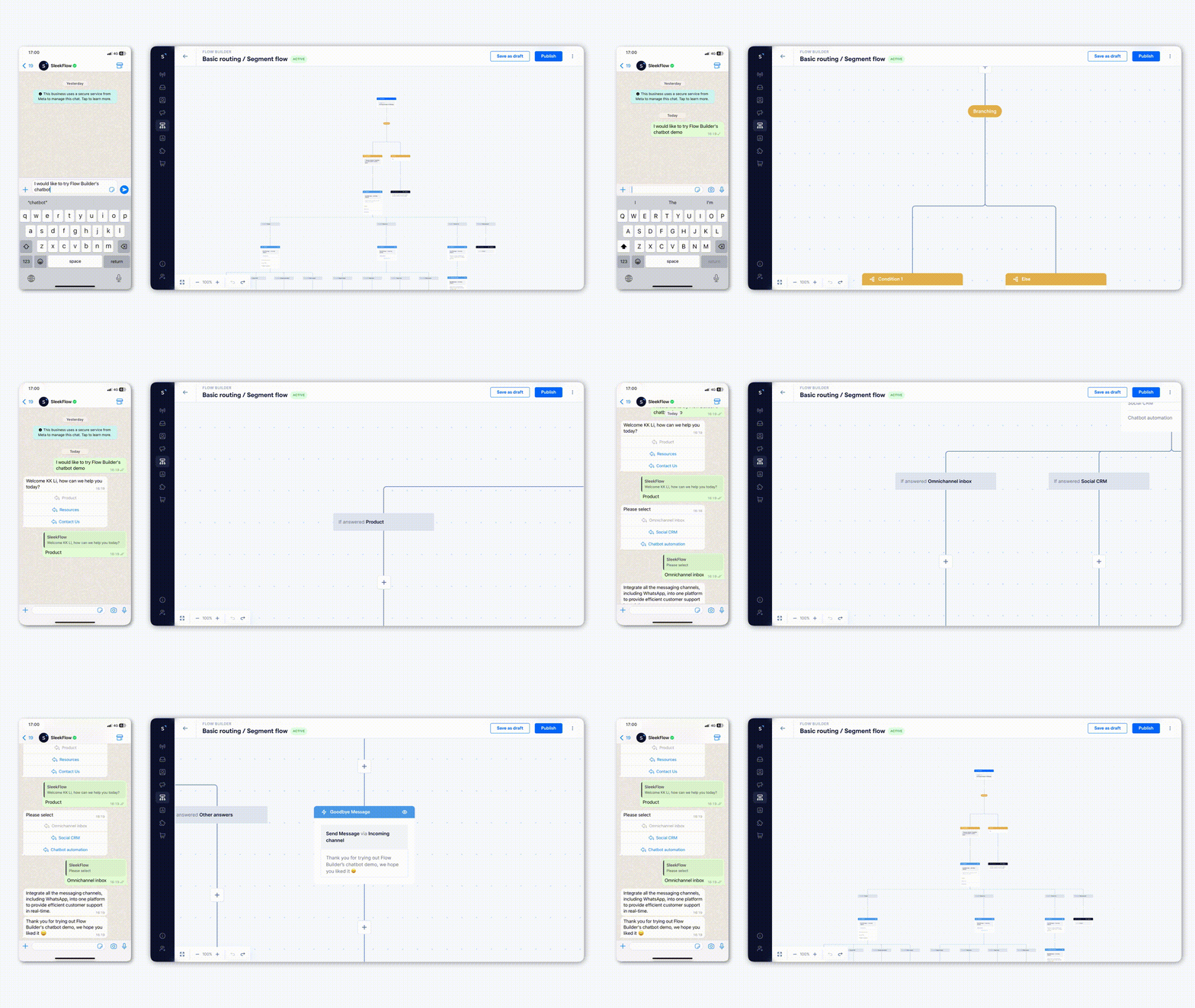
Trigger
This is the initial step in creating an automated workflow. A "trigger" is an event or specific action that starts the workflow. In this case, it could be a preset message coming in from the WhatsApp live chat for website.
Condition
Once the trigger event has occurred, you can customize how the workflow proceeds using conditions. Conditions are rules, criteria, keywords, or segments that help determine the workflow's path. For example, when a website visitor or a potential customer sends a message to you via the WhatsApp chat button for website, you can set conditions to route these messages differently based on:
Keywords (such as “price”)
Customer segments (such as “returning customer”)
Action
After determining the conditions and paths based on the trigger event and the set conditions, you move on to the action phase. In this phase, you specify the actions to take in response to the trigger and conditions. These actions could include:
Sending automated responses
Forwarding messages to specific team members
Updating customer records in external CRM systems
Performing other tasks
For instance, if the prospective customer is interested in the price of a limited-time promo, you can automatically send the catalog or assign the conversation to a human agent to ensure prompt responses.
4. Analytics and tracking
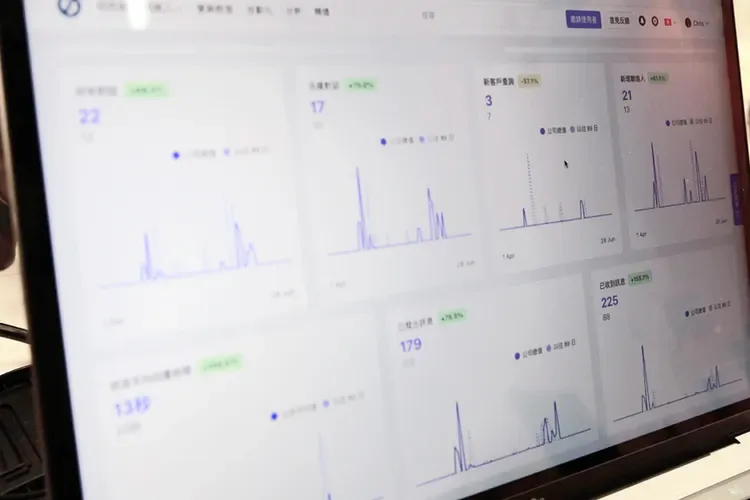
Utilizing analytics tools like Google Analytics or WhatsApp Business API analytics, businesses can gain insights into chat widget performance. They can track real-time metrics such as:
The website pages users are interested in
The number of chat sessions
Average response times
Popular interaction times
For instance, a sales team can target customers by understanding which product interests them based on how long users stayed on a page, while a customer support team can use these analytics to identify peak chat hours and allocate resources accordingly, ensuring faster responses during high-demand periods.
Benefits of using the WhatsApp widget for website
As users are familiar with the WhatsApp interface that they use on their mobile devices, the WhatsApp website integration offers many benefits for your business.
1. Improve sales and conversion
Unlike traditional live chat systems, WhatsApp Business chat on website allows you to continue conversations even after the customer leaves your website. This is valuable because:
Continuous Engagement: You can follow up with potential leads, answer lingering questions, and provide the extra information needed to close a sale.
Targeted Personalization: By tracking preferences and past interactions, you can offer tailored recommendations.
Research conducted shows that 71% of consumers expect personalized service from companies. Providing this level of personalization can significantly boost conversion rates, as customers are more likely to make a purchase when they feel understood and valued.
Pearl Holiday Travel & Tour boosts lead generation with SleekFlow’s WhatsApp Widget
Pearl Holiday Travel & Tour is a travel agency that traditionally relied on static website forms. However, they realized that modern travelers preferred the speed of instant messaging.
The agency faced constant account blocking when using free messaging apps. They also found it difficult to capture leads quickly during the chaos of physical travel fairs.
They integrated SleekFlow’s WhatsApp Widget on their site. The agency also implemented QR codes at events and automated chat flows to qualify leads and route them to agents instantly.
A 90% delivery rate
Nearly 2,000 new leads
A massive 80% reply rate
2. Instant customer support
WhatsApp chat rooms remain accessible as long as the customer doesn't delete them. This provides several benefits for both businesses and customers:
Customers can easily contact your business again with any queries or issues, even if they return to your website later.
WhatsApp retains chat history, allowing you to access previous conversations and customer details. This helps provide instant support without having to repeat basic questions.
While 57% of consumers said they would abandon their shopping cart if they did not receive an immediate response to their queries, quick, efficient assistance can improve customer retention.
How Preface Enhanced Customer Engagement with SleekFlow's WhatsApp Buttons
Preface, a global education company, needed a way to manage a high volume of inquiries. Their existing system couldn't scale with their lead generation and customer support needs.
This system created inefficient handling of customer conversations. As a result, potential leads were lost, and marketing efforts, such as email campaigns, were not reaching their full potential.
Preface used "Ask Us on WhatsApp" buttons on their website for chatbots. They also adopted SleekFlow's shared inbox, which automatically routes inquiries to the correct department.
Preface doubled their capacity to handle inquiries without hiring additional staff.
By switching to WhatsApp for marketing broadcasts, campaign open rates skyrocketed to 70-80%.
3. Reduce cart abandonment
Cart abandonment is a common challenge in e-commerce. With WhatsApp website integration, you can re-engage customers who have abandoned their carts. You can:
Automate reminders at the most appropriate time using a flow builder.
Offer incentives such as promotional codes or discounts.
Encourage customers to complete their purchases and recover lost sales.
4. Multi-language support
Businesses that target a global audience can configure the WhatsApp chat on website to offer multi-language support. For instance, an e-commerce website might offer users the option to select their preferred language when initiating a chat. Using the flow builder to label the customer segment, as mentioned previously, will allow customers from different regions to comfortably interact with your business in their native languages, ultimately improving user experience and customer satisfaction.
5. Deploy AI gents
Instead of using one generalist bot for your WhatsApp chat widget, deploy a team of specialized AI agents. You can assign roles such as Lead Qualification, Customer Support, or Revenue Operations, and route queries to the right agent based on user intent. This ensures sales opportunities and technical issues are handled by the appropriate specialist.
Qualify leads instantly: Configure a "Lead Qualification" agent to engage immediately when a user opens the widget. This agent can autonomously score prospects based on their engagement and intent, filtering out low-quality leads before they reach your team.
Execute tasks autonomously: Enable agents to perform complex actions directly in the chat, such as scheduling meetings, recommending products, or updating your CRM. This goes beyond simply collecting contact details for a later follow-up.
Train agents on your data: Upload your own PDFs, URLs, and policy documents to create a custom knowledge base. Linking this data to your agents ensures every automated response is accurate and specific to your business.
Ensure seamless human handoffs: Use a "Flow Builder" to set triggers for when a conversation should move from AI to a human agent, such as for a high-value deal or a frustrated customer. The widget will transfer the full chat history, so your team can step in with complete context.
Ensure your automation complies with the WhatsApp Business Messaging Policy, including customer opt‑in requirements and the use of templates when necessary.
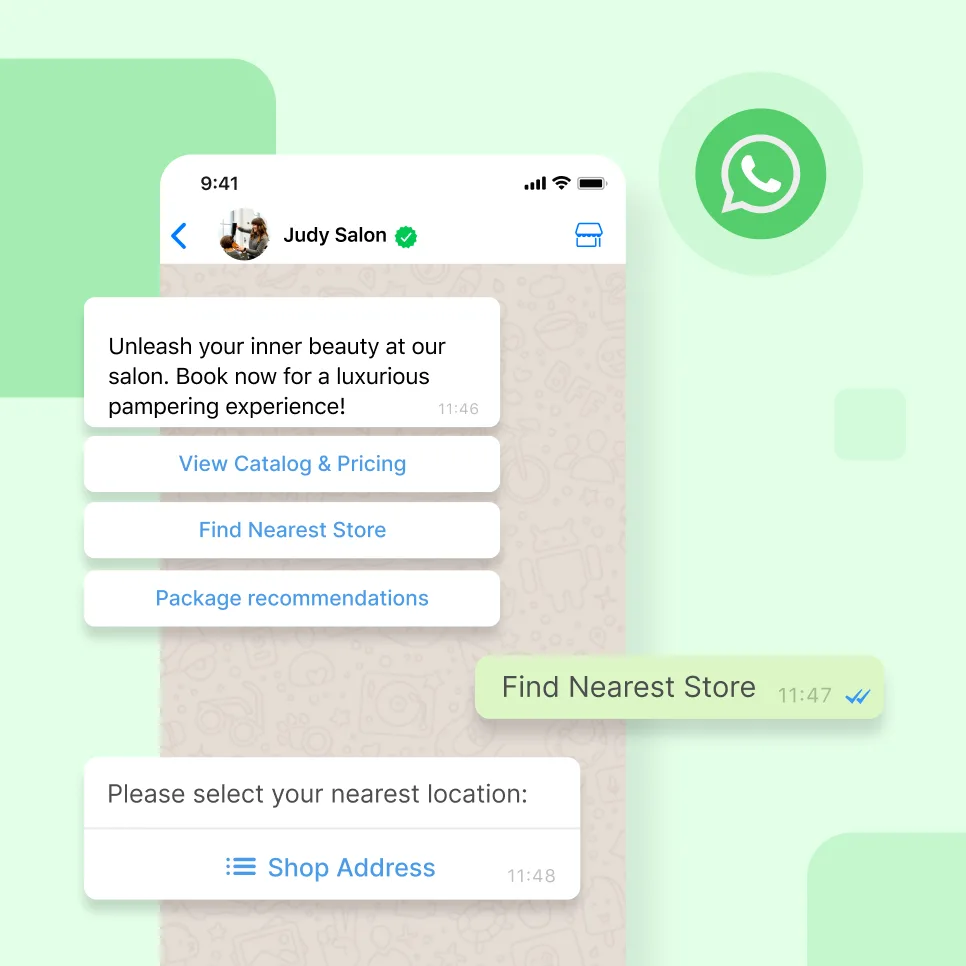
Connect to WhatsApp Business API now!
Connect to WhatsApp Business API and unlock powerful tools to engage your audience.
Alternatives for starting a WhatsApp chat from your website
If you’re looking for other entry points for customers to initiate a WhatsApp chat from your website or thinking about how to add a WhatsApp chat link to your e-commerce store, here’s what you can do:
1. WhatsApp chat link on website
One of the simplest ways to add WhatsApp chat to your website is by using WhatsApp links. This method involves creating a link that will open a WhatsApp chat when clicked. Here’s how it works:
Generate WhatsApp link: You can generate a WhatsApp URL by using a specific format, such as https://wa.me/phone-number, or open your WhatsApp Business App and go to Settings > Business Tools > Short Link. You can also use our free WhatsApp link generator.
Adding the link to your website: Once you’ve generated the WhatsApp link, you can hyperlink a keyword like ‘Chat with WhatsApp’ or phone number on your website footer or ‘Contact Us’ page.
While this method is straightforward, it may not be ideal if your website has many pages. Adding links to different pages can become cumbersome and appear cluttered to visitors.
2. WhatsApp QR code
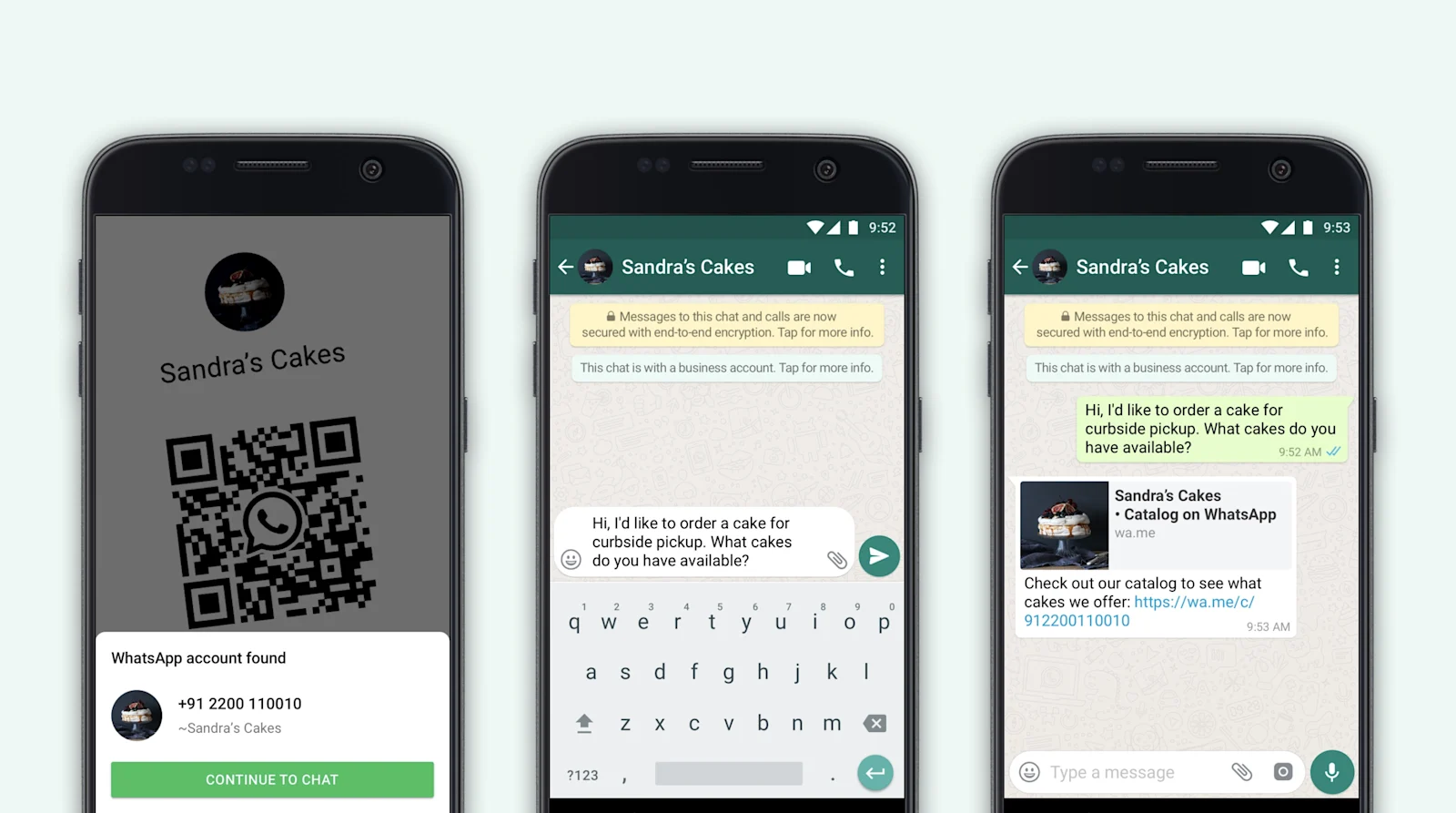
Another creative way for users to start a WhatsApp chat on website is by using QR codes. Here’s how you can do it:
Generate WhatsApp code: Open your WhatsApp Business App, go to ‘More Options’ > ‘Settings’, and tap on the green QR icon next to your business account name. Once generated, you can download the QR code image. Alternatively, you can use our free WhatsApp QR code generator.
Display the QR code: You can prominently display the WhatsApp QR code on your website, product packaging, business cards, or marketing materials. When users scan the QR code with their smartphones, it will open a chat with your business on WhatsApp.
Best practices for high-converting chat buttons
To maximize the ROI of your WhatsApp button, follow these industry-standard optimization rules:
Strategic placement: Stick to the bottom-right corner—it’s where users instinctively look for help.
Compelling CTA: Instead of a generic "Chat," use "Get a Quote" or "Talk to a Stylist" to set clear expectations.
Pre-filled messages: Save users time by setting a default opening line, like: "Hi! I’m interested in your [Product Name]—can you help?"
Set response expectations: Use the widget’s "online/offline" status or an automated greeting to tell users when your team will be back.


