How to add a WhatsApp chat button to your website


TL; DR: Quick Summary
- A WhatsApp chat button is a floating widget that lets website visitors start a conversation with your business instantly, reducing friction compared with traditional contact forms.
- You can add a WhatsApp chat button to your website by generating a unique snippet code in SleekFlow and installing it through HTML, Google Tag Manager, or WordPress.
- Businesses use WhatsApp chat buttons to capture more inbound enquiries, respond faster, and continue conversations after visitors leave the website.
- For more advanced use cases, a WhatsApp widget can also support features like pre-filled messages, routing, branding, and automation to improve the customer experience.
A WhatsApp chat button lets website visitors start a conversation with your business in just a few clicks. Instead of filling in a form and waiting for a reply, they can message your team directly through WhatsApp from the page they are already browsing.
For businesses, that means fewer drop-offs, faster lead response, and a more convenient path from inquiry to conversion.
In this guide, you’ll learn:
the difference between a WhatsApp link, button, and widget
how to add a WhatsApp chat button to your website
how to install it on HTML, Google Tag Manager, and WordPress
best practices to improve conversions after setup
WhatsApp link vs button vs widget
Before setup, it helps to choose the right format.
WhatsApp link
A WhatsApp link is the simplest option. It opens a WhatsApp conversation when someone clicks a text link, image, or button on your site.
This works well for contact pages, footers, and simple landing pages. It is quick to add, but it is less visible than a floating chat button.
WhatsApp chat button
A WhatsApp chat button is usually a floating button that stays visible while visitors browse your site. It gives users a clear and convenient way to message your business from any page.
This is the best option if your goal is to capture more website conversations without redesigning your page layout.
WhatsApp widget
A WhatsApp widget goes one step further. In addition to the chat button, it may include branding, welcome text, pre-filled messages, routing, and automation features.
This is the better fit for businesses that want more control over how chats start and where they go after a visitor clicks.
Why businesses add a WhatsApp chat button to their website
A website visitor may be ready to ask about pricing, product availability, delivery, or support, but not ready to fill in a long form. A WhatsApp chat button reduces that friction.
It can help businesses:
respond to pre-sales questions faster
continue conversations after visitors leave the website
route inquiries to the right team
support customers on a channel they already use daily
Pearl Holiday Travel & Tour boosts lead generation with SleekFlow’s WhatsApp Widget
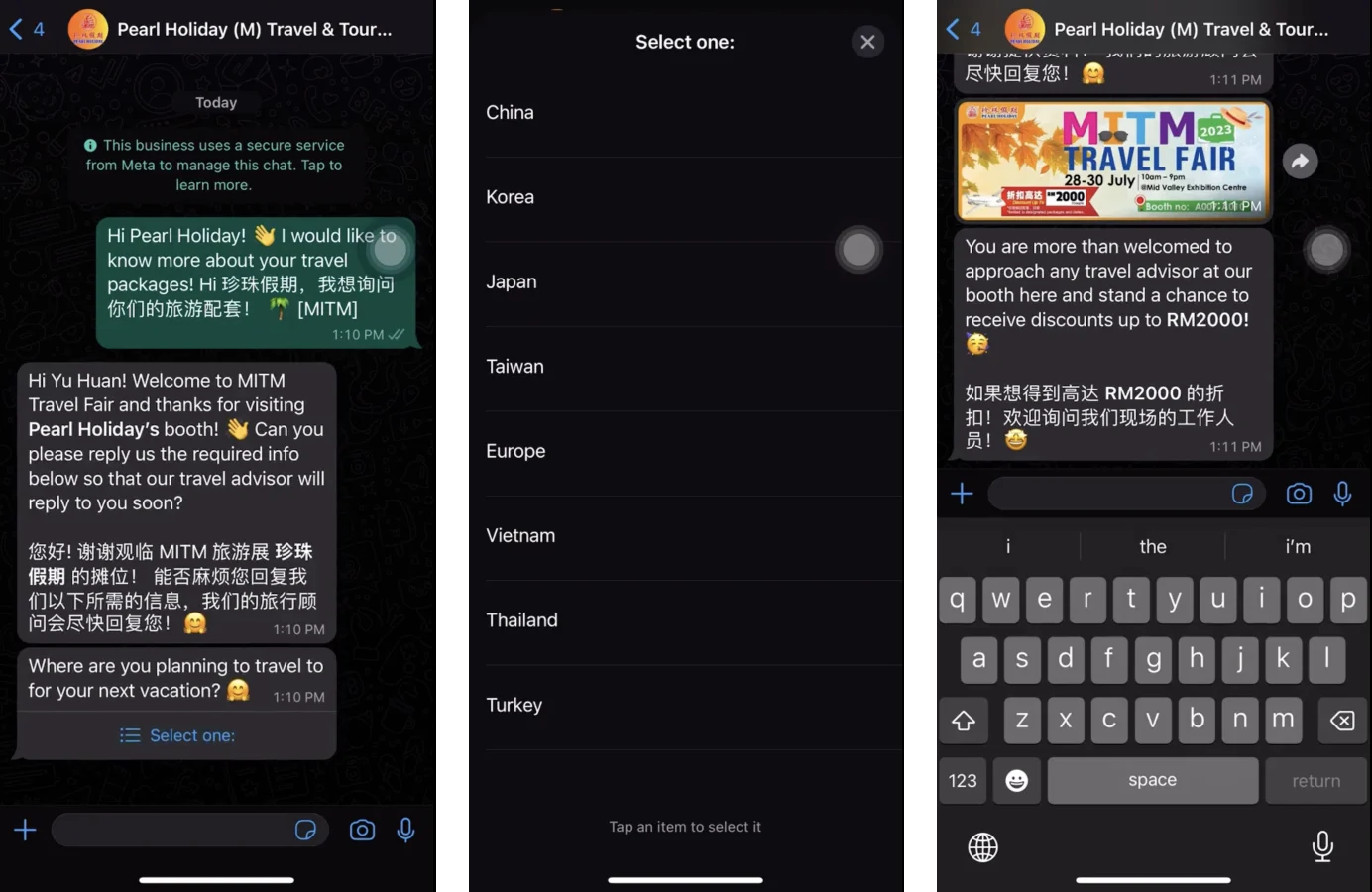
Pearl Holiday Travel & Tour is a travel agency that traditionally relied on static website forms. However, they realized that modern travelers preferred the speed of instant messaging. They integrated SleekFlow’s WhatsApp Widget on their site and automated chat flows to qualify leads and route them to agents instantly. Here are their results:
A 90% delivery rate
Nearly 2,000 new leads
A massive 80% reply rate
What you need before you start
Before adding a WhatsApp chat button, make sure you have:
a WhatsApp Business account or WhatsApp Business API setup
the phone number you want customers to message
access to your website code, tag manager, or CMS
a clear owner for inbound conversations on the business side
If you want a more branded setup, use a widget builder that lets you customise the button and generate the install code.
How to add a WhatsApp chat button to a website
SleekFlow’s WhatsApp chat widget is free and easy to access. Here’s how to install WhatsApp chat on a website:
Option 1: Add a simple WhatsApp click-to-chat link
This is the fastest method.
Create a WhatsApp link with your business number in international format: https://wa.me/ followed by your full number with the country code, without the plus sign, spaces, or dashes. For a Singapore number, that looks like https://wa.me/65XXXXXXXX. To add a pre-filled message, put ?text= after the number, followed by your message with each space written as %20. You can also create the link with our free WhatsApp link generator.
Then add the link to a text CTA, image, or button. To turn it into a floating button without any tool, paste this code just before the closing </body> tag, then replace the number and message:
<a href="https://wa.me/65XXXXXXXX?text=Hi%2C%20I%27d%20like%20to%20know%20more"
target="_blank" rel="noopener"
aria-label="Chat with us on WhatsApp"
style="position:fixed; bottom:20px; right:20px; z-index:9999;
background:#25D366; color:#fff; padding:12px 18px;
border-radius:30px; font:16px/1.2 Arial, sans-serif;
text-decoration:none; box-shadow:0 2px 8px rgba(0,0,0,.2);">
Chat on WhatsApp
</a>
This button opens WhatsApp, but it doesn't add a welcome message, team routing, or a shared inbox. For those, use Option 2.
This approach is useful when you want a lightweight setup on a contact page or landing page.
Best for:
basic websites
contact pages
campaign landing pages
businesses that do not need a floating widget
Option 2: Add a WhatsApp chat widget
A widget is the stronger option for most businesses because it stays visible across the site and creates a more seamless experience.
With SleekFlow, you can create a WhatsApp widget, customise its appearance, and generate a snippet code to install on your website.
Here is how you do it in SleekFlow:
Step 1: generate a snippet code
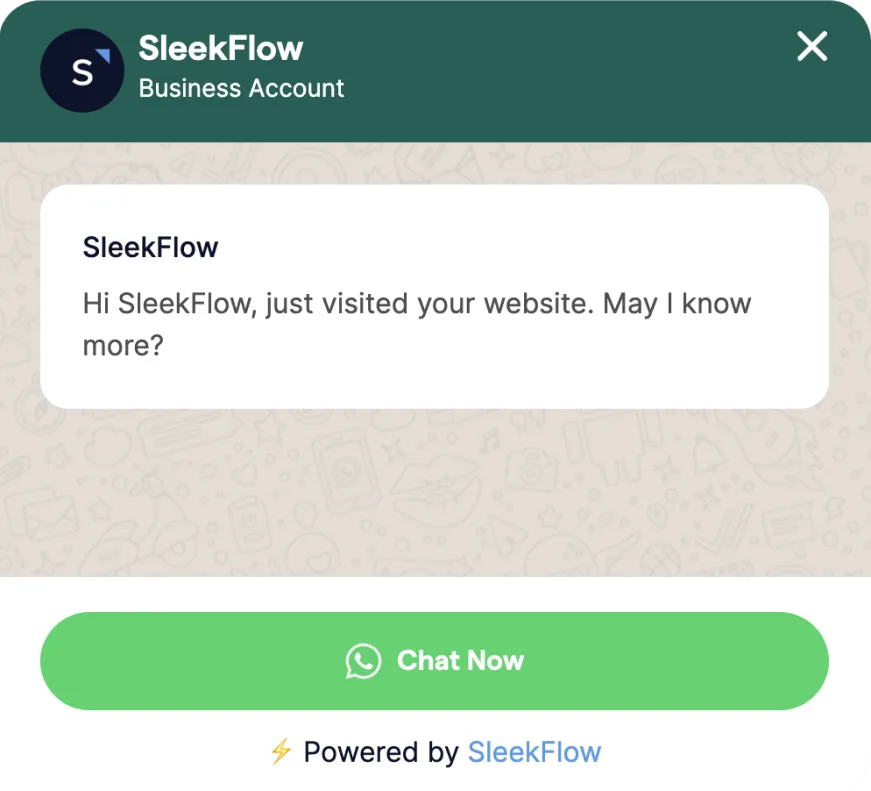
Open SleekFlow's free WhatsApp button generator and customise your button: its name, size, and position, plus your brand name, phone number, welcome message, pre-filled message, and call to action.
Enter your business email, then click Get Your Free WhatsApp Button to get your snippet code. The free button shows a small "Powered by SleekFlow AI" label, and premium plans can remove it.
Step 2: Install the WhatsApp chat widget on your website
Depending on how your website was developed, the method of installation will be different. Here are three different options:
Option 1: Add the button to a HTML website
Copy the snippet code the button generator gives you.
Paste it just before the closing </body> tag. To show the button on every page, add it to the template or include file all your pages share, such as your site footer. To show it on selected pages only, paste it into those pages.
Save, publish, and reload your site. The button appears in the corner you chose in the generator.
This is the best option when:
You manage the site code directly
You want precise control over placement
You do not use a CMS or tag manager
If your website is built on a third-party platform, the next option is more suitable for you.
Option 2: Google Tag Manager (GTM)
If your site uses Google Tag Manager, you can install the widget without editing the source code directly.
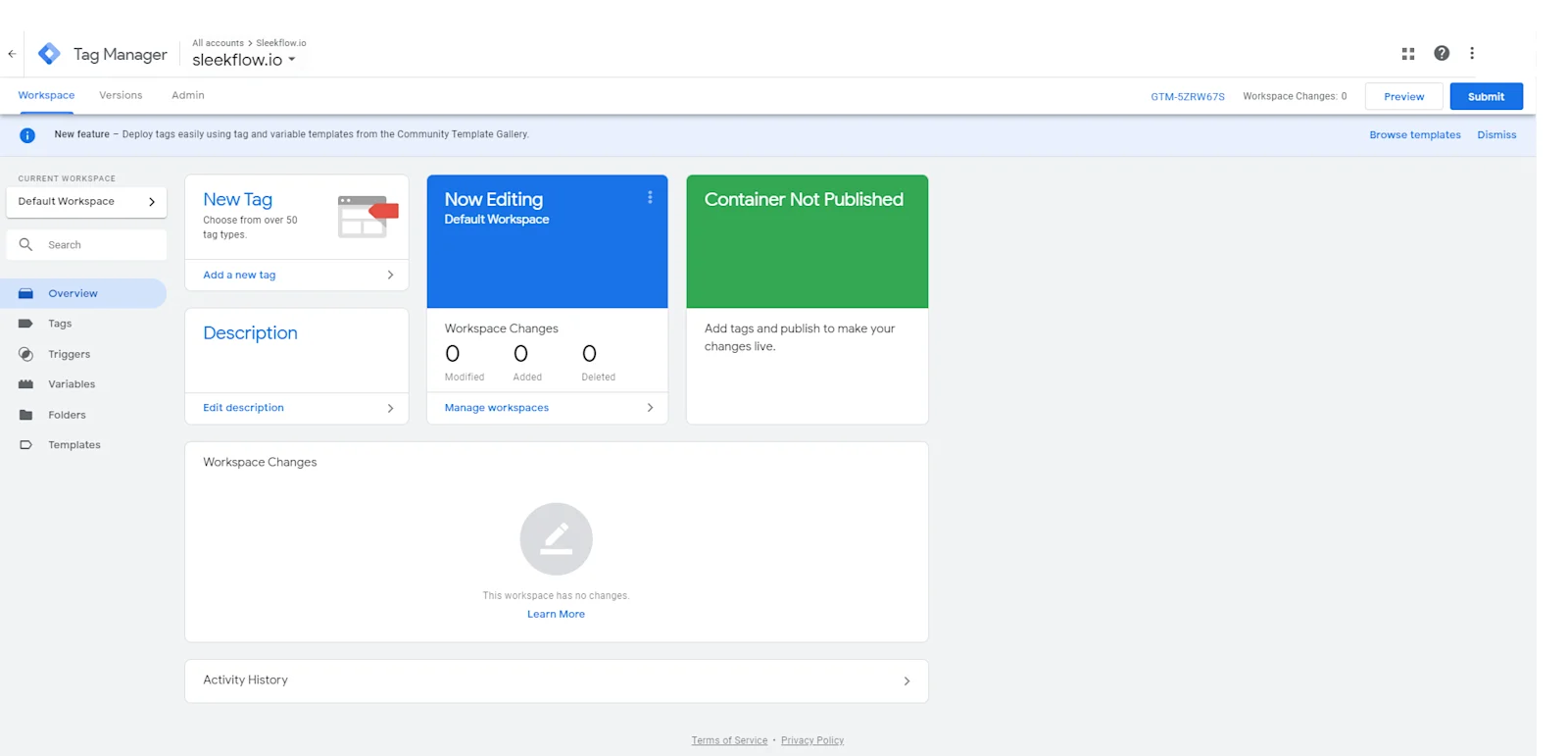
How to install a WhatsApp chat button with Google Tag Manager:
1. Create an account on GTM
Enter your company name and country.
Select the "WEB" option.
Agree to the terms and conditions and click "YES."
2. Create a Tag
Click "Add a new tag" and name it (e.g., "Sleekflow widget Tag").
Click the edit pencil icon to edit the tag.
Choose "Custom HTML" for the tag type.
3. Add the Website Messenger Tracking Code
Paste your snippet code from the button generator into the HTML box.
Click the "Triggering” or the pencil icon to set conditions for when the code should run.
4. Set Triggers for SleekFlow widget
Select the blank box next to "All Pages."
Click the blue "Add" button on the top right.
Click "Save."
5. Check and submit the Tag
Click Submit at the top right of your workspace.
Add a version name, such as "WhatsApp button", then click Publish.
Open your website and check that the button appears.
Option 3: Adding the button to a WordPress website
For WordPress websites, the easiest way is to place the widget code in the site header or footer through a code insertion plugin or theme setting.
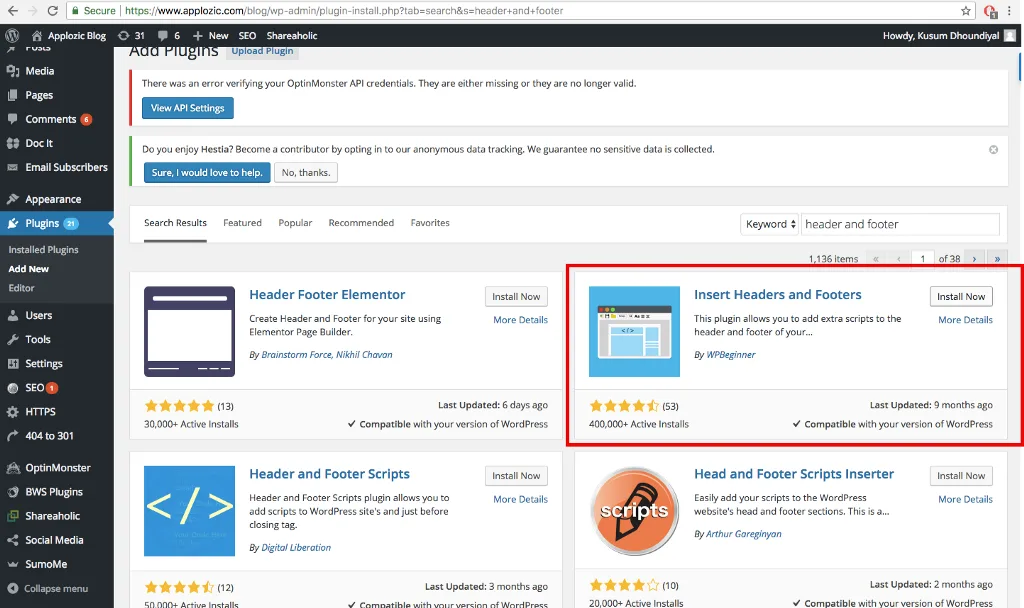
Below are the steps to integrate the WhatsApp widget into your WordPress website:
Log in to your WordPress admin dashboard.
Install the WPCode plugin. Go to Plugins, then Add New, search for "WPCode" (formerly Insert Headers and Footers), then click Install Now and Activate.
Open Code Snippets, then Header & Footer.
Paste your snippet code into the Footer box, then click Save Changes.
Open your website and check that the button appears in the corner you chose.
These steps are for self-hosted WordPress. On WordPress.com, plugin access depends on your plan.
How to check that your WhatsApp button works
Once installed, test the button before sending traffic to the page.
Make sure:
the button appears on the correct pages
the button is visible on both desktop and mobile
it opens the correct WhatsApp number
the pre-filled message, if used, displays correctly
the chat reaches the right inbox or team
Also test during and outside business hours if you use routing or automation.
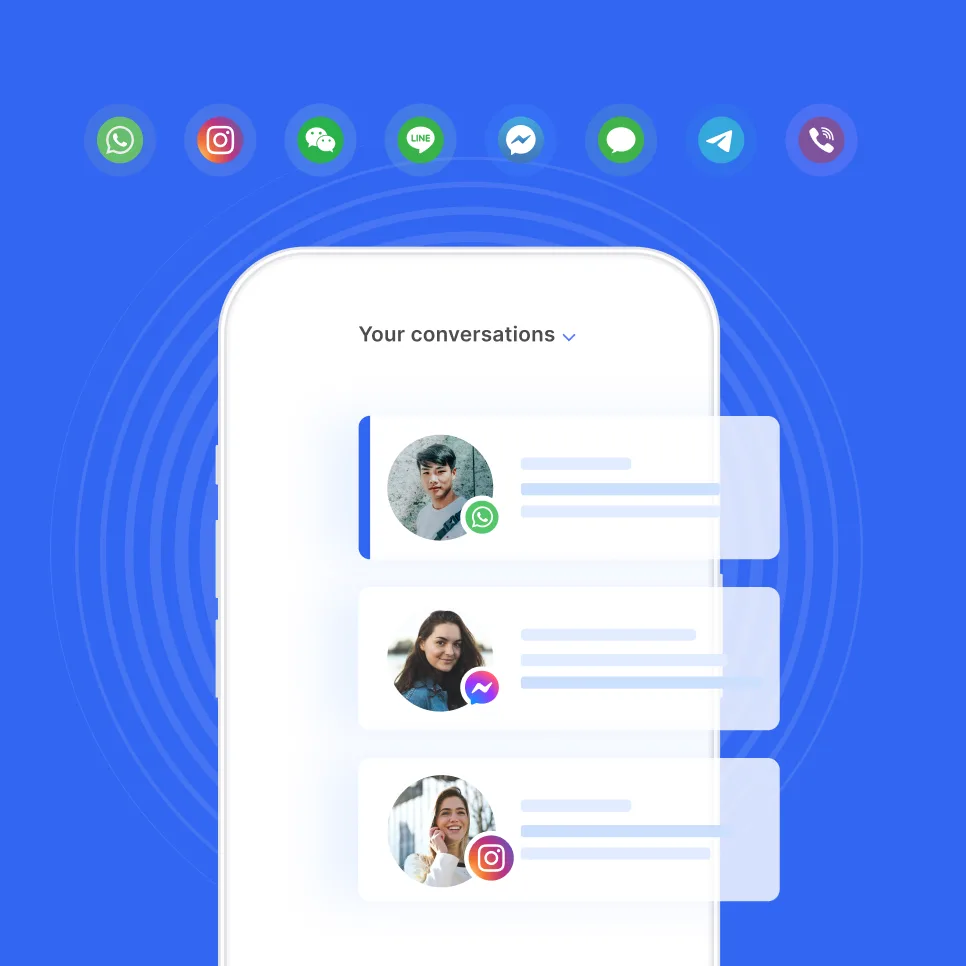
Want to outcompete your peers with SleekFlow's help?
Book your personalised demo with SleekFlow today and unlock the potential of seamless communication
Best practices for a high-converting WhatsApp chat button
Getting the button live is only the first step. To improve results, optimise how it appears and what happens after the click.
Use a clear CTA
Do not rely on a generic “Chat now” label if your business has a stronger use case.
Examples:
Get a quote on WhatsApp
Ask about pricing
Talk to sales
Check product availability
A clearer CTA sets expectations and improves click quality.
Use a pre-filled message
A pre-filled message helps visitors start faster and gives your team context.
Examples:
Hi, I’d like to know more about this product
Hi, can I get a quote for this service?
Hi, I need help with my order
This is especially useful on product pages, service pages, and campaign landing pages.
Keep the button visible but not intrusive
A floating bottom-corner placement works well because users know where to look for help. At the same time, avoid making the widget so aggressive that it covers page content or distracts from key actions.
Route conversations to the right team
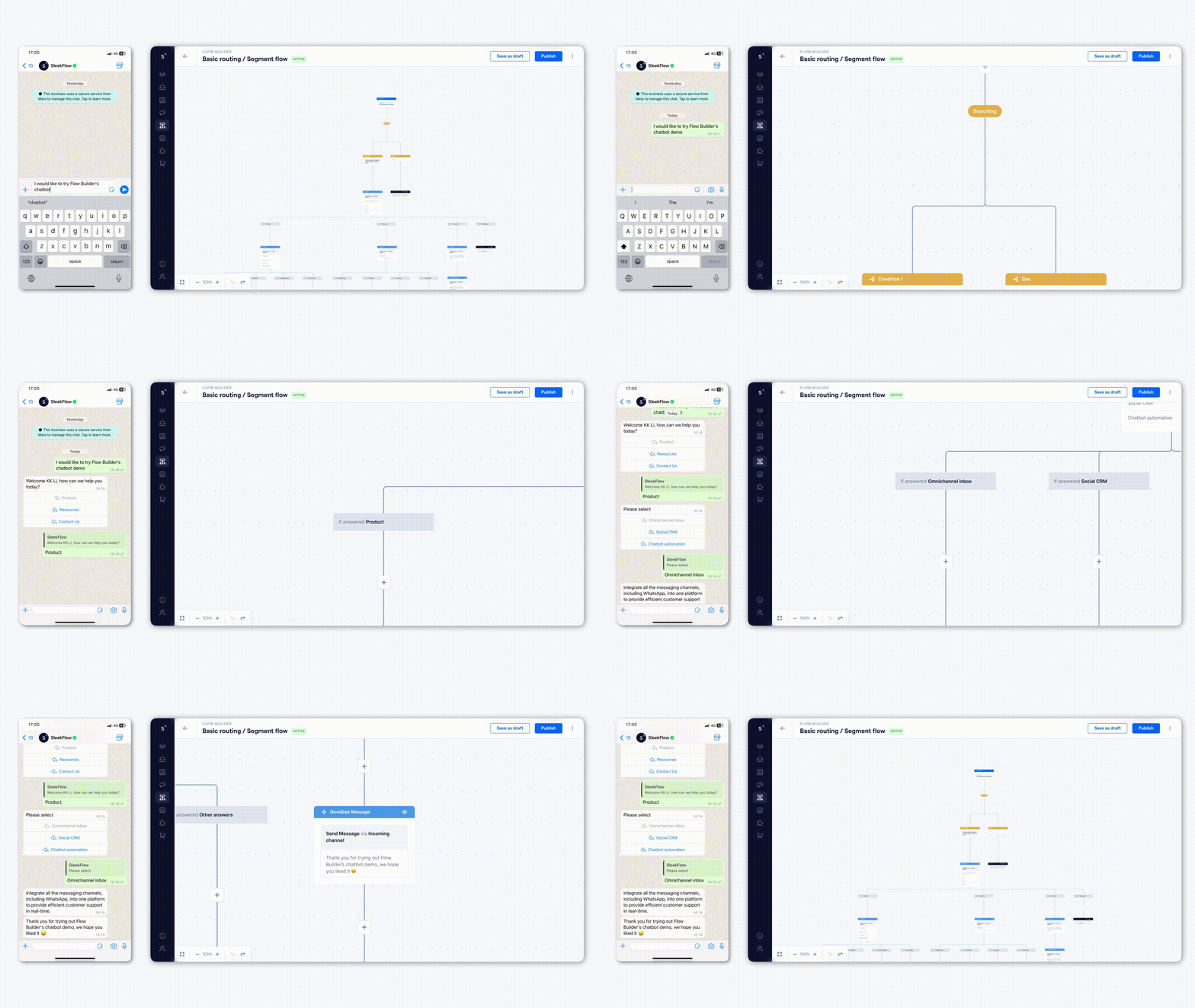
If all chats go to one person, speed drops as volume grows. A better setup routes inquiries by team, topic, or intent.
For example:
sales questions go to the sales team
order issues go to support
repeat customers go to account managers
This is where a shared inbox and automation become much more valuable than a basic link.
Set response expectations
If your team is not available 24/7, say so clearly. You can use a greeting or widget message to let visitors know when they can expect a response.
That reduces frustration and helps maintain trust.You can also make use of AI agents to respond to enquiries around the clock without burning out your team.
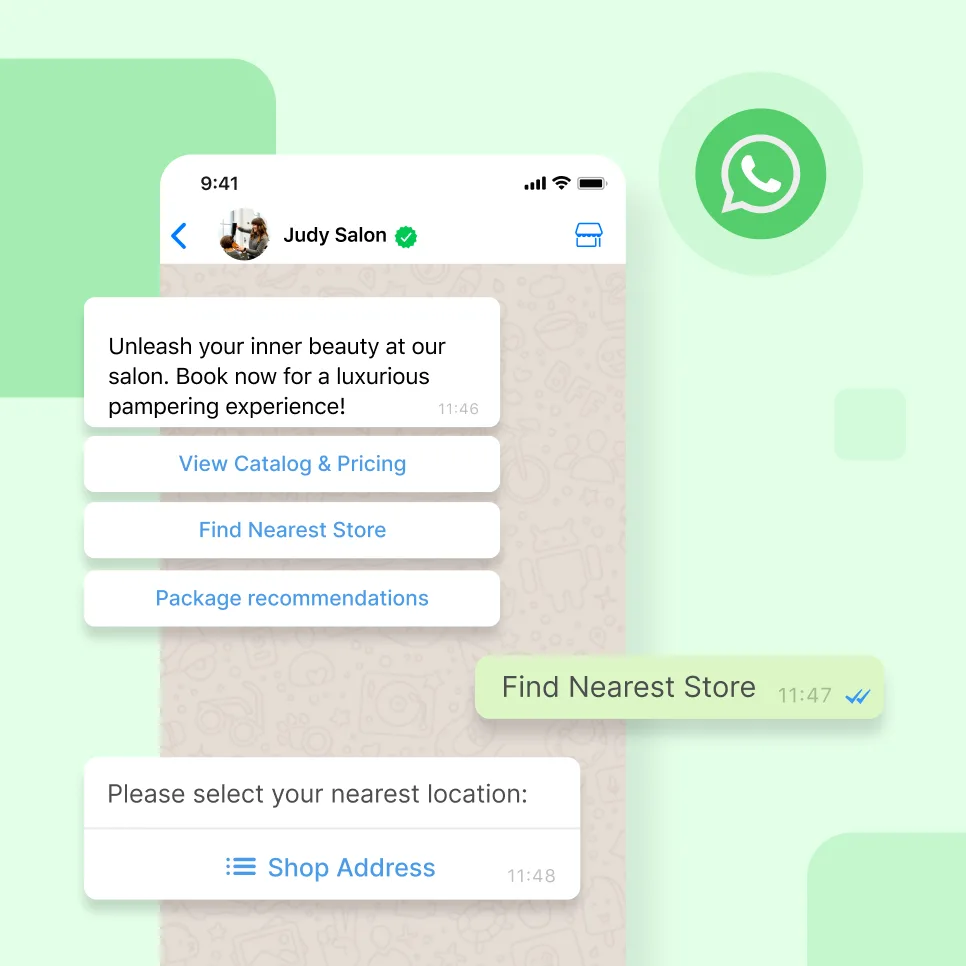
Connect to WhatsApp Business API now!
Connect to WhatsApp Business API and unlock powerful tools to engage your audience.
When to use a WhatsApp link or QR code instead
A floating button is not always the answer. WhatsApp Links or QR codes can also help your customers initiate conversations. Use a WhatsApp link when:
You only need one contact entry point
The site is a single-page landing page
You want a lightweight implementation
You are adding WhatsApp to email signatures, banners, or contact pages
Use a WhatsApp QR code when:
You want to connect offline and online journeys
Customers discover your business through print materials, packaging, or storefronts
You want visitors to scan and continue on mobile instantly
These formats are useful, but they should support the main website chat experience rather than replace it on most business websites.
Common WhatsApp Chat button setup issues
The button does not appear on the website
Check whether the snippet was pasted into the correct place and published properly. If you are using Google Tag Manager, confirm the trigger is active on the intended pages.
The button opens the wrong number
Review the number used in your widget or click-to-chat setup. Make sure it is in the correct international format.
The button works on desktop but not mobile
Test the implementation on multiple devices and browsers. A script conflict or theme-level issue may be affecting mobile rendering.
Leads are coming in, but no one follows up
This is usually not a button issue. It is an inbox and workflow issue. Make sure conversations are assigned, routed, and visible to the right team.
How SleekFlow turns WhatsApp button clicks into sales
A chat button gets visitors talking. What happens after the click decides whether they buy, so SleekFlow gives your team the tools to handle it:
A shared inbox : every WhatsApp chat from your website lands in one inbox your whole team works from, on the same number.
Replies after hours: AI agents answer common questions around the clock, so visitors who message at night still get an answer.
Routing: Flow Builder sends each chat to the right team by topic or language, and hands over to a person when needed.
Tracking: see how many chats your button brings in and which ones turn into sales, in SleekFlow's analytics
Your brand: premium plans remove the "Powered by SleekFlow AI" label from your button.
Pearl Holiday Travel & Tour used this setup, a WhatsApp widget plus automated chat flows, to bring in nearly 2,000 new leads. Start with the free WhatsApp button generator, then book a demo to see the rest in action.
Want to outcompete your peers with SleekFlow's help?
Book your personalised demo with SleekFlow today and unlock the potential of seamless communication


