How to collect WhatsApp opt-ins and stay compliant


TL; DR: Quick Summary
- A WhatsApp opt-in is a person's clear permission for a named business to message them on WhatsApp.
- WhatsApp's business blog cites a 98% open rate, and that reach only pays off when contacts asked to hear from you.
- Meta's opt-in policy asks you to say people are opting in, name your business, and follow local law.
- Collect opt-ins through your website, Click to WhatsApp ads, QR codes and SMS, and log when and how each one happened.
- An opt-out that updates your contact list straight away protects your quality rating as much as the opt-in does.
WhatsApp's own business blog cites a 98% open rate for messages on the app. That reach is why businesses want to send offers and updates there, and why Meta is strict about who receives them.
So before you send a single broadcast, you need a WhatsApp opt-in from every contact on the list. It keeps your account in good standing and leaves you with people who actually want your messages.
Below, you'll find Meta's opt-in rules, when you need consent, four ways to collect it, and how to record it and handle opt-outs in SleekFlow.
What is a WhatsApp opt-in?
A WhatsApp opt-in is a person's clear permission for a named business to contact them on WhatsApp. They give it through an action, such as ticking a box on a form, replying "Yes" in a chat or scanning a QR code. Meta expects it before a business starts a conversation with a template message.
Without an opt-in, even a useful message can read as spam. People who agreed to hear from you are far less likely to block or report you, and those blocks and reports are what Meta watches.
For the sending side, read our guide to WhatsApp bulk messages.
When do you need a WhatsApp opt-in?
You need an opt-in whenever your business starts the conversation. If the customer messages you first, you can reply freely for 24 hours, but that chat isn't permission to send them marketing later. The safe default is to get consent before any template message.
Opt-in is required when:
You send a template message to start a conversation, whether it's marketing, utility or authentication.
You want to message a customer again after the 24-hour customer service window has closed.
You're moving a contact list you built on email, SMS or in store onto WhatsApp.
You can reply without a separate opt-in when:
A customer messages you first, which opens a 24-hour window for your replies.
Someone starts a chat from a Click to WhatsApp ad, a QR code, a chat link or your website widget.
If you want to keep in touch after that window closes, ask for permission inside the chat. A quick-reply button that says "Yes, send me offers" is enough.
One more reason to keep your list clean: replies are no longer always free.
Since 1 Oct 2026, Meta's pricing gives each business phone number 1,000 free service messages a month and charges from the 1,001st. For the full picture, see our WhatsApp Business API pricing guide.
WhatsApp Business app vs. WhatsApp Business Platform: how opt-ins differ
The free WhatsApp Business app suits solo owners and small teams chatting one on one. The WhatsApp Business Platform is built for broadcasts, automation and teams, and it's where Meta enforces opt-in most closely.
If you only chat with a handful of customers, the app works. Once you want to broadcast, automate replies or track consent across a team, you'll need the Business Platform through a Business Solution Provider like SleekFlow.
What does Meta's WhatsApp opt-in policy require?
Meta's opt-in guidance sets three requirements. You must clearly say a person is opting in to messages from you, clearly name your business, and follow the laws that apply to you. Meta leaves the method up to you, so a web form, an SMS reply, a phone menu or a paper form can all count.
What Meta requires:
✅ State clearly that the person is opting in to receive WhatsApp messages from your business.
✅ State clearly the name of the business they're opting in to.
✅ Comply with applicable law.
What Meta recommends:
✅ Give clear instructions on how to opt out, and honor every request.
✅ Ask for opt-in separately for each type of message, such as offers and order updates.
✅ Explain what people get in return for opting in.
✅ Watch your quality rating, especially when you try a new way to collect opt-ins.
These cover Meta's side. Privacy laws such as the EU's GDPR can ask for more, such as how long you keep consent records, so check what applies in your markets with local counsel.
How to store opt-in proof and handle opt-outs in SleekFlow
SleekFlow keeps consent on each contact's profile, so your team and your broadcasts both work from the same record.
Store proof of consent
You need a record of when and how each person agreed to hear from you.
Capture the details where the opt-in happens, such as your web form or QR code landing page. Log the date and time, the channel and the exact consent wording.
Bring in consent you already hold elsewhere. Flow Builder can read records from HubSpot, Salesforce or Zoho and update the matching SleekFlow contact.
Save the details in contact properties such as "Opt-in date" and "Opt-in source", and add a label like "WhatsApp marketing opt-in" so you can segment later.
Keep the original consent record, such as the form submission, in case you ever need to show it.
Process opt-outs automatically
SleekFlow only sends broadcasts to contacts whose Subscriber property is True, according to the Help Center. That makes the opt-out flow simple.
Build a flow with the "Incoming message received" trigger.
Add a "Triggered message keyword" condition for words like "STOP" and "UNSUBSCRIBE".
Use "Update contact" to set Subscriber to False, and "Add label" to tag the contact "Unsubscribed".
Send a short message confirming they won't get marketing messages anymore.
From then on, every broadcast skips that contact. SleekFlow also reminds you when a marketing template you submit has no opt-out instruction.
For one-to-one chats, SleekFlow's message opt-in feature helps when the 24-hour window has closed. It sends an approved opt-in template first, then delivers your queued message only if the customer replies.
How do I set up a WhatsApp opt-in?
A WhatsApp opt-in starts with an action the customer takes, such as filling in a form, ticking a box at checkout or replying to a chat. The setup has 5 steps: offer a place to sign up, ask clearly, confirm consent, send a welcome message and explain how to opt out. Steps 2 and 3 also leave you with a record of consent.
Step 1: Offer opt-in points
Add sign-up points where customers already are, such as your website, checkout, social profiles, emails and in-store signs.
Say what they'll get from joining, such as early access, order updates or member offers.
Step 2: Ask clearly
Show a short request to receive WhatsApp messages from your business, by name.
Say what kind of messages they'll get and how often.
Step 3: Confirm consent
Ask for a clear action, such as ticking an unticked box or tapping a "Subscribe" button.
Send a confirmation message so the customer knows it worked and you have a record.
Step 4: Send a welcome message
Greet new subscribers straight away with a welcome message that repeats what they signed up for.
Automate the welcome with Flow Builder so no one waits for a reply.
Add an AgentFlow AI agent to turn the welcome into a real conversation that answers questions and suggests a next step.
Step 5: Explain how to opt out
Tell subscribers how to stop messages at any time, such as replying "STOP".
Process every opt-out straight away, using the flow described above.
Why does WhatsApp opt-in matter for businesses?
A WhatsApp opt-in does more than keep you within Meta's rules. It gives you a list of people who asked to hear from you, so more of your messages get read and fewer get blocked. With AI agents replying to each new subscriber, that list turns into conversations instead of sitting idle.
A better-targeted audience. Every opt-in tells you what someone wants to hear about, and AI agents add to that picture with each conversation.
Higher engagement. People who chose to subscribe are more likely to open, read and reply.
More trust. Relevant, expected messages build goodwill, while surprise promotions build blocks.
Fewer compliance problems. A clear opt-in record helps you meet Meta's policy and the privacy laws in your markets.
Less wasted spend. Meta charges per delivered message, so every message to someone who never wanted it costs money and goodwill.
Replies at any hour. AgentFlow AI agents answer new subscribers 24/7, so interest doesn't fade while your team is offline.
São Caetano Assessoria Contábil handles more customers with an AI agent
São Caetano Assessoria Contábil is a Brazilian accounting firm with over 40 years in the market. Its old messaging platform kept going down, which left clients waiting and teams working from mismatched information.
The firm moved to SleekFlow for a stable, official WhatsApp connection. It set up an AI agent named "Ana" to handle first contact, collect details, qualify requests and route each one to the right department, with every conversation in one shared inbox.
50% increase in initial service capacity without growing the team.
100% of conversations get an immediate response, including outside business hours.
The system was fully adapted to the firm's operations within two to three days.
How to collect WhatsApp opt-ins on SleekFlow
The easiest opt-ins come from places where customers already want to talk to you. A website chat widget, an SMS invitation, a Click to WhatsApp ad and a QR code each let people start the conversation themselves. Once they're in the chat, you ask for permission to keep messaging them.
Add a WhatsApp chat widget to your website
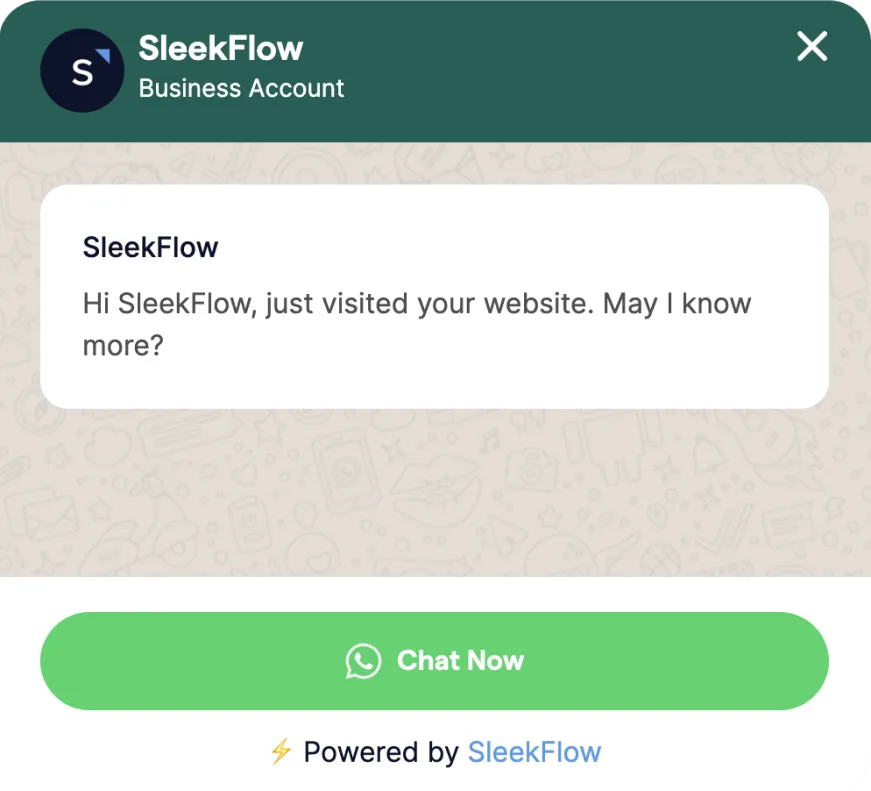
Add a WhatsApp live chat widget so visitors can message you from any page. Answer their question first, then offer an opt-in for updates with a quick-reply button.
Invite people to opt in by SMS
Use an SMS marketing campaign to invite existing contacts to join you on WhatsApp. Explain what they'll get and how to opt in, and remember that SMS has its own consent rules in many markets.
Run Click to WhatsApp ads
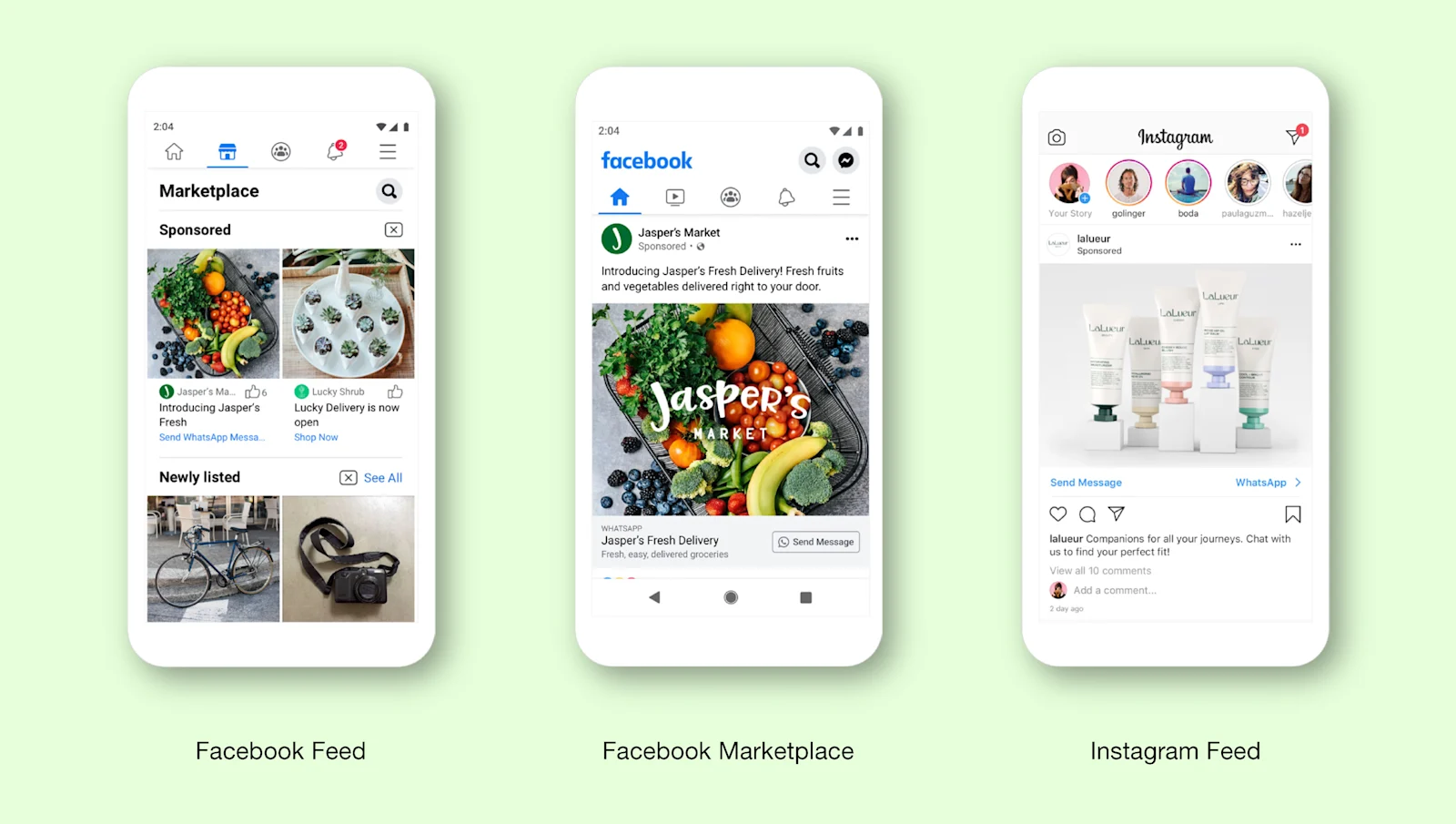
Image from WhatsApp Blog
Click to WhatsApp ads on Facebook and Instagram open a chat with your business in one tap. When a customer messages you from one of these ads or your Page's call-to-action button, it opens a free entry point window.
Inside that window, Meta doesn't charge for your messages, and its pricing page says the window can stay open for 7 days at most. Use that time to ask whether they'd like to hear from you again.
Use WhatsApp QR codes and chat links
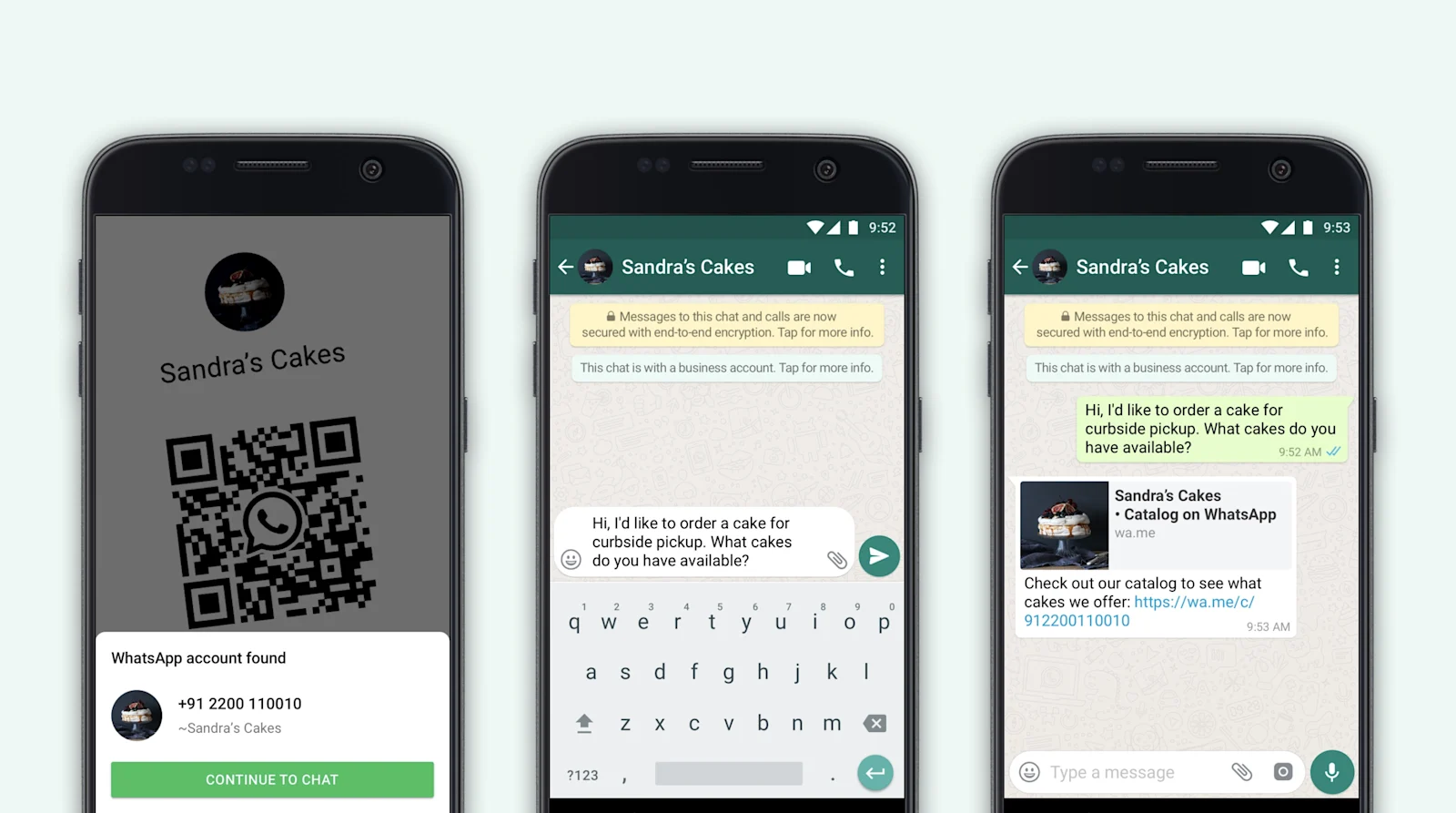
Image from Facebook News
Put a WhatsApp QR code on packaging, receipts, flyers and in-store signs so people can scan it and start a chat. Add a click-to-chat link to your website, social profiles and email footer for the same result online.
Goodbye to complex coding and say hi to simplicity
Click here to generate your FREE personalized WhatsApp links and QR code effortlessly
How to build a WhatsApp opt-in strategy
A strong WhatsApp opt-in strategy gets more people to say yes and keeps them subscribed. It comes down to 5 habits: know who you're talking to, write a clear request, give a real reason to join, make leaving easy and watch your quality rating.
Know your audience
Learn what your customers want from you on WhatsApp, such as order updates, restocks or member offers. Build your opt-in request and your messages around that, and your sign-up rate will follow.
Write a clear opt-in request
Keep the request short and specific. Say who you are, what they'll get and how often, such as "weekly offers" or "order updates only".
Give people a reason to join
Offer something they can only get on WhatsApp, such as early access, a members' discount or a free guide. When someone replies to claim it, an AgentFlow AI agent can answer questions about the offer and suggest related products while their interest is high.
Make opting out easy, and respect it
Give every subscriber a clear way to leave, and stop messaging them the moment they do. Messaging someone who opted out is the fastest way to get blocked or reported.
Opt-outs also tell you something. CX Intelligence groups your conversations into topics automatically, so you can see what people say before they leave and fix your offers, timing or tone.
Watch your quality rating and messaging limits
Meta gives each business phone number a quality rating based on how people react to your messages, shown in WhatsApp Manager as green, yellow or red. Blocks and reports pull it down. Meta also sets messaging limits for your business portfolio: 250, then 2,000, 10,000, 100,000 or unlimited contacts a day.
To move up a level, you need high-quality messages and to have used at least half your current limit in the last 7 days. Check these numbers every week, and daily during a big campaign:
Quality rating. Green is healthy. If it turns yellow, pause campaigns and look at what you've been sending.
Blocks and reports. Both tell Meta people didn't want your messages, and reports hurt more.
Template rejections. Repeated rejections usually mean a template is too promotional or breaks Meta's rules.
Messaging limit. Your limit only grows when your quality stays high and you use what you have.
Read and reply rates. Falling rates often mean an old or poorly targeted list.
CX Intelligence can also estimate a satisfaction score for each conversation, so you can spot friction before it turns into blocks.
Already restricted? Read how to unblock your WhatsApp Business account.
How to write a WhatsApp opt-in message
A WhatsApp opt-in message asks a customer for permission to keep messaging them. It should name your business, say what they'll get and how often, give one clear way to say yes and one clear way to stop. Send it inside a chat the customer started, or on another channel such as SMS or email.
Don't send it as a cold template. An opt-in request sent as a WhatsApp template to someone who never gave you permission is itself a business-initiated message, so it needs consent too.
Every opt-in message should include:
Your business name.
What they'll receive, such as offers, order updates or reminders.
How often you'll message them.
One clear way to say yes, such as a quick-reply button.
How to opt out later.
Use WhatsApp buttons to make saying yes easy
Quick-reply buttons let customers answer with one tap instead of typing. A "Yes, send me offers" button gives you a clear opt-in and a clear record of it.
WhatsApp opt-in message examples
Example 1: General updates
Hi, it's [Business Name]! Want our latest offers and news on WhatsApp? Reply "Yes" to subscribe. You can reply "STOP" anytime to opt out.
Example 2: Newsletter
[Business Name]: Join our WhatsApp newsletter. Reply "Subscribe" to get exclusive content and offers about twice a month. Reply "STOP" anytime to unsubscribe.
Example 3: Exclusive offers
Hi from [Business Name]! Opt in and you'll be first to hear about our special offers and discounts. Tap "Yes" to join. If you change your mind, reply "STOP" anytime.
Start sending WhatsApp broadcasts to opted-in contacts with SleekFlow
With your opt-ins in place, you can start sending offers and updates to people who asked for them. On the WhatsApp Business Platform, you can send broadcasts to contacts who haven't saved your number, within Meta's messaging limits, and SleekFlow skips anyone who has opted out.
That's a big step up from the WhatsApp Business app, where each broadcast list is capped at 256 contacts and only reaches people who saved your number.
SleekFlow is an official WhatsApp Business Solution Provider, so you can connect your number, collect opt-ins and send your first broadcast from one platform.
Connect to WhatsApp Business API now!
Connect to WhatsApp Business API and unlock powerful tools to engage your audience.


