10 essential WhatsApp chat flow templates to automate (now powered by AI agents)


TL; DR: Quick Summary
- With SleekFlow's Flow Builder, you can automate WhatsApp chat flows for sales, marketing, and customer service. Think of it as an always-on assistant that works for you.
- You can set up keyword-triggered chat flows to auto-reply to FAQs, letting customers find answers on their own. Use branching menus to keep conversations structured and easy to follow.
- The round-robin queue system automatically and fairly assigns every new WhatsApp contact to the right agent.
- After sending a broadcast, you can use chat flows to follow up on promotions automatically. These flows can even use branching paths to respond based on what a customer clicks.
- If a contact doesn't respond, you can automatically disqualify and remove them from broadcast lists. This keeps your outreach focused and efficient.
If you’re using SleekFlow's paid plan, you have access to a key tool - Flow Builder. Flow Builder allows you to automate repetitive sales, marketing, and customer service tasks to be more efficient, productive, and consistent.
But we don't stop there. SleekFlow takes rule-based automation to the next level with AgentFlow, which lets you deploy AI agents that do more than just follow a script. They can reason, respond, and act throughout the entire customer journey.
Ready to see how it works? This guide will walk you through 10 powerful WhatsApp chat flows you can start using today. We'll also show you how AI agents can improve each one.
WhatsApp Flows (Meta forms) vs. automation workflows (SleekFlow Flow Builder)
It can be hard to tell the difference between WhatsApp Flows (Meta's native form feature) and automation workflows from platforms like SleekFlow's Flow Builder. Both exist to streamline conversations on WhatsApp, but they serve very different functions.
WhatsApp Flows are simple, interactive forms that live inside a chat. Think of them as a tool for a one-off task, like asking a customer for their preferred appointment time. While they collect information, they don't have the logic to act on it automatically.
Flow Builder is a complete automation engine. It doesn't just gather information—it can respond, route, and integrate that data in real time. It manages the entire process from start to finish.
WhatsApp automation rules you need to follow
To use WhatsApp automation successfully, you need to follow several key rules. Sticking to these guidelines helps you avoid having your account suspended or your message quality reduced. Here’s what you need to know:
Use approved message templates: If you're starting a conversation with a customer more than 24 hours after their last message, you must use a template that Meta has already approved.
Respect the 24-hour window: After a customer messages you, a 24-hour customer service window opens. During this time, you can reply freely. Once it closes, you're back to using templates.
Avoid spam: Never send messages to people who haven't asked for them. Make sure every contact has opted in to receive your communications. This keeps your quality rating high and prevents your account from being banned.
Document opt-in consent: You are required to get explicit permission from customers before messaging them on WhatsApp and keep a record of it.
Provide an easy opt-out: Every automated message sequence should give users a simple way to unsubscribe. For example, you can tell them to reply with "STOP."
Follow content policies: Be sure to avoid sending messages about prohibited topics. This includes things like certain financial services, pharmaceuticals, and adult content.
Maintain a healthy quality rating: Keep an eye on your phone number's quality rating in WhatsApp Manager. If too many people block your number, your messaging limits could be lowered.
WhatsApp chat flows for business conversations
Ready to build effective business conversations on WhatsApp? Designing your chat flows for specific goals is the key. Let's explore some of the most impactful patterns businesses are using today:
Chat flow 1: Auto replying to FAQs on WhatsApp
Customers always have tons of questions, whether they are new or existing ones. If you already have a good idea of the questions they would ask, you can build a chatbot to guide them in finding the answers themselves, completely autonomously.
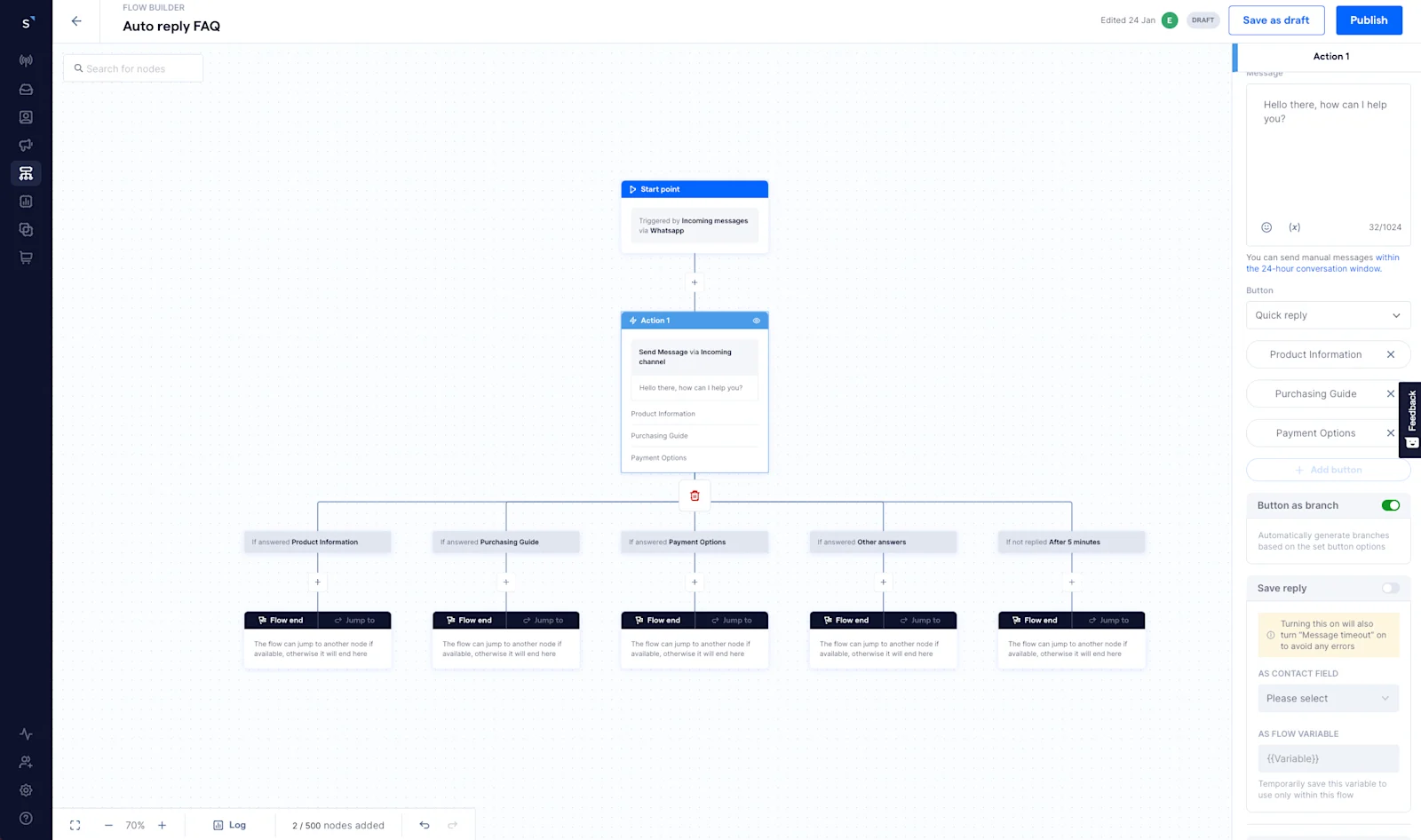
You can use the incoming messages trigger, which can be filtered by condition. For example, only if the incoming message from a customer contains the keyword “pricing” will they be enrolled into the chat flow. Then, create a send message action to auto-reply with the answers.
If your customer FAQs can be sorted into multiple categories, the first send message action should be a menu. Let’s say for a household appliance shop, they can present the following options:
product information
purchasing guide
delivery and installation
With the button as branch enabled, you can add more send message actions under each branch to provide relevant information.
Rule-based chatbots are a solid start, but you can take your customer experience to the next level with SleekFlow's AI Inbound Agent. Train the AI on your product information, standard procedures, and website content so it can answer questions that don't fit into the pre-set menu. The AI figures out what the customer wants, suggests what to do next, and keeps the chat moving smoothly. This creates a seamless transition from your structured chatbot to handling more complex, unexpected questions.
Chat flow 2: Assigning contact owners
You should have new unassigned notifications to notify your agents when new contacts are generated in SleekFlow. But how do you make sure the right person will then follow up on the lead? This is where assigning contact owners is important.
You can automatically assign leads by using the assign to action and choose by queue. This action works in a round-robin style — it allows you to add any number of agents to the rotation and they will be assigned as contact owners evenly.
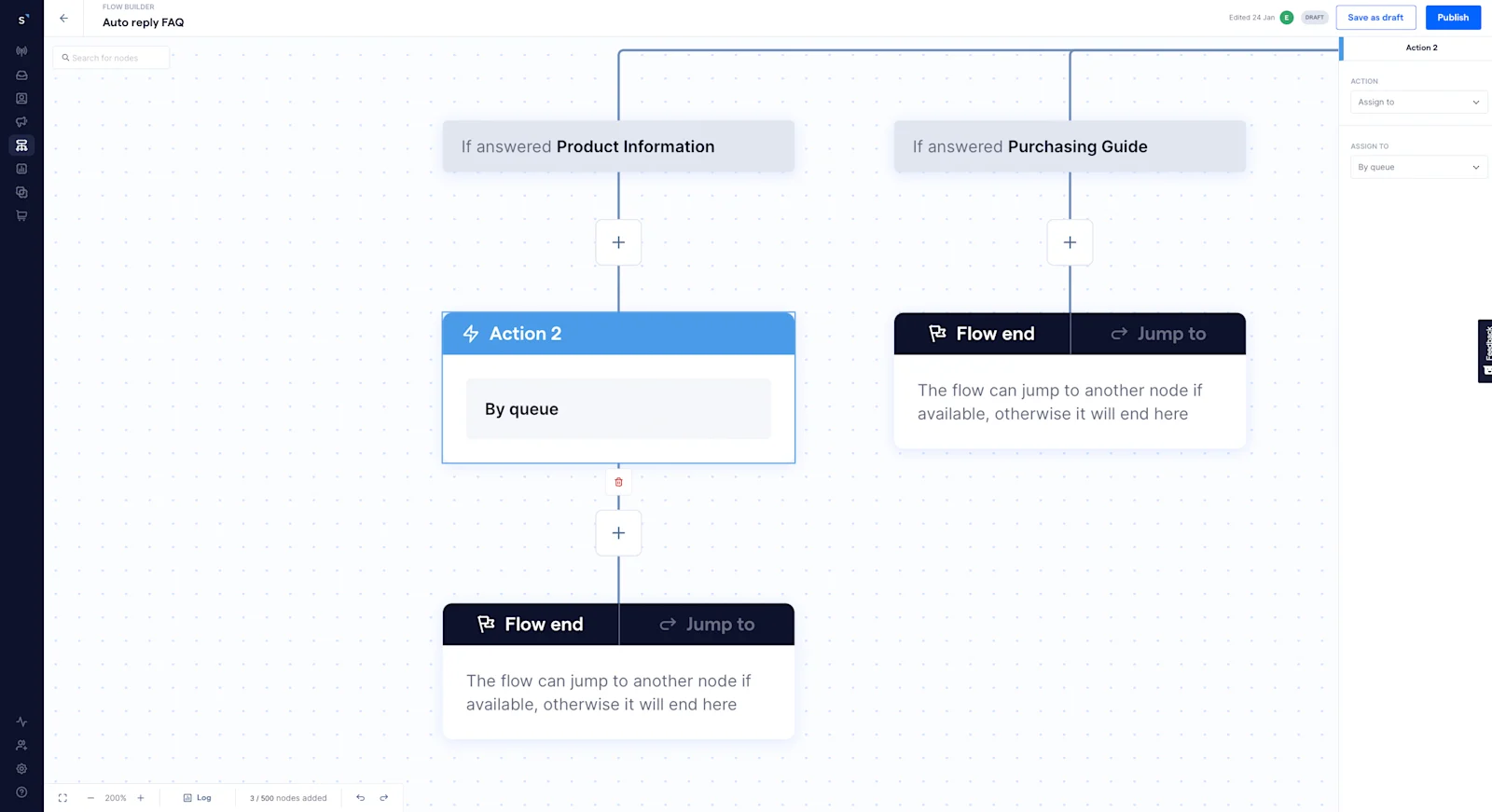
Read this WhatsApp chat routing blog for a step-by-step guide on different methods of lead routing using Flow Builder.
For more advanced lead qualification, combine SleekFlow's Inbound AI Agent with your round-robin system. First, let the AI qualify each lead by assessing its urgency, budget, and intent. Based on this information, it can then route the prospect to the most suitable human agent or team. For instance, you can send high-value prospects to your top closers or provide ready-to-book customers with a direct booking link. This process ensures every lead is handled efficiently, eliminating manual triage and preventing missed opportunities.
Chat flow 3: Getting information from new contacts
If you are a marketer focused on generating new leads, you will find yourself using the messages from new contact trigger often. This trigger only works for customers whose contact number isn't stored in your SleekFlow CRM.
You can set up multiple send message actions to ask questions about these new contacts. You can also create an add to list action to group new contacts into a list, which would be very useful later when you want to send a broadcast to a targeted segment.
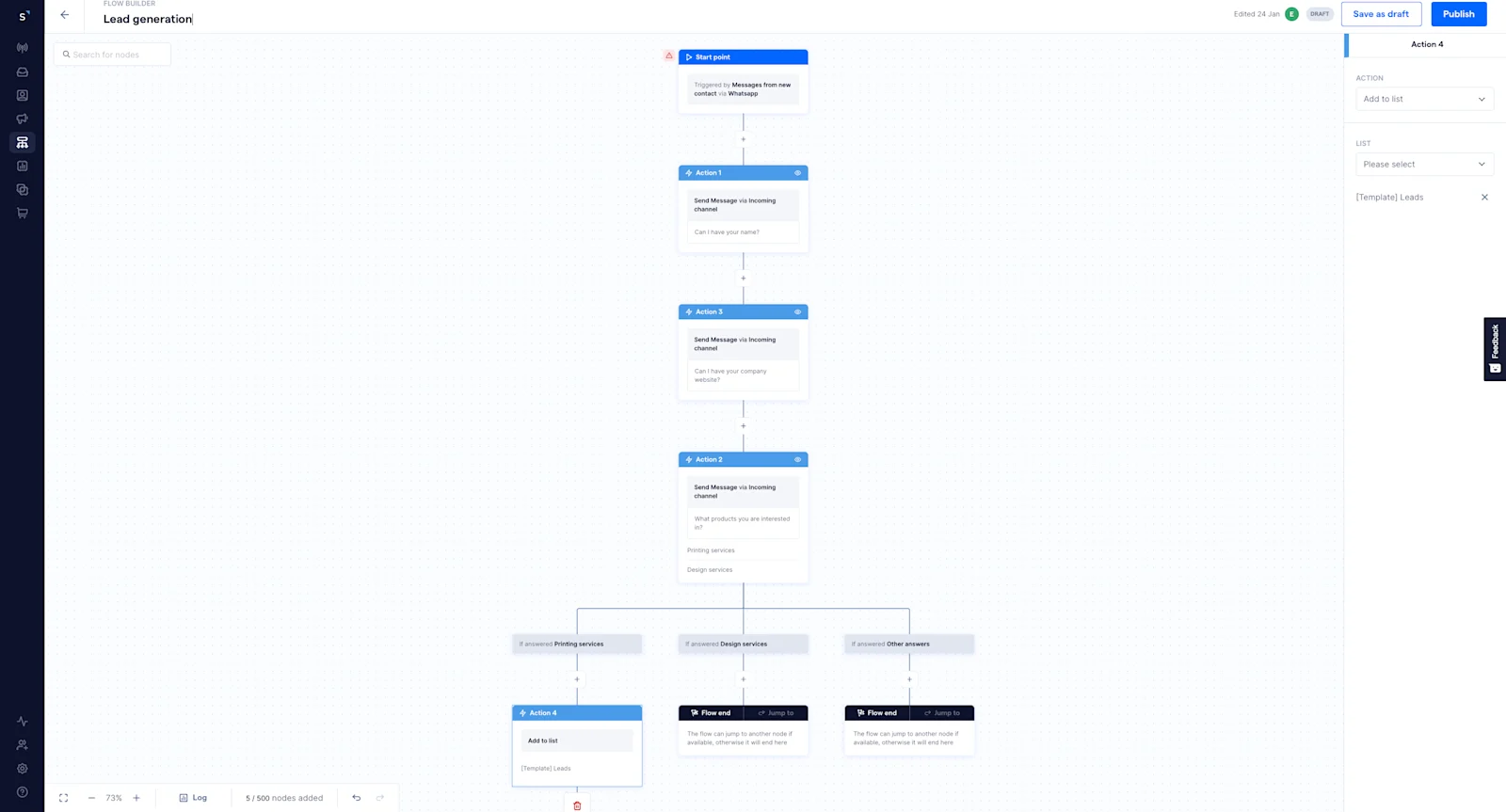
Learn more about generating leads on WhatsApp with automatic campaigns.
You can take this qualification process a step further with AgentFlow, our AI Inbound Agent. It engages new contacts around the clock, using structured playbooks to ask the right questions and build rich lead profiles automatically. By the time a human agent steps in, all the initial groundwork is already complete.
Chat flow 4: Automating post-broadcast responses
With Flow Builder, you can also create chat flows to handle customer responses after sending a broadcast message.
Let’s say you want to automatically follow up with the customer sometime after sending a promotional broadcast to make sure that they don’t miss a limited-time promotion. Here’s what you can do:
Choose outgoing messages as the trigger.
Enable filter by condition.
Specify the triggered message keyword to contain your broadcast message content.
Create a send message action to follow up on your initial broadcast.
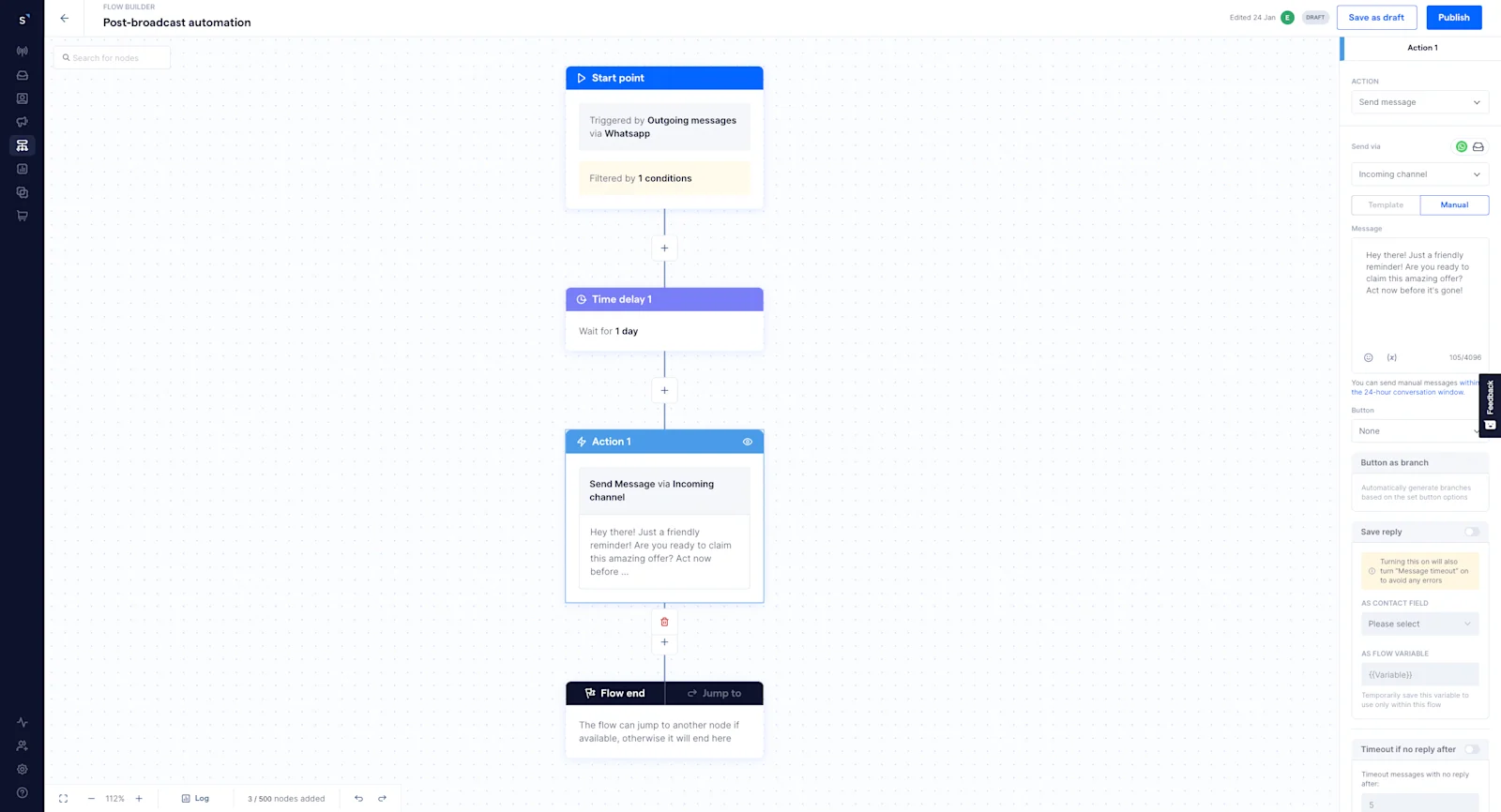
If your broadcast message includes some buttons, you can also add branches to cater to customers who pick different options. For instance, if you’re blasting out messages about a promotion, you can choose incoming messages trigger as the start of your flow. Then,
Create a triggered message keyword condition and use these three keywords to create branches:
Redeem the discount
Request for more info
Maybe next time
Then, under each branch, create a send message action to:
send a discount code,
share more information, or
confirm their opt-out
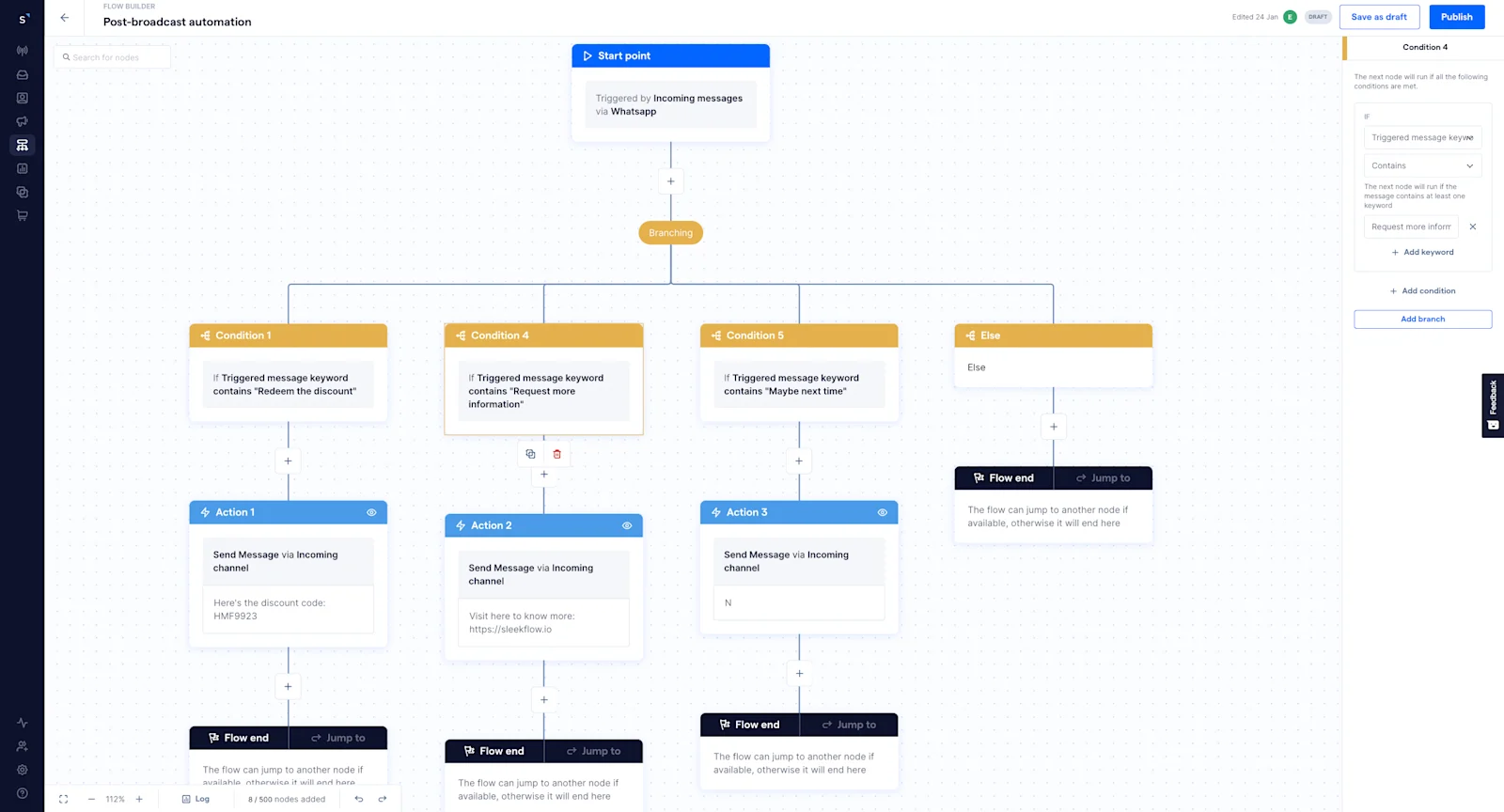
To take this follow-up process a step further, try adding an AI agent. While branching is effective, an AI agent creates a more flexible and conversational interaction. It can understand what customers mean in their own words, allowing it to handle objections, answer specific questions, or guide them to checkout beyond predefined button paths. The result is a more dynamic and personalized experience for your customers.
Chat flow 5: Disqualifying leads
Sending broadcast messages to unresponsive customers is frustrating. Suppose you no longer want to invest time in engaging with a new contact that hasn't responded to any of your messages.
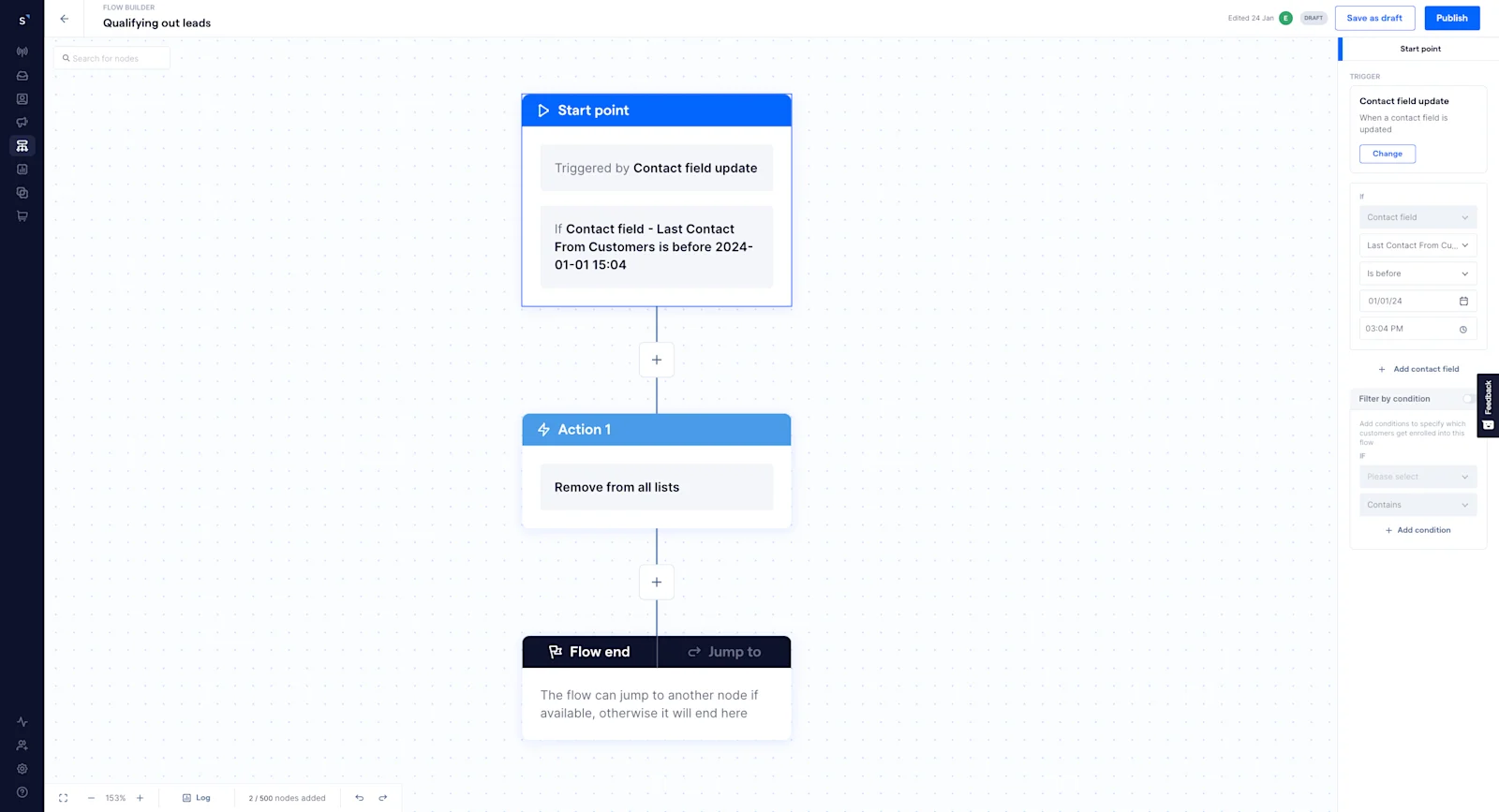
In this case, you can use the contact field update trigger and select if last contact from customers is not within 3 months, then create a remove from list action and select remove from all lists. This way, the contact will be unenrolled from any targeted broadcast lists.
You can also use AgentFlow's AI Inbound Agent to stop low-quality leads from ever reaching your team. It screens incoming conversations for urgency, budget, and genuine interest, ensuring only the most promising leads get through. This frees up your agents to spend their time closing deals, not chasing down dead ends.
How BateriHub reduced spam leads by filtering out irrelevant enquiries
BateriHub's customer service team was handling a high volume of daily inbound messages across 130 branches.
Before implementing a structured process, the team couldn't distinguish high-intent enquiries from irrelevant spam messages. This resulted in agents wasting valuable time and focus on low-quality leads, which diluted their efficiency.
BateriHub adopted a two-part strategy. First, they used Click-to-WhatsApp (CTWA) ads to attract leads who had already shown intent. Second, they used SleekFlow's no-code Flow Builder to guide these leads through an automated journey that collected key qualifying details like urgency, location, and vehicle model before involving a human agent.
This new process filtered out spam and low-quality enquiries, allowing the team to focus only on genuine, high-intent prospects.
Spam messages were reduced to less than 1% of all enquiries.
Human agents received all essential information upfront, streamlining service delivery and leading to a 17x faster response speed.
Agents could dedicate their time to high-value conversations, resulting in a 22% increase in conversions in just three months.
Chat flow 6: Segmenting existing customer base
If your business has been up and running for a few years, you likely already have existing customer data, such as purchase date, order amount, and purchased items. When you import these contacts’ phone numbers along with their information into SleekFlow, you can automatically categorize customers based on these criteria to empower more targeted and timely communication.
For example, a beauty salon could segment customers by their last appointment date and automate different follow-up tasks for each segment. Use the new contact trigger and choose contact fields as the condition, and create branches for different durations of the last appointment date.
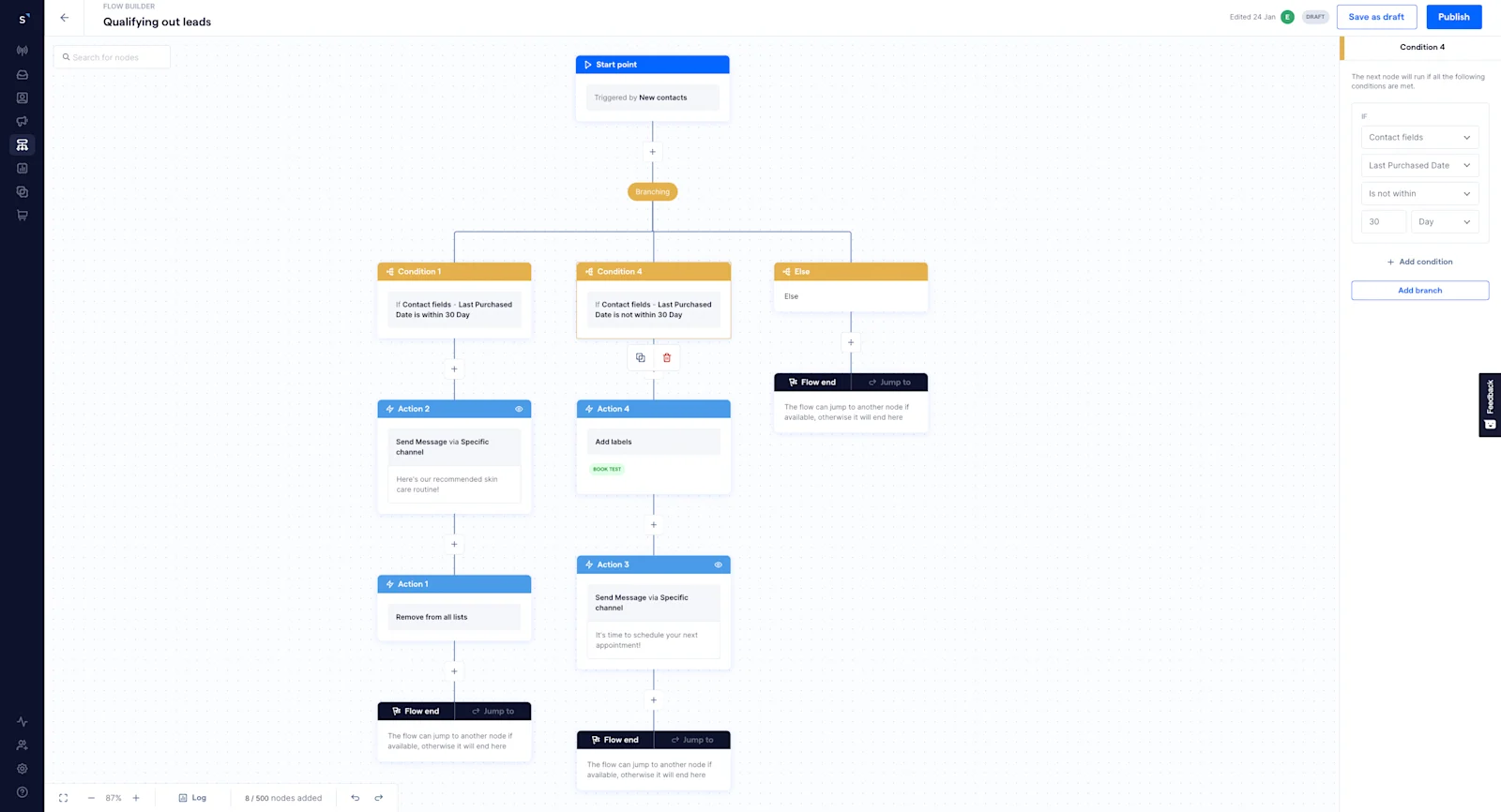
If the last appointment date is within 30 days, send a message with skin care tips; if the last appointment date is not within 30 days, send a message to remind them to schedule their next appointment and add a label as inactive customers.
Take your segmentation a step further with SleekFlow's CX Intelligence product, that’s part of its overall AI suite. While segmenting by data fields is powerful, our AI Topic Analysis gives you a deeper look by scanning your conversations for recurring themes and customer needs. This insight helps you refine your customer segments and tailor your messaging with greater precision.
How CANVAS reconnected with 60,000 of their previous in-store customers
CANVAS, a retail brand with a strong offline presence, had a large but dormant customer base.
Their decentralized approach of individual staff members sending one-to-one messages was inefficient, risked overwhelming customers, and lacked coordination and measurability.
CANVAS partnered with SleekFlow to establish an official, verified WhatsApp Business account. They launched a re-engagement campaign, sending personalized broadcast messages to 60,000 previous customers about a "Brand Day" promotion. The campaign utilized an automated chatbot, quick reply buttons, and integrated click-to-WhatsApp ads on Facebook to convert social media interest into direct contacts.
The WhatsApp-focused strategy proved to be twice as effective as their traditional email marketing.
The WhatsApp campaign achieved a 68% open rate, compared to 30% for email campaigns.
The campaign’s WhatsApp broadcast also achieved an 8% click-through rate (CTR), significantly higher than the 2.25% industry average for email marketing.
Chat flow 7: Capturing data from external software
You can also automatically catch data from external software and use it to automate messaging, such as sending a message whenever an appointment is made on a calendar or whenever there is a new record submitted on a website.
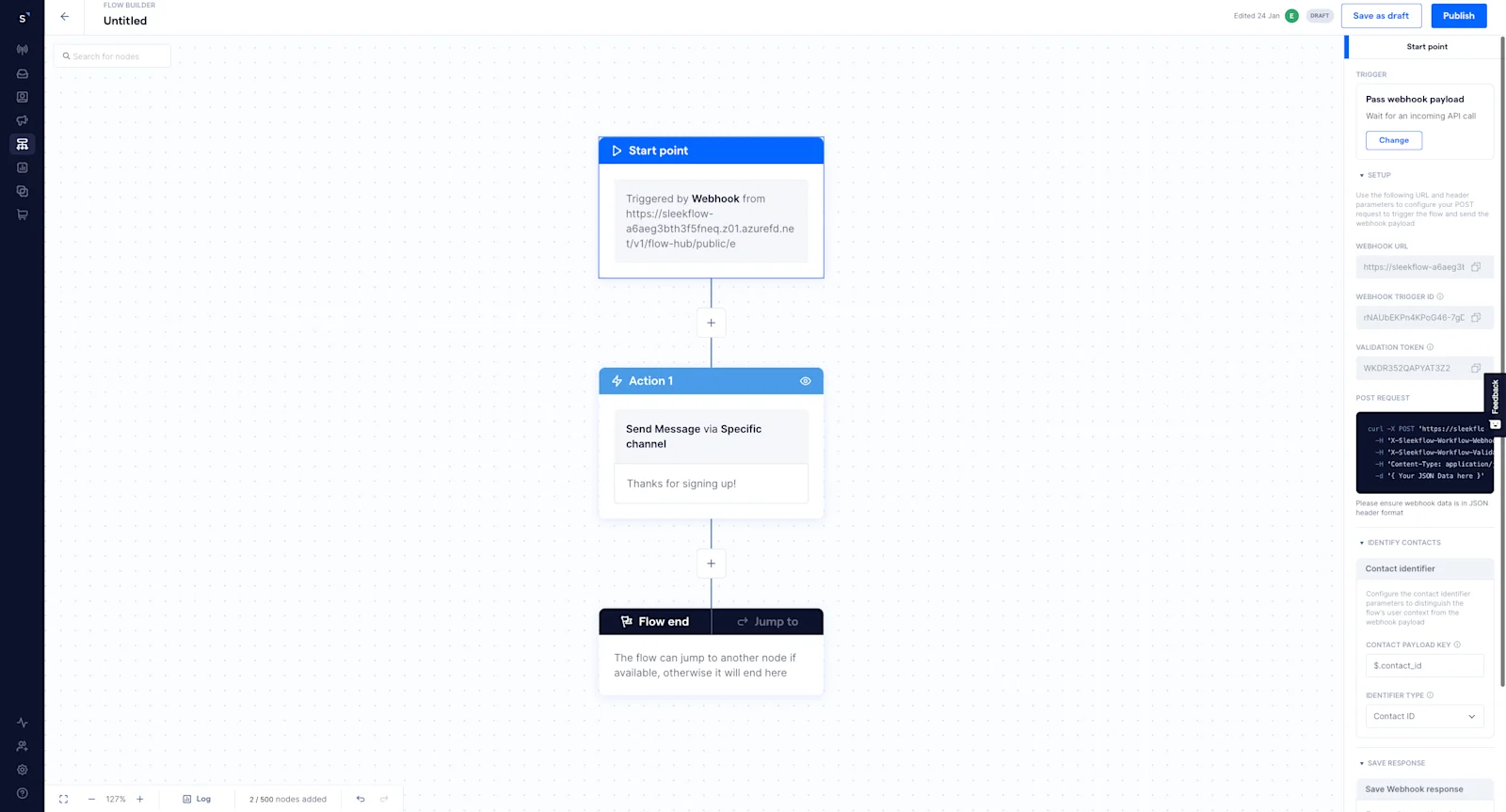
Select pass webhook payload as the trigger point to create a unique URL that you can use to trigger a SleekFlow workflow. You can use this URL with another service’s webhook configuration UI, or use it directly from your own custom code. When SleekFlow receives a request at this URL, it will then trigger the automation you configured.
Take this a step further with AgentFlow’s custom API integration. AI agents don't just receive data; they can actively call third-party APIs mid-conversation, running playbook steps in real time across your booking systems, eCommerce platforms, and customer data tools. When a customer makes a request, the agent acts on it instantly, keeping your systems perfectly in sync, all within a single chat.
Chat flow 8: Sending internal notification
Internal notes on SleekFlow are great for teammates to share context, send reminders, comment, update, and clarify with each other and you can automatically send them in the SleekFlow Inbox. For instance, whenever there is a new contact coming in from Facebook Lead Ads, you can add an internal note by including the data they submitted through the lead form to help the assigned agent with the follow-up task.
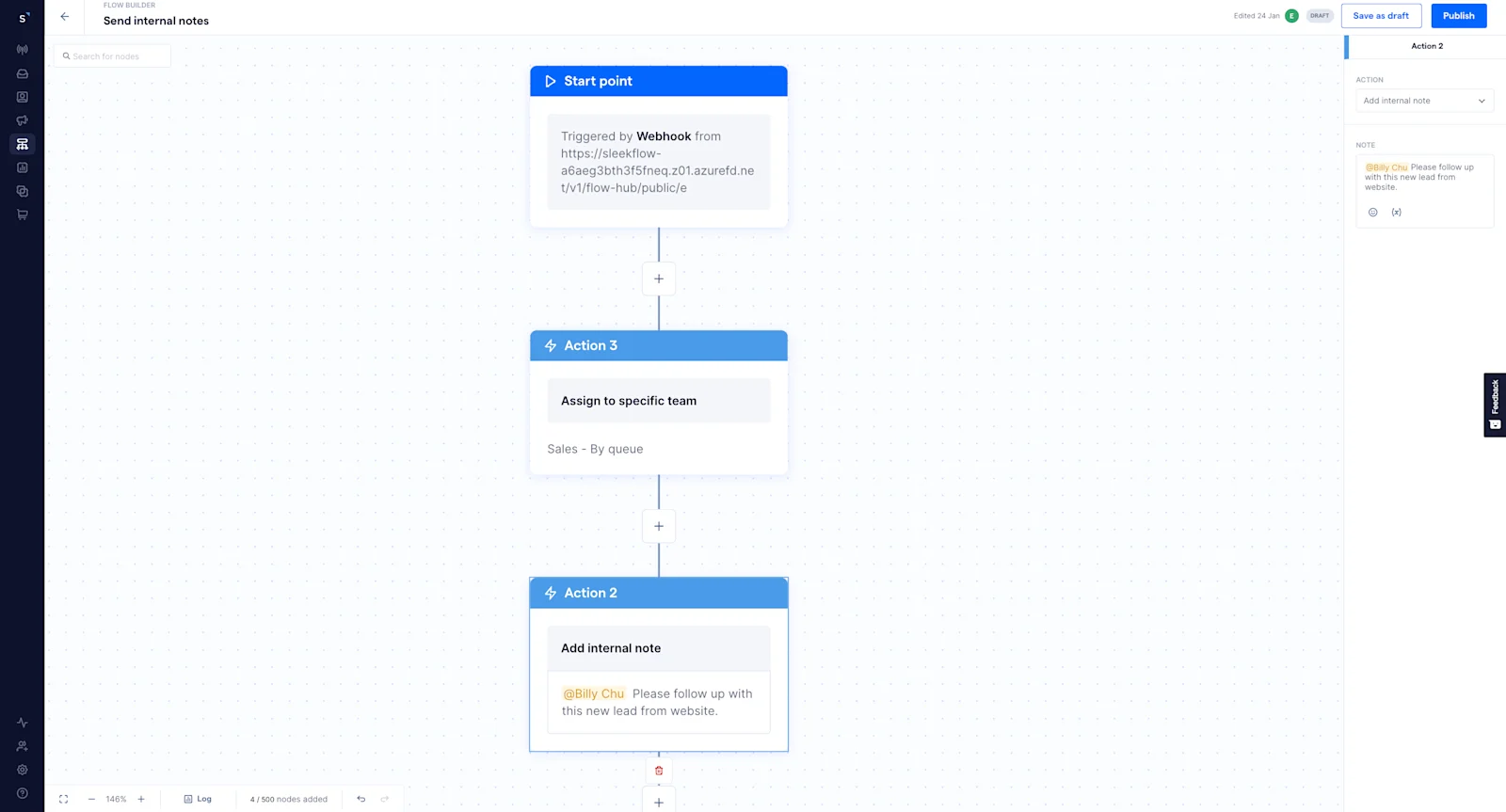
Handovers become smoother with AI agents. When a conversation moves from an AI agent to a human, AgentFlow can automatically generate an internal note. This note summarizes the customer's query, details what the AI has already done, and suggests the next step. Your human agents can then jump in exactly where the AI left off, fully informed and ready to help—no need for the customer to repeat anything.
Chat flow 9: Updating customer information
Contact fields are a centralized repository for storing and updating details about your customers, leads, or prospects. So, to make sure you are sending the right content to the right contacts at the right time, it’s essential to keep your contact fields updated.
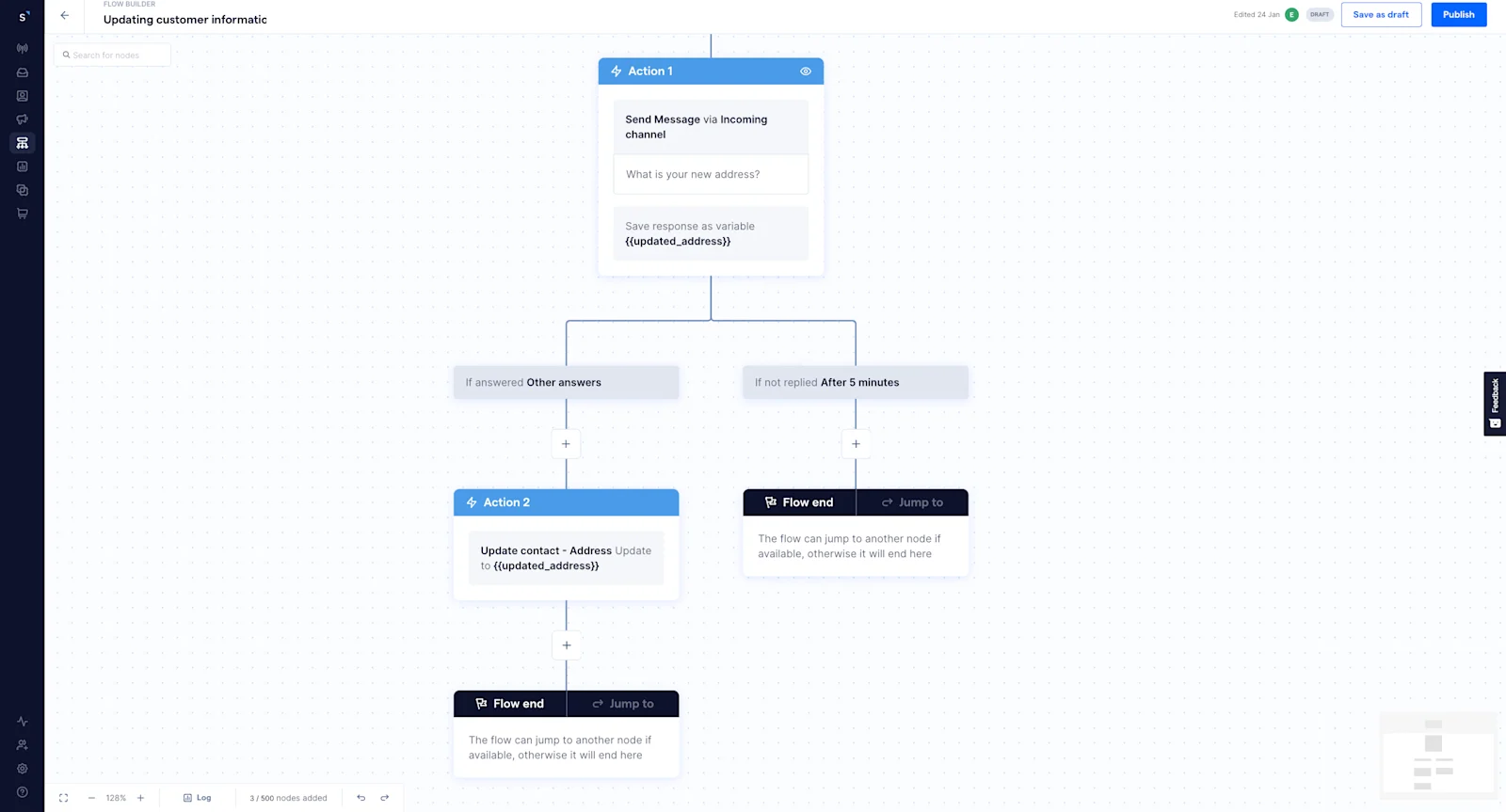
For example, if you store customer addresses for delivery, and a customer messages you to change their address. First, you can save their response as a flow variable in Flow Builder, name it as {{updated_address}}, and then create an update contact action, select the “address” customer field, and update it to the flow variable.
For an even clearer picture, SleekFlow’s 360° customer profile shows a persistent sidebar next to every conversation. This sidebar automatically pulls in custom contact properties, their lifecycle stage, past interactions, and data from your integrated tools like HubSpot, Salesforce, and Shopify. This way, every agent—human or AI—has the full context needed to help.
Chat flow 10: Passing data to external software
By using actions that fall under the external integrations category, such as pass triggered message webhook payload, contact payload, and send HTTP request, you can set up outgoing webhook/API calls. These webhook and API calls basically listen for triggers in SleekFlow conversations and send relevant data to external URLs in real-time, ensuring immediate synchronization between SleekFlow and your other existing tech stack.
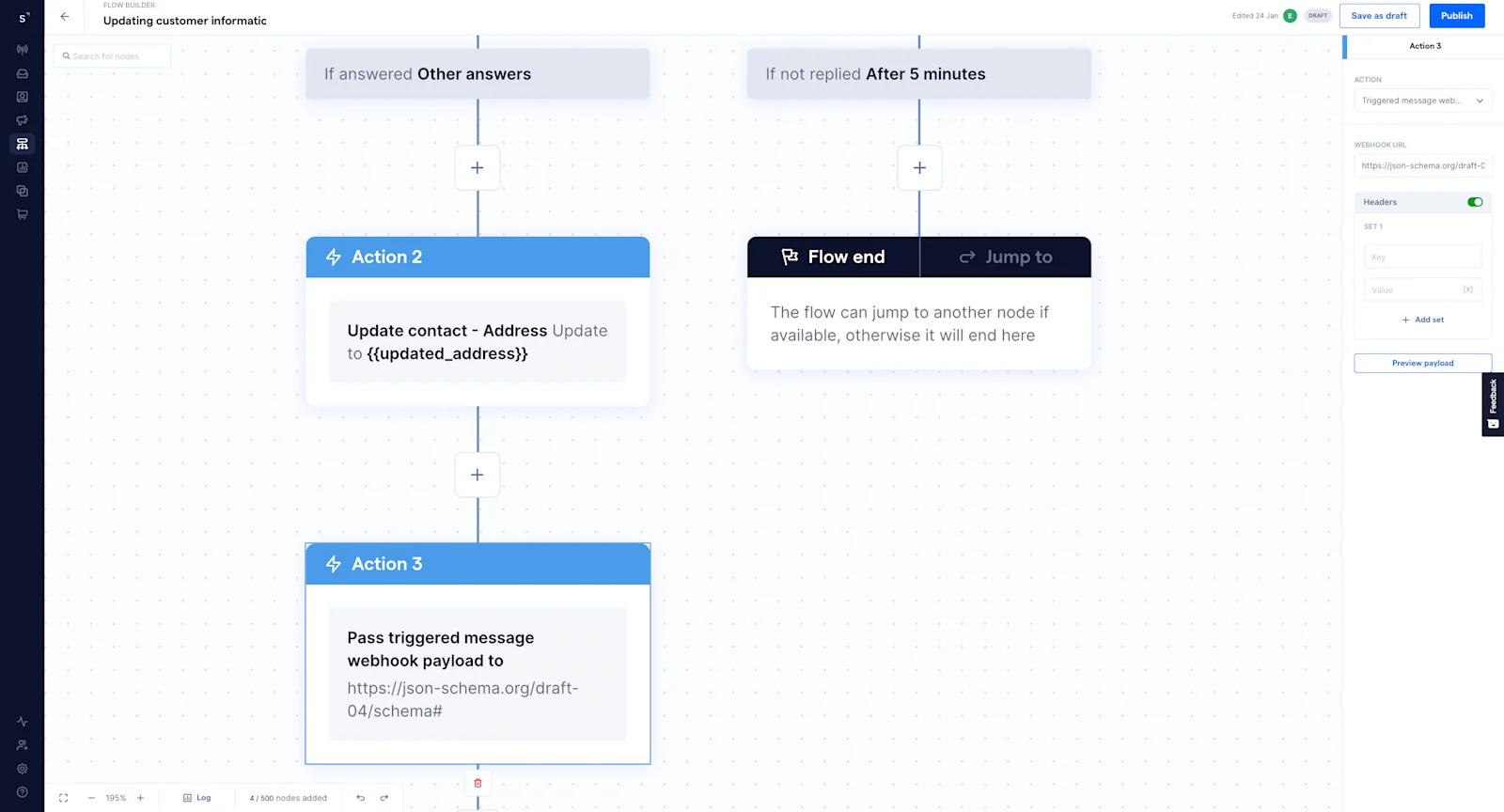
For instance, you can connect your messaging platform with popular CRM systems like Microsoft Dynamics 365 or Zoho CRM to streamline customer interactions and data management. Additionally, you can connect to booking and calendar software, such as Calendly or Jotform to enable seamless scheduling and management of appointments directly through conversations. You can also integrate with helpdesk software like Zendesk or Intercom can significantly improve customer support workflows.
AgentFlow takes integration further. It transforms these connections into smart, two-way workflows. You can set up your AI agents to talk to third-party APIs right in the middle of a conversation. Picture an agent checking Calendly for an open slot, pulling an order status from Shopify, or updating a Salesforce record—all based on your predefined SOP playbooks. This means you can manage the entire customer journey, from their first message to the final confirmation, all within a single, smooth conversation.
WhatsApp workflow automation tools compared (SleekFlow vs. respond.io vs. Wati)
Choosing the right WhatsApp automation platform is a crucial decision for your business. Let's look at three popular solutions—SleekFlow, respond.io, and Wati—to see where each one shines.
SleekFlow: This platform strikes a great balance between user-friendliness, powerful automation, and multi-channel support. If you want to scale your customer conversations efficiently, its native CRM and AI features make it an excellent choice.
respond.io: Is your team more technical? If you need precise control over complex workflows and deep integrations, respond.io delivers. Just be prepared for a more involved setup process.
Wati: If you're a small business or new to the WhatsApp API, Wati offers a simple and affordable starting point. However, you might find it limiting as your automation needs grow more complex.
Ultimately, your decision should match your current needs and where you see your business heading. For companies aiming to build scalable, multi-channel workflows that connect with their existing systems, SleekFlow is a strong contender worth exploring.
Frequently Asked Questions
What is a WhatsApp chat flow?
How to write a conversational flow?
What’s the difference between WhatsApp Flows and automation workflows?
Can I automate WhatsApp replies without the API?
Do I need an opt-in for WhatsApp automation?
What’s the WhatsApp 24-hour rule?
Which WhatsApp automations drive revenue fastest?
Want to outcompete your peers with SleekFlow's help?
Book your personalised demo with SleekFlow today and unlock the potential of seamless communication


