How to add live chat widgets to your website for revenue growth


TL; DR: Quick Summary
- Adding live chat works best as a lead and sales channel, not only a help desk for existing customers.
- Put chat on high-intent pages like pricing and checkout, where visitors are deciding what to buy.
- Connect your CRM or Shopify store so your team sees contacts and orders next to the chat.
- Reply faster with saved replies, AI Smart Reply and AI agents, and keep a person ready for complex chats.
- Compare conversion for visitors who chatted against those who didn't, then keep chat where it pays off.
Most websites don’t have a traffic problem—they have a conversion leak. Visitors land on your site, browse for a few seconds, hesitate, and leave. No form submission. No demo booking. No sale.
In fact, the majority of website visitors will never take action unless you engage them at the right moment. That’s where live chat changes everything. Instead of waiting for visitors to reach out, you can start the conversation when intent is highest—and guide them toward conversion in real time.
When used strategically, live chat isn’t just a support tool. It becomes one of your most effective revenue channels.
What does it mean to add a live chat to a website?
At its core, adding a live chat means placing a chat widget on your website so visitors can message your business in real time. But modern live chats go far beyond simple messaging. Today’s high-performing setups combine:
AI chatbot responses
Automated workflows
Real-time human conversations
This combination allows you to engage visitors instantly, qualify leads automatically and convert interest into action effortlessly. If you’re still relying on a “Contact Us” page alone, you’re likely losing high-intent visitors.
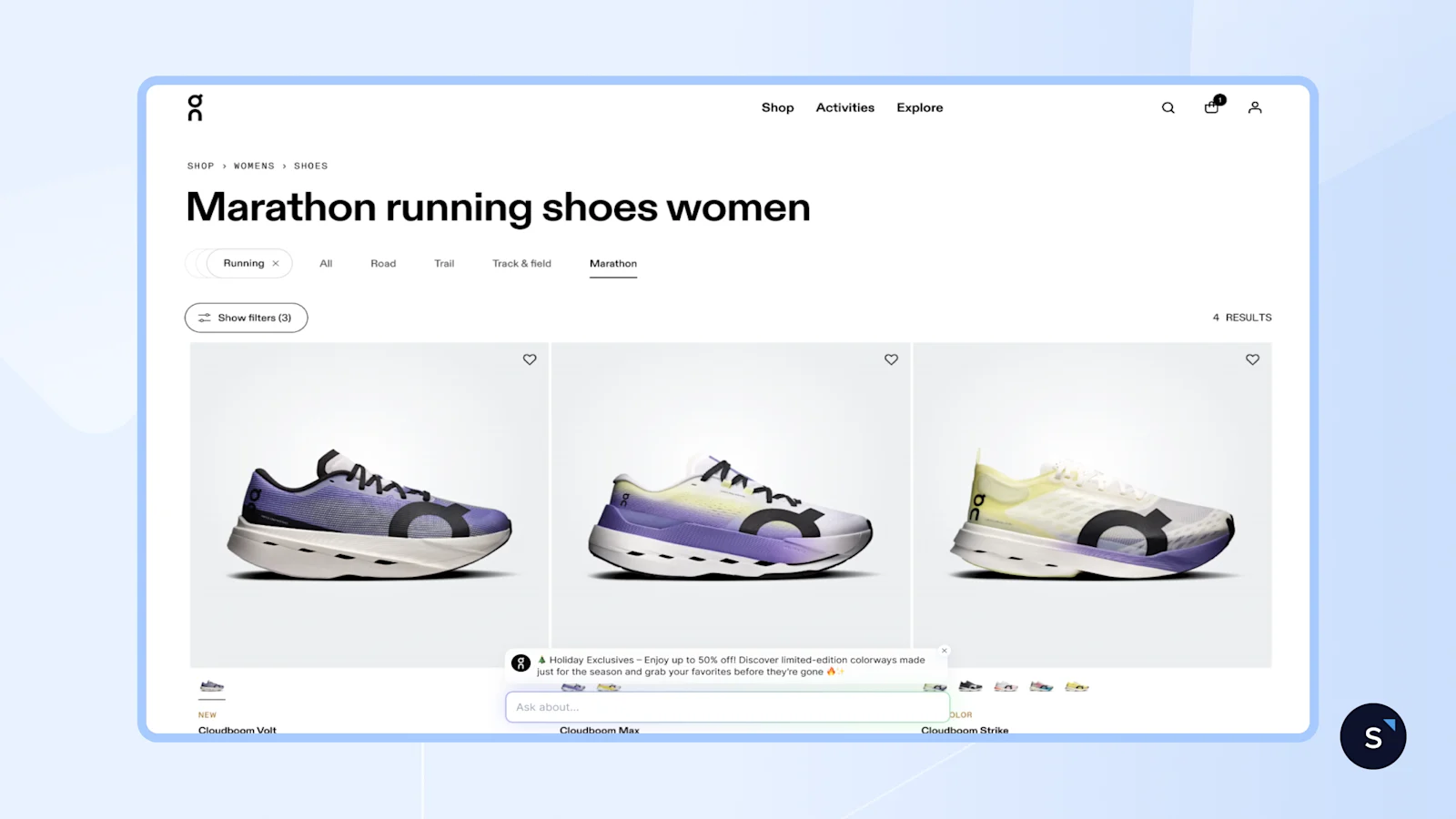
Live chat marketing uses real-time messaging to reach visitors while they're deciding what to buy, with leads and sales as the goal instead of ticket resolution. It starts conversations with people who are browsing products, comparing prices or reading your content right now.
Why businesses are adding live chats to their website
Buyers today expect quick answers. If they do not get one from you, they will likely get one from a competitor. That’s why more companies are investing in chatbots for business solutions that engage users immediately and guide them toward a decision.
When you add a live chat to your website, you can:
Reduce friction: Let visitors get answers instantly without leaving your site.
Capture intent in real time: Understand their needs and recommend the right product immediately.
Increase conversions: After answering their questions, send a payment link or a demo booking link in the same conversation.
In a marketing funnel, live chat connects interested visitors to your team right away, instead of sending them through forms and email chains.
Attract. SEO, ads and social content bring visitors to your site.
Engage. Page-based pop-ups start conversations on pages such as pricing, product comparisons and carts.
Convert. Conversations move toward demo bookings, WhatsApp opt-ins and objection handling.
If you want a deeper breakdown of the differences between live chats and chatbots, this guide is worth exploring.
How to add a live chat to your website
Step 1: Choose a platform built for revenue, not just support
Not all live chat tools are built the same. Some are designed mainly for customer support, while others are built to help you capture leads and grow revenue. If your goal is conversion, look for a platform that offers:
AI automation that goes beyond basic scripts: It should understand natural language and respond with context, not just follow rigid if-then rules.
Omnichannel conversations: Chats should continue even after a visitor leaves your website, whether the conversation moves to WhatsApp, Instagram, SMS, or another channel.
CRM integration: Your team should see contact details next to the chat, and contacts should sync with the CRM you already use.
Conversion analytics: You should be able to see which conversations influence leads, bookings, and revenue.
Payment links: Your team should be able to send a payment link in the chat, so a customer can pay right after their question is answered.
SleekFlow's AI Growth Widget is built with all of this in mind. It brings together AI agents, omnichannel messaging, CRM integration, and conversion tracking in one place, while connecting with channels like WhatsApp, Instagram, and SMS through a single inbox.
Step 2: Sign up and enable the widget
Start a 7-day Pro trial of SleekFlow, no credit card required. Once inside, open Channels in the left sidebar, select AI Growth Widget, and click Start setup.
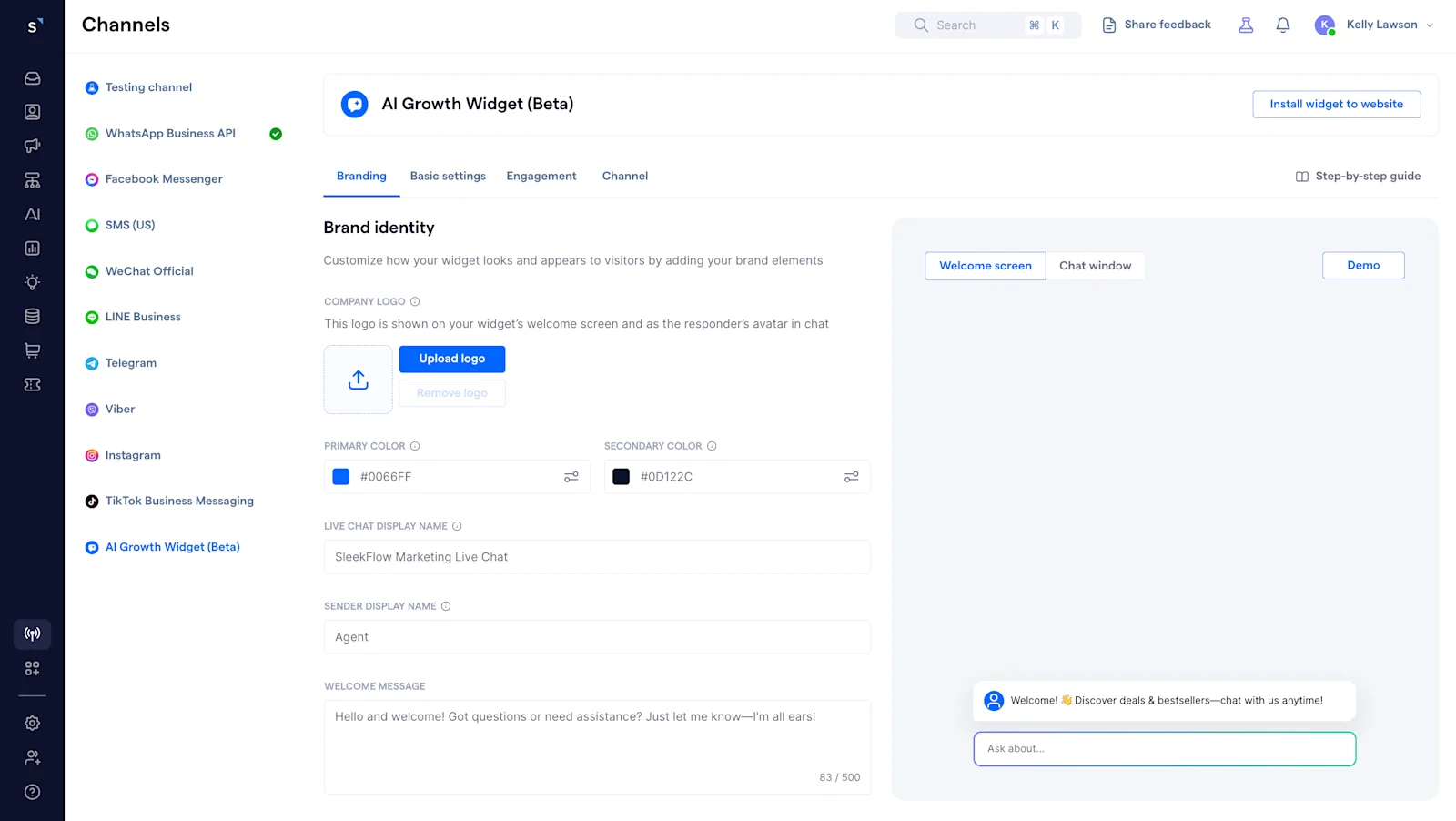
Step 3: Customize your widget setup
Use the setup wizard to configure your widget's appearance and behavior:
Branding: Upload your logo and choose the brand colors for your chat widget.
Basic settings: Customize the chat widget display mode and select your supported languages.
Engagement: Create pop-up messages that show on the pages you choose, after a delay you set in seconds.
Channel: Set up contact forms to capture leads and enable your messaging channels.
Step 4: Get your embed code
Click "Get code snippet" in the top-right corner of the AI Growth Widget settings page. The code will be copied to your clipboard.
Step 5: Install on your website
For custom websites:
Paste the snippet before the closing </body> tag on each page where you want the widget to appear. Then save your changes, refresh your site, and use Verify installation in the setup screen to check it.
To install SleekFlow’s live chat widget on other platforms, follow this step-by-step guide:
Step 6: Build automated retargeting workflows
Use SleekFlow’s Flow Builder to automate what happens after a visitor interacts with your live chat. For example, you can use the AI Growth Widget contact form received trigger to start a follow-up workflow as soon as a visitor submits their details, then automatically send a WhatsApp message to continue the conversation.
Flow Builder is visual and no-code, non-technical teams can easily create, launch, and adjust these workflows without developer support.
Step 7: Connect your CRM
Integrate SleekFlow with your existing CRM or e-commerce tools so your team can see customer data next to the chat. This helps your team follow up faster, keep customer data organized, and make sure no opportunity gets missed.
Contacts sync with Salesforce, and with HubSpot for workspaces that have limited access switched on.
The Shopify integration syncs customers, orders and abandoned carts from Shopify into SleekFlow, one way, and you can recover abandoned carts with automation.
Explore the full capabilities of SleekFlow’s AI Growth Widget and how it drives conversions.
Best practices for a high-converting chatbot for business
1. Trigger at the right moment, not the same moment everywhere
A visitor on your pricing page has very different intent from someone reading a blog post, so their pop-ups should differ too. For example, a pricing page pop-up might show after 3 seconds, while a blog pop-up waits 20.
2. Ask one qualifying question before offering anything
A simple question like “Which service are you interested in?” or “What’s your budget range?” gives the conversation useful context. This helps route visitors more effectively and gives your sales team warmer leads instead of generic form submissions.
3. Enable conversion inside the chat
Close the loop inside the conversation by booking demos or sending payment links, so visitors don't have to go to a separate form or page. SleekFlow's catalog and payment link features let your team send a Stripe or Shopify payment link from the Inbox, once you set them up.
4. Define your human handoff rules before you go live
AI handles volume; humans handle value. Set clear escalation triggers—negative sentiment, billing questions, explicit "I want to talk to a person"—so the handoff happens smoothly, with full conversation context shared so the customer never has to repeat themselves. See how to set up live chat automation with the right escalation logic before you go live.
Once a person takes over, three SleekFlow tools help them reply faster.
Saved replies. Reusable messages with contact variables, so agents don't retype common answers.
AI Smart Reply. Drafts replies from the recent conversation and your knowledge base, on Pro plans and above when it's switched on in your AI settings.
AI agents. Answer from your knowledge base, and go on standby when a teammate takes over by replying from the Inbox.
5. Turn off-hours into a conversion opportunity
Your visitors do not only browse during business hours, and they do not wait for your team to come online. A chatbot on your website can engage visitors, answer questions, and capture leads even at midnight. A contact form simply collects details. Chat keeps the conversation moving and helps turn after-hours traffic into real revenue. Learn how to set up automated live chat that works around the clock.
6. Get opt-in before you message on WhatsApp
Before you follow up on WhatsApp, ask for opt-in permission in the chat. WhatsApp's business policy requires that permission before you message someone, and requires you to honor opt-out requests.
Outside the 24-hour customer service window you can only send approved message templates, and rules vary by market, so check yours with local counsel.
Page-specific setup playbook for your live chat widget
This is where many businesses miss conversion opportunities. Using the same welcome message on every page treats a pricing-page visitor the same as a first-time blog reader.
Your website chat should adapt to each page and the visitor’s intent.
Here’s how to set it up in SleekFlow’s AI Growth Widget:
Checkout and cart pages need their own message, because a shopper there is one step from buying. Try a short offer of help with shipping or payment.
The delays above are examples, since you set the delay in seconds for each pop-up. A page-specific message is limited to 70 characters and shows when the page address matches your rule.
What does a chat-led lead flow look like?
Taylor's University used SleekFlow's AgentFlow as the first responder for its Click-to-WhatsApp campaigns, not for website chat, but the lead flow shows what chat-led qualification looks like. The AI agent answers common admissions questions and routes each conversation, so one chat that mixed student questions with a recruitment partnership inquiry went to the partnerships team.
The figures below come from the customer story and are self-reported by the customer.
Average first response time dropped from 1 hour and 20 minutes to 17 minutes year over year.
Reply rates rose from 71.5% to 79.3%.
How to see if your chat is driving revenue
Knowing whether your AI chatbot for your website is earning its place requires the right metrics. SleekFlow’s AI Growth Widget provides comprehensive tracking to measure conversions, performance, and revenue impact.
Compare conversion for visitors who chatted against those who didn't, then keep chat on the pages where chatters convert better.
Adding live chat to your website is not just about improving support. It is about turning more visitors into leads and customers. With the right setup, you can engage high-intent visitors in real time, reduce drop-offs, automate follow-up, and create a smoother path to conversion. Done well, live chat becomes more than a widget. It becomes a revenue channel.
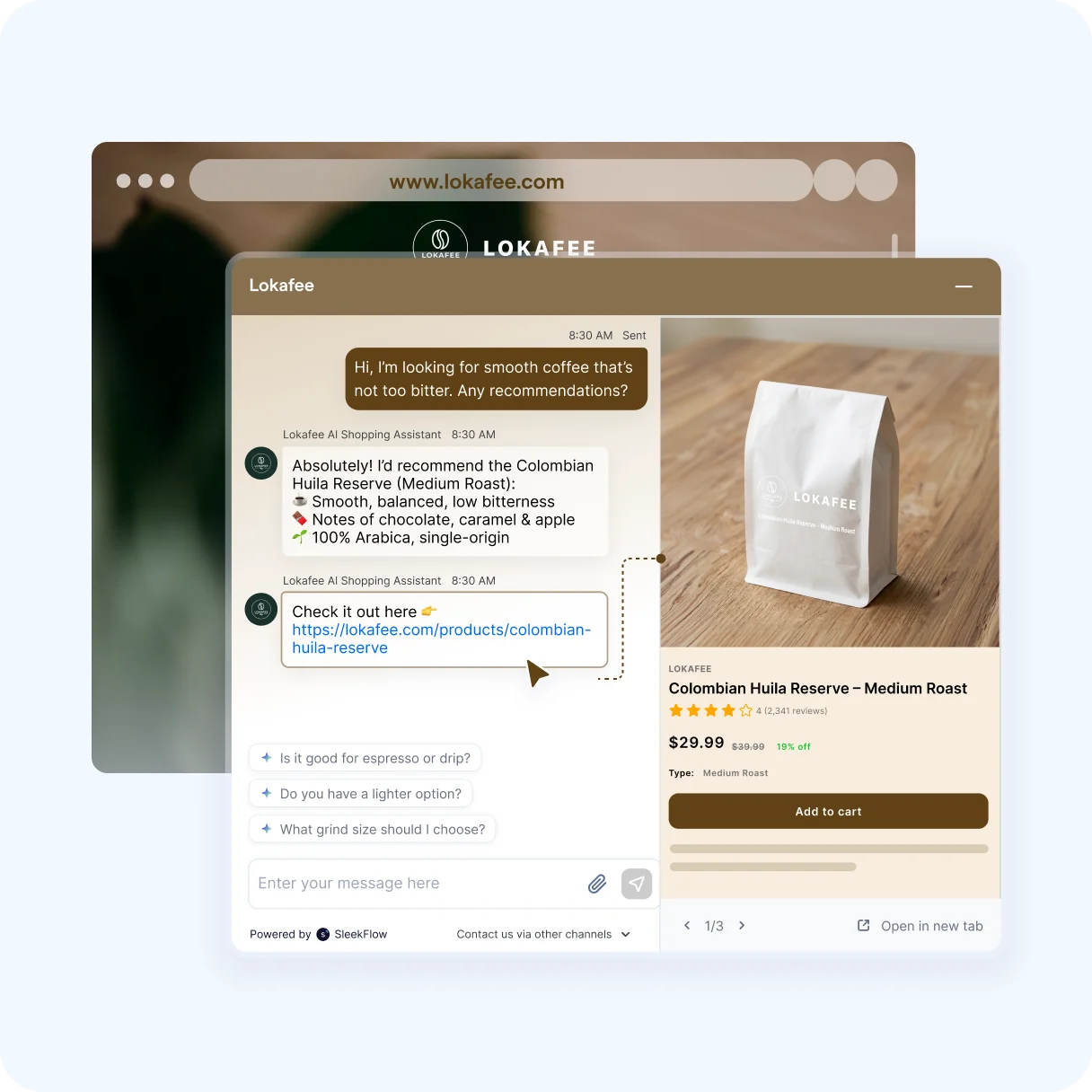
Turn your website into a conversion engine
Capture more leads, engage visitors in real time, and convert faster with SleekFlow’s AI Growth Widget. Get started in minutes.


