How to pin chats on WhatsApp: Boost productivity and stay organised


WhatsApp is where conversations actually happen, with customers, teammates, friends, and family. But when everything flows into one inbox, important chats get buried fast.
Pinned chats solve this. They let you keep priority conversations fixed at the top of your chat list, so you never lose track of what matters most.
This guide covers everything you need to know about pinning chats on WhatsApp. You will learn why pinned chats are useful, how to pin them on every device, how to combine them with other features, and how teams can use them more effectively for business.
How pinning chats on WhatsApp helps you stay organised

Pinned chats are a simple feature, but they have an outsized impact on daily productivity, such as:
Keep important chats visible
Pinned chats stay at the top of your chat list, even when new messages come in elsewhere. This is ideal for conversations you need to check repeatedly.
Reduce mental clutter
Instead of scanning your entire inbox, your eyes go straight to the few chats that matter right now.
Useful for personal and business use
Pin family chats, close friends, or school groups. For work, pin key customers, internal stakeholders, or urgent requests.
Create a natural priority system
Without folders or labels, pinned chats act as a lightweight way to sort what needs attention first.
How to pin a WhatsApp chat on every device.
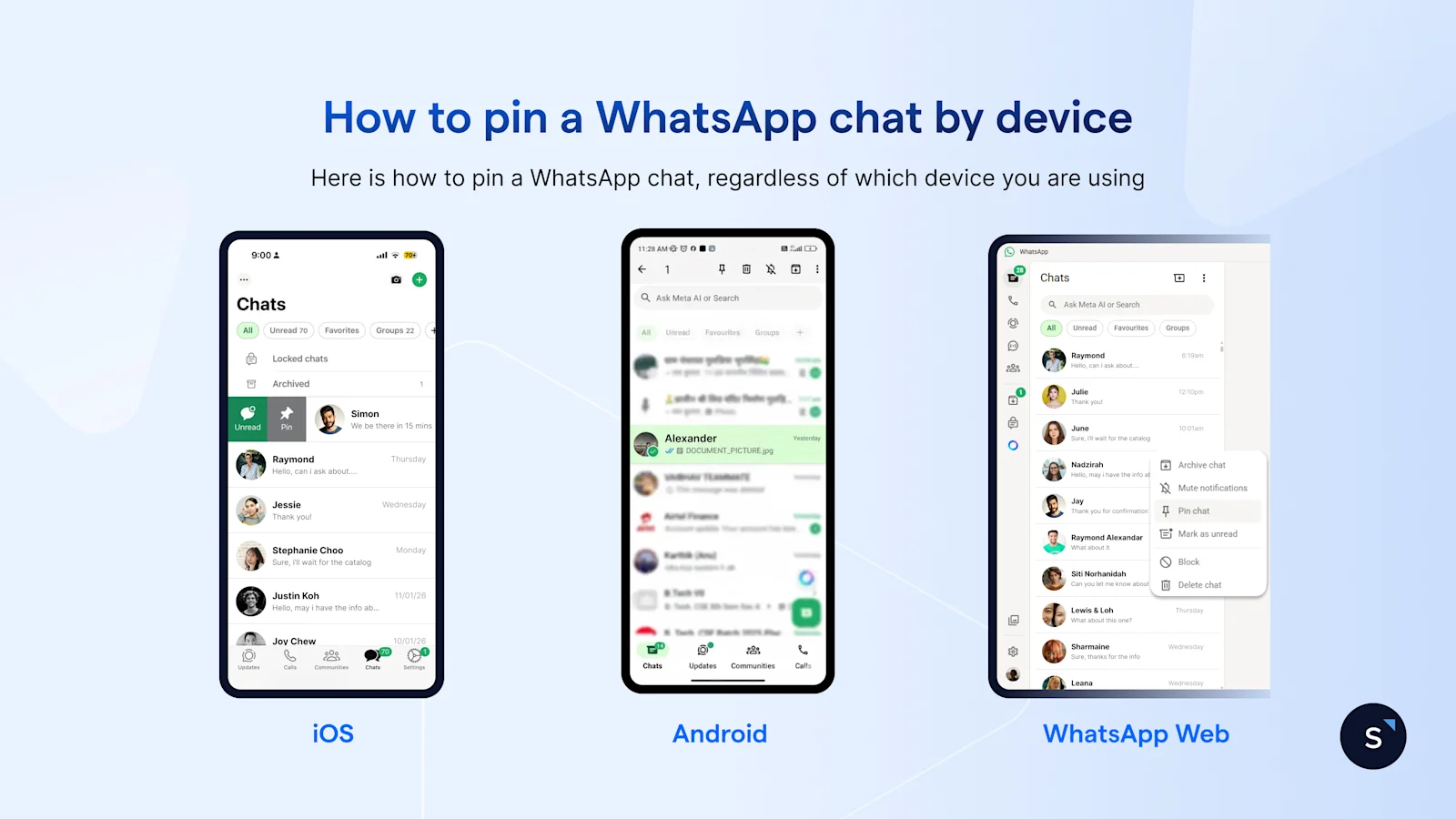
On Android
Open WhatsApp.
Go to your chat list.
Long-press the chat you want to pin.
Tap the pin icon at the top of the screen.
The chat will now stay at the top of your list.
To unpin: Long-press the pinned chat again and tap the unpin icon.
On iOS
Open WhatsApp.
Go to your chat list.
Swipe right on the chat you want to pin.
Tap Pin.
The chat moves to the top instantly.
To unpin: Swipe right again and tap Unpin.
On WhatsApp Web and Desktop
Open WhatsApp Web or the desktop app.
Hover over the chat you want to pin.
Click the downward arrow or right-click the chat.
Select Pin chat.
If you have already done so on your mobile device, you don’t have to do it for your desktop as pinned chats sync across your devices.
Other WhatsApp features you can use alongside pinned chats
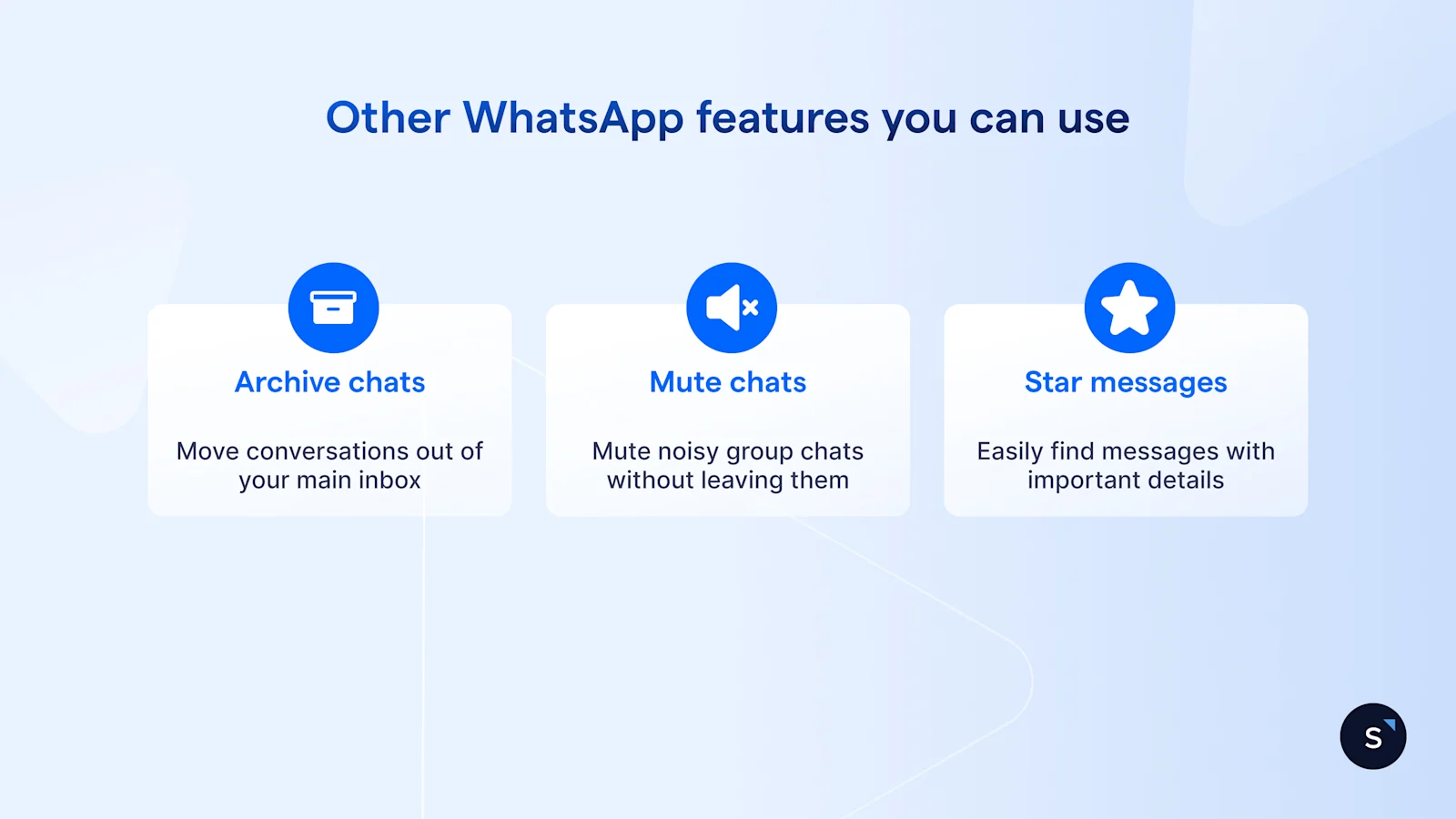
Archive chats
Archived chats move conversations out of your main inbox. This keeps non-urgent chats out of sight while pinned chats stay visible.
Mute chats
Mute noisy group chats without leaving them. You can pin a muted chat if it is important but does not require constant notifications.
Starred messages
Star specific messages inside a chat, like addresses, pricing, or key instructions. This is useful when a pinned chat contains multiple important details.
Together, these features give you basic inbox control without needing extra tools.
Benefits of pinned chats for business teams
For teams using WhatsApp to communicate with customers, pinned chats are more than a convenience.
Faster response times: Urgent or high-value conversations stay visible, reducing missed messages.
Clearer daily focus: Agents know which chats need attention first, especially during busy periods.
Better handovers: Pinned chats make it easier for teammates to spot priority conversations during shift changes.
Reduced reliance on memory: Instead of remembering who to follow up with, the chat remains pinned until the task is complete.
That said, pinned chats are still a manual solution. As team size and chat volume grow, limitations become obvious.
When pinned chats stop being enough, there's a better alternative
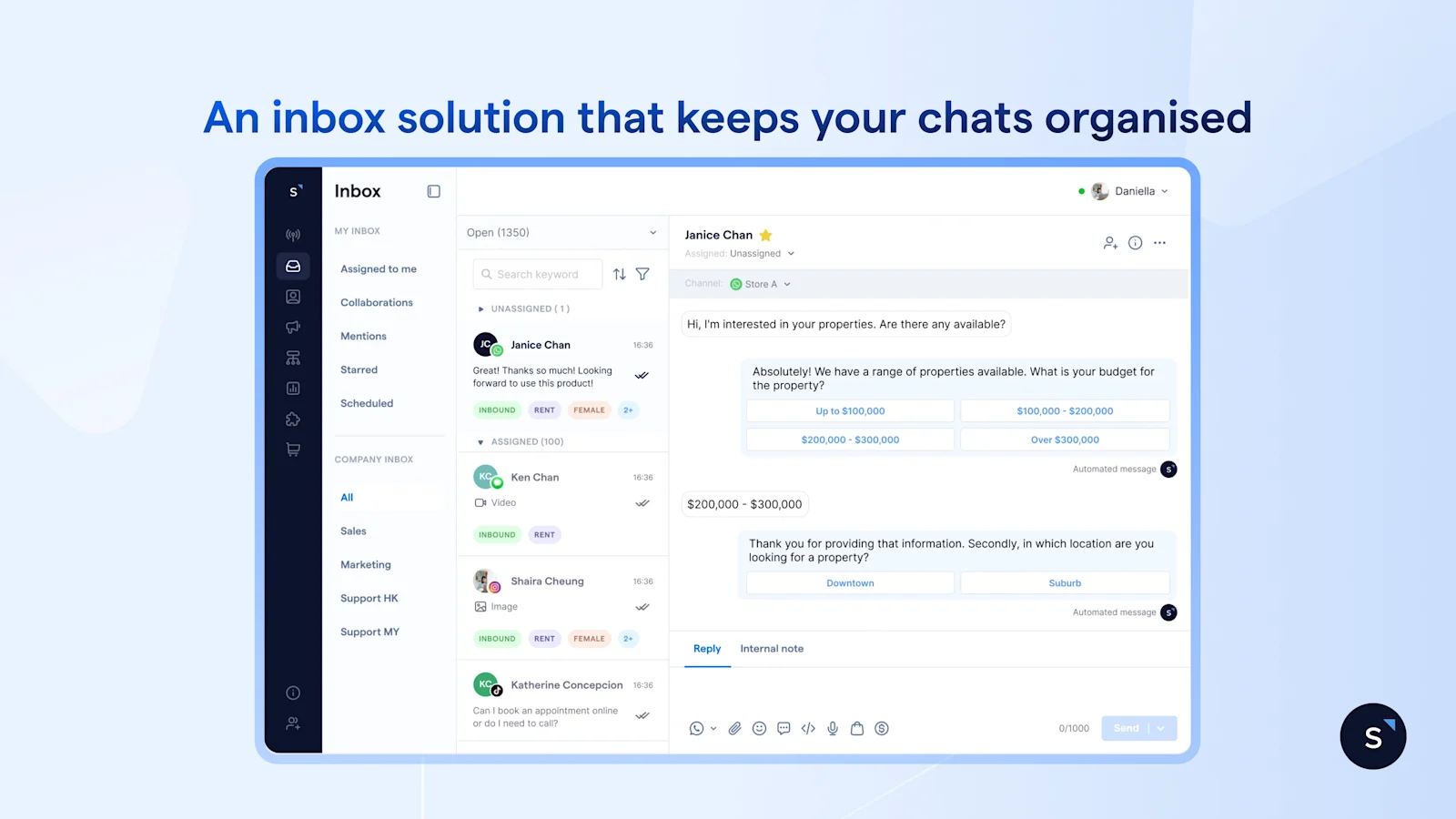
Pinned chats work well for individuals. But if multiple team members are sharing one WhatsApp account, they quickly become a workaround rather than a solution.
Upgrading to the WhatsApp Business API gives you proper multi-user access, shared ownership, visibility, and automation, which the standard WhatsApp app cannot provide.
The WhatsApp Business API allows conversations to be:
Assigned to specific agents
Reassigned when someone is unavailable
Tracked for response time and resolution
This removes the single biggest bottleneck teams face as they grow.
Pinned chats are helpful, but they are not a system
Pinned chats are one of WhatsApp’s most useful features. They help you stay organised, surface what matters, and cut through daily noise. For individuals and very small teams, that is often enough. Once multiple people share one WhatsApp account, the organisation turns into guesswork, and missed messages become inevitable.
That is where the WhatsApp Business API comes in. It gives you shared visibility, clear ownership, and automation that supports your team without adding complexity. If you are curious what that could look like for your business, you can try SleekFlow for free. It is an easy way to explore a shared WhatsApp inbox, smarter routing, and better collaboration, all without commitment.


