Guide to implementing and troubleshooting WhatsApp widgets


TL;DR: Quick Summary
- A WhatsApp widget lets website visitors start a chat instantly instead of filling out lengthy forms.
- WhatsApp chat widgets work best for converting on-site traffic, while click-to-chat links suit external channels.
- With AI agents, WhatsApp chat widgets can capture leads, qualify inquiries, recommend products, and support customers 24/7.
- SleekFlow centralizes widget conversations in one inbox with CRM, automation, payment, and analytics support.
- Setup is simple across Wix, Shopify, and WordPress, with common fixes for cache, script, and display issues.
- Strong welcome text and pre-filled messages improve click-through and conversation quality.
Looking for a better way to connect with your website visitors? A WhatsApp widget is a simple but effective tool for offering real-time support, answering questions, and building stronger customer relationships.
In this guide, we'll cover everything from what a WhatsApp widget is to how you can add one to your own site.
What are WhatsApp live chat widgets?
Think of a WhatsApp live chat widget as the digital version of a helpful store associate. When someone visits your website, this widget appears as a small, clickable icon, usually in the corner. It gives your visitors a quick way to ask questions and start a real conversation with you.
Instead of making potential customers search for a "Contact Us" page or fill out a form, the widget invites them to chat instantly. Its real power is how it moves the conversation from the website to the customer's personal WhatsApp app. This means you maintain a direct line of communication, even after they've left your site.
When should you use a widget vs. a simple click-to-chat link?
Both WhatsApp widgets and click-to-chat links aim to start a conversation, but they work best in different situations. Deciding which one to use depends on where your customer is engaging with your brand and how much context you need.
In summary, widgets are best for converting traffic that is already on your website. Use click-to-chat links to funnel external traffic directly into your WhatsApp inbox.
How 2Stallions streamlined communication with a WhatsApp live chat widget
2Stallions is a digital marketing agency that specializes in personalizing the customer journey for its clients. The agency recognized the need for direct, immediate communication to effectively engage modern audiences.
Traditional email marketing was resulting in low engagement, especially with younger demographics and in the retail sector. Additionally, managing high volumes of messages across multiple platforms while maintaining a personal touch was becoming increasingly complex.
To address these issues, 2Stallions adopted SleekFlow's omnichannel platform and the WhatsApp Business API. They implemented a WhatsApp live chat widget on client websites for seamless lead capture and used a unified inbox to manage customer inquiries efficiently.
This new strategy led to significant improvements in several key areas:
Engagement rates: Messaging campaigns saw an 80% open rate and a 29% response rate.
Operational efficiency: By centralizing communications and automating workflows, the agency doubled its operational efficiency.
SleekFlow is a user-friendly WhatsApp marketing and messaging platform designed to streamline customer communication.

Olwen van Dijk
Head of Content and Social at 2Stallions
Why should businesses add a WhatsApp widget to their websites?
Website forms still have a place, but they often create friction: visitors need to fill in fields, submit their details, and wait for someone to follow up.
Many customers now prefer a faster path.
Meta’s 2026 State of Business Messaging report found that:
73.3% of consumers prefer messaging when communicating with a business,
66.8% feel frustrated when messaging is not offered as a contact option
How can WhatsApp widgets be used for marketing, sales, and support?
A WhatsApp widget helps turn website visitors into active conversations. Instead of asking customers to complete a long contact form, the widget lets them start a WhatsApp chat instantly. With an AI agent , that first message can become a lead capture flow, sales consultation, or support request without making the customer wait.
Here's how this powerful duo can elevate your business:
Inbound marketing and lead capture: When a visitor clicks the WhatsApp live chat button, the AI agent immediately engages them inside WhatsApp. It can greet the user, capture their contact information, and start qualifying their needs with structured questions. Every conversation is automatically stored in a single inbox, ensuring your team has complete context and leads aren’t lost.
Seamless sales interactions: If a customer asks about products or pricing via the WhatsApp chat, the AI agent can provide recommendations, pull items from your catalog, and even generate payment or checkout links—all within WhatsApp. The AI doesn’t just respond; it guides the buyer through the journey, keeping engagement high and friction low.
Always-on customer support: Customers expect immediate answers, no matter the time of day. Your WhatsApp AI agent acts as your first line of defense, instantly handling routine questions about order status, return policies, or business hours. If a query is too complex, the AI intelligently routes the conversation to the right person on your team, providing a full summary so they can pick up right where the AI left off.
How to implement and troubleshoot a WhatsApp widget
Embedding SleekFlow’s WhatsApp chat widget on your website is straightforward and easy, but we understand that you may encounter some challenges and questions along the way. These FAQs centralize answers to common questions, providing a handy self-service reference to help you troubleshoot errors you may encounter.
1. How do I embed a WhatsApp widget code into my CMS?
Create a WhatsApp chat widget
Head over to SleekFlow WhatsApp Button Generator and fill up the following:
Button Name (optional)
Button Size
Button Position
Brand Name
Brand Subtitle Text
Phone Number
Brand Image URL (Optional)
Welcome Message
Pre-filled Message
Call to Action
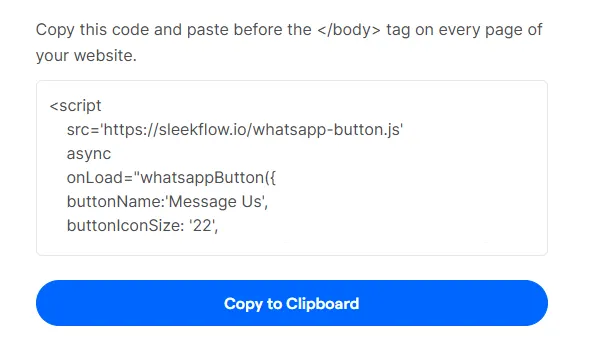
After filling in the details, enter your business email and press “Get Your Free WhatsApp Button” to get and copy the code, which you can add to your CMS.
Set up on WIX
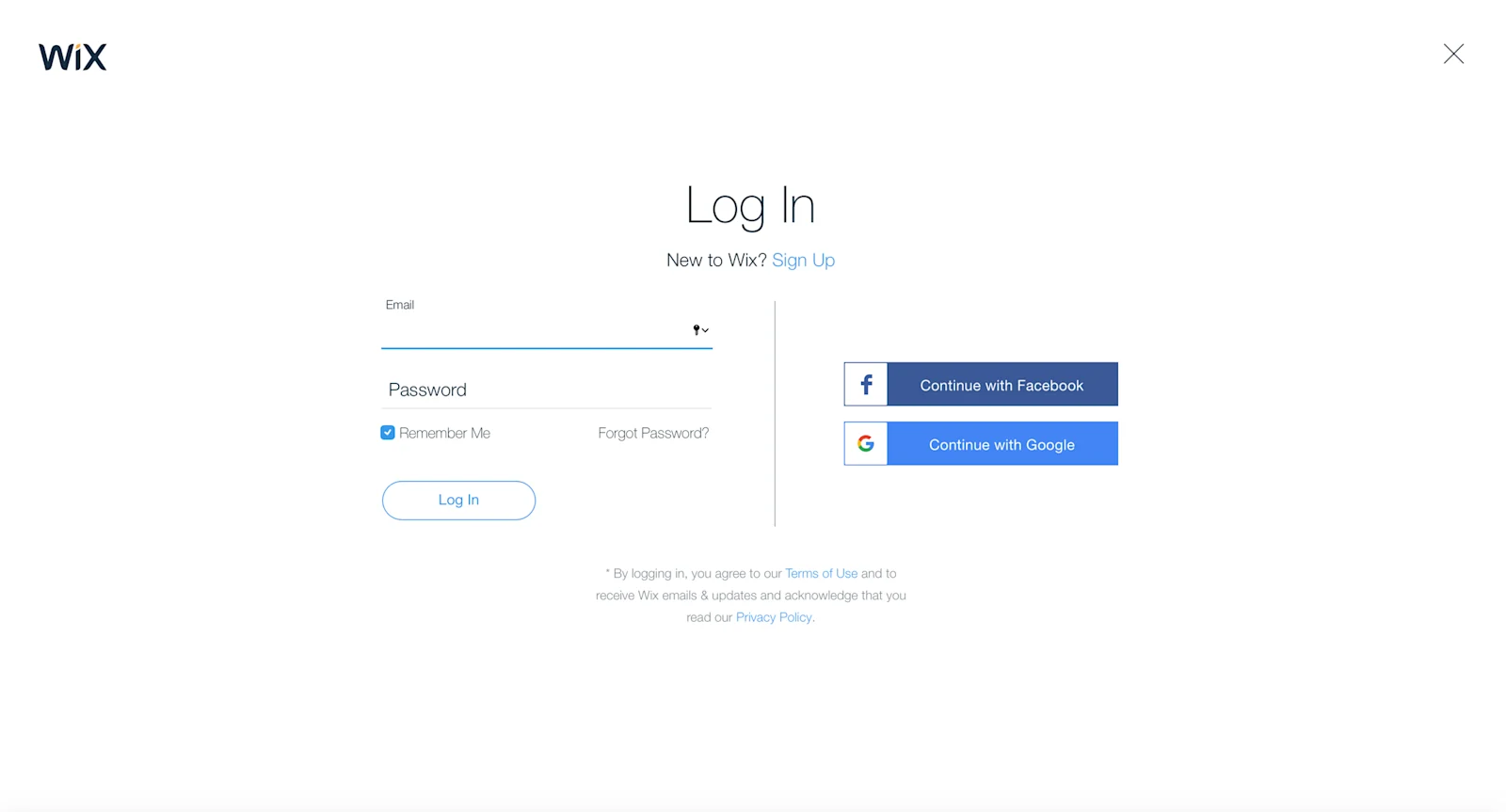
1. Log into your Wix account for your website. The link to the login page is here.
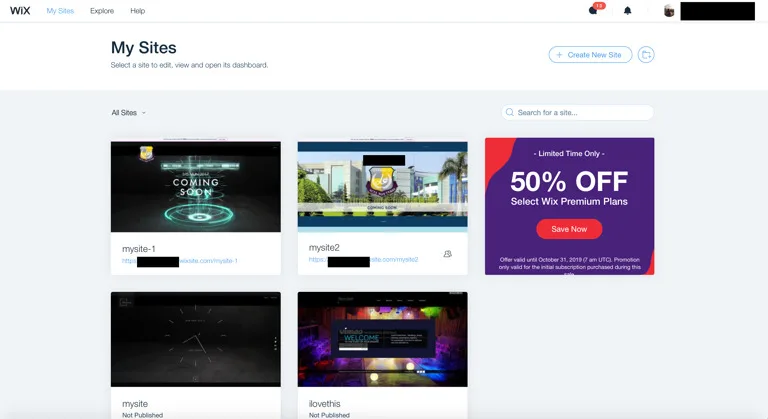
2. From the displayed websites, click "Select & Edit Site" on the one you want to integrate SleekFlow with.
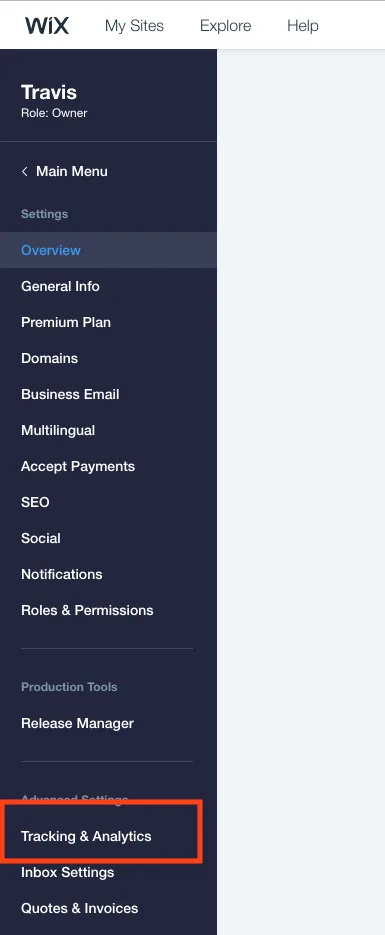
3. Click "Settings" in the left column of the dashboard, then select "Custom Code" under the "Advanced" section.
4. After that, click "+ Add Custom Code" at the top right.
5. Paste the code in the box and select "Body - end."
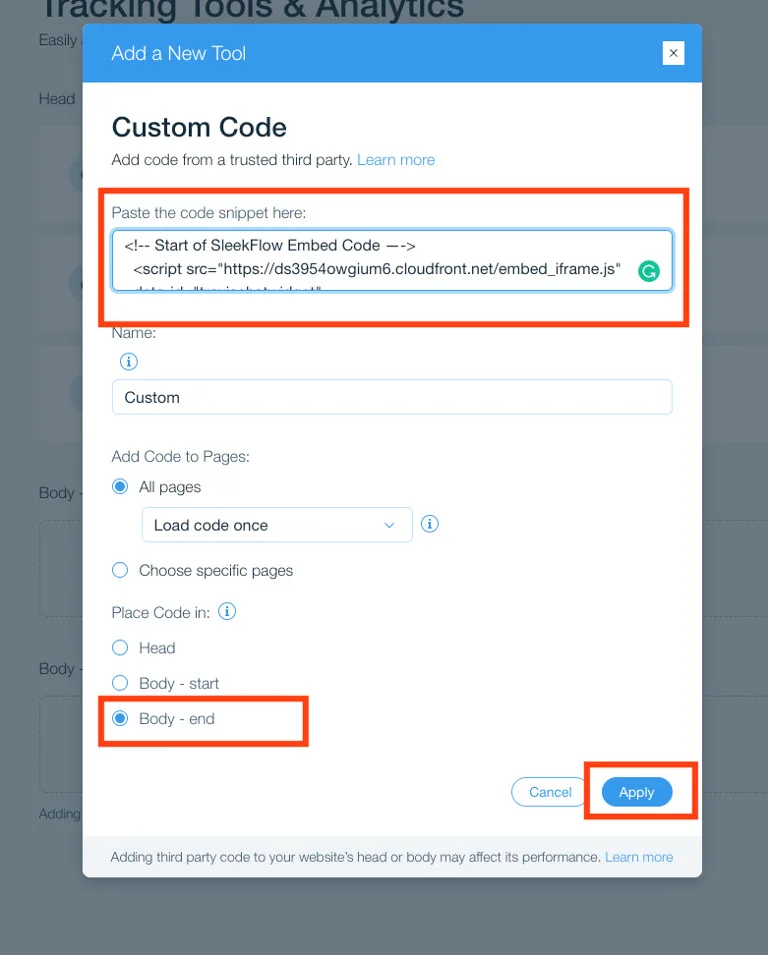
6. When done, click " Apply."
7. We advise naming the code "SleekFlow Messenger" for better identification. Make sure the toggle is "Enabled."

8. Please publish and check your Wix website! The widget should appear.
Set upon Shopify
Before setting up Shopify with SleekFlow, you'll need access to your Shopify dashboard and the tracking code from your SleekFlow platform.
We recommend duplicating your theme to create a backup copy. This way, you can easily discard your changes and start over if you make a mistake.
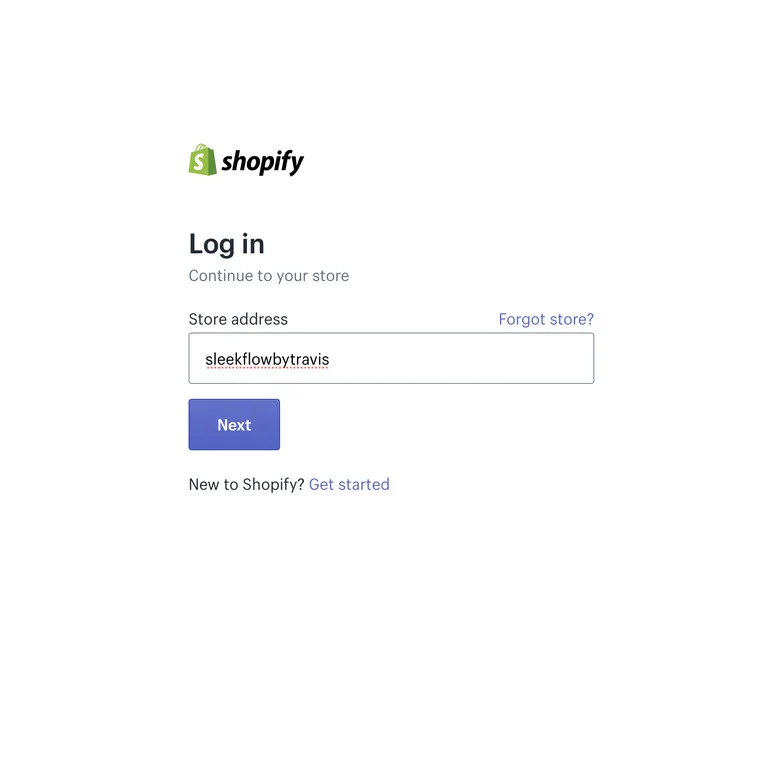
1. Go to the Shopify Login page by clicking here to log in to your account and access your website control panel.
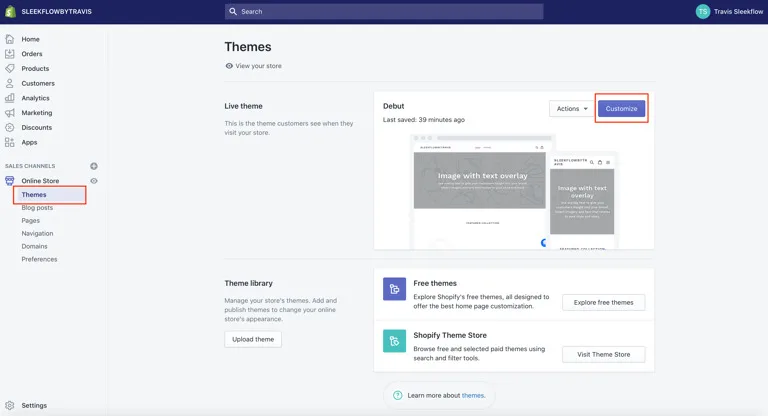
2. Under your active theme, click "Customize" to edit the preferences.
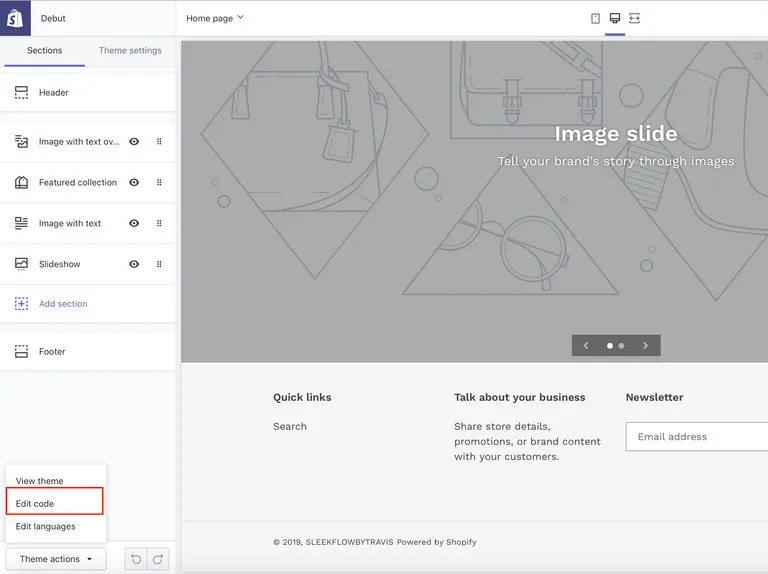
3. From the navigational pane that appears, click “Edit Code” to begin editing the theme to input the snippet.
4. Navigate yourself through the new link that appears to find Sections. Expand it if it is not open, and open the sub-file footer.liquid.
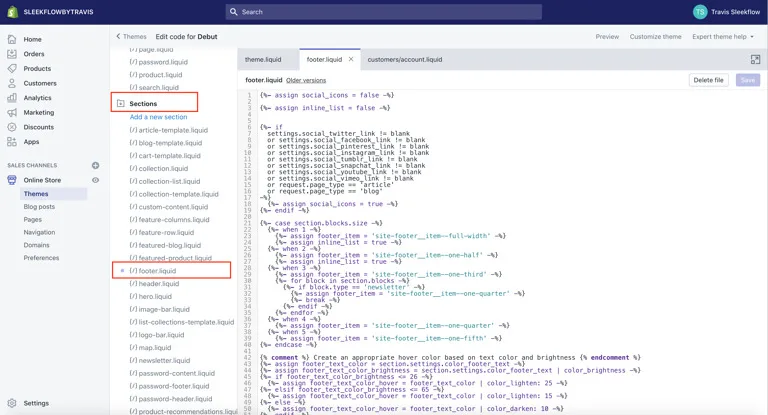
5. Under the footer.liquid css layout, scroll down to find </footer>.
6. Copy and paste it on your website. Copy and paste the tracking code here before {% schema %}. That is, between </footer> and {% schema %}.
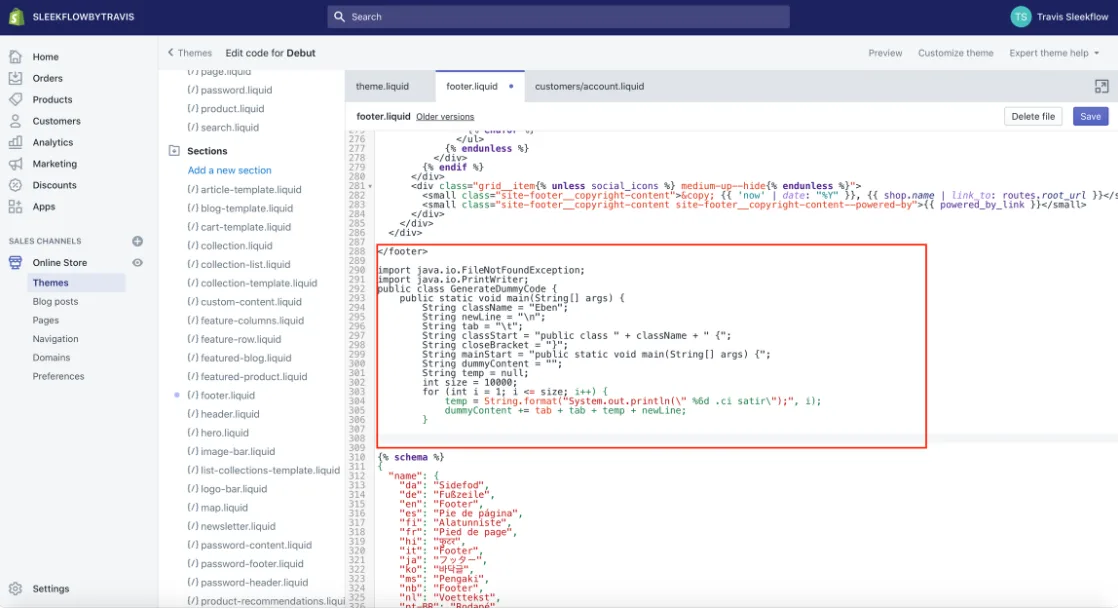
7. Click on Save once pasted. You’ve successfully installed the messaging platform on your Shopify website. Open your site to see the widget on the bottom right-hand side.
Set up on WordPress
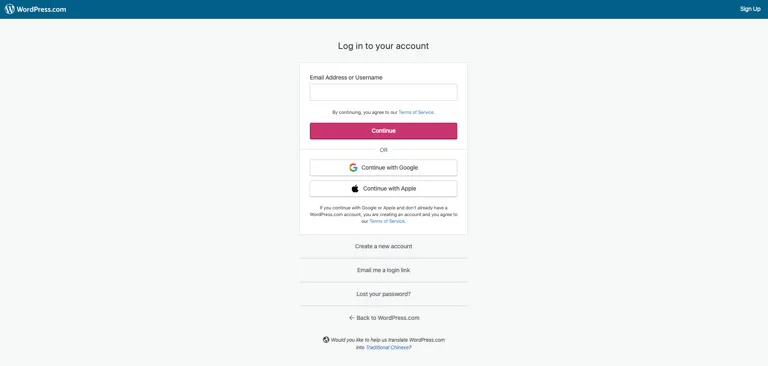
1. Log in to your WordPress admin dashboard using your credentials.
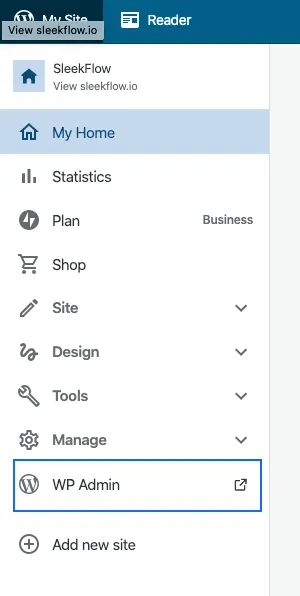
2. Click on "My Site" at the top left corner, then select the "WP Admin" tab.
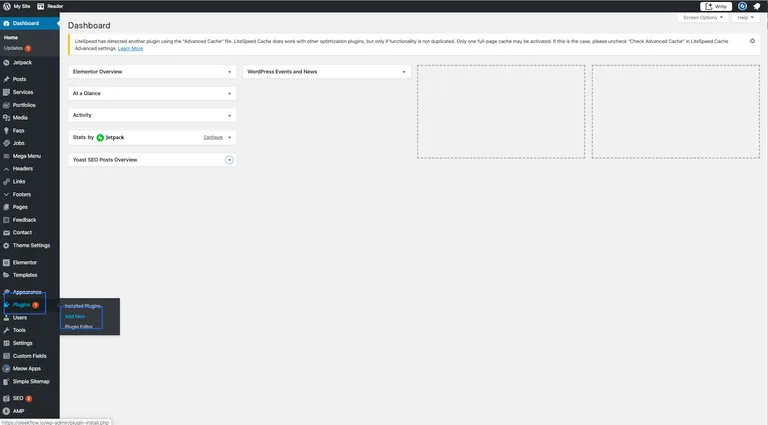
3. Hover over "Plugins" in the left column and click "Add New."
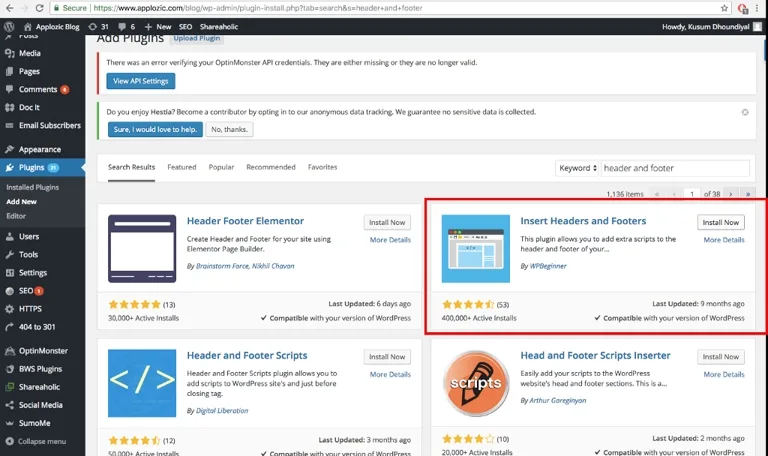
4. Search for the "Insert Headers and Footers" plugin by WPBeginner, then click "Install Now" and "Activate."
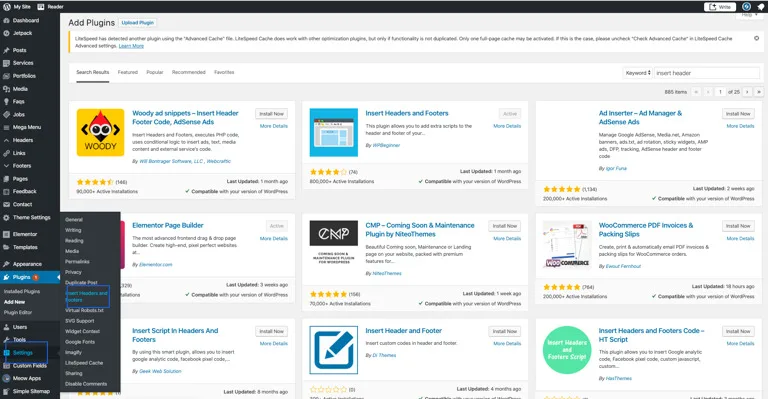
5. Hover over "Settings" in the left menu and select "Insert Headers and Footers."
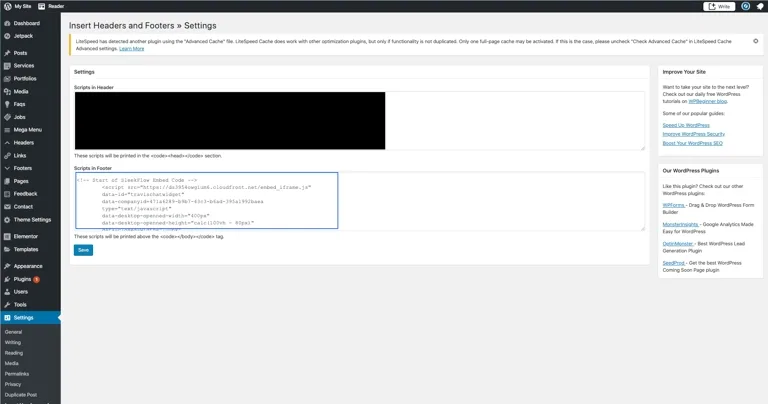
6. Copy your unique snippet code and paste it into the "Script in Footer" section. Click "Save."
7. Open your website to check the chat widget, which should appear in the bottom-right corner for easy visitor access.
2. How can I fix the issue where I can’t close the WhatsApp button widget?
If you've added the code correctly by following the steps, there shouldn't be an issue. However, this problem is often caused by having two scripts—one in the header and one in the body.
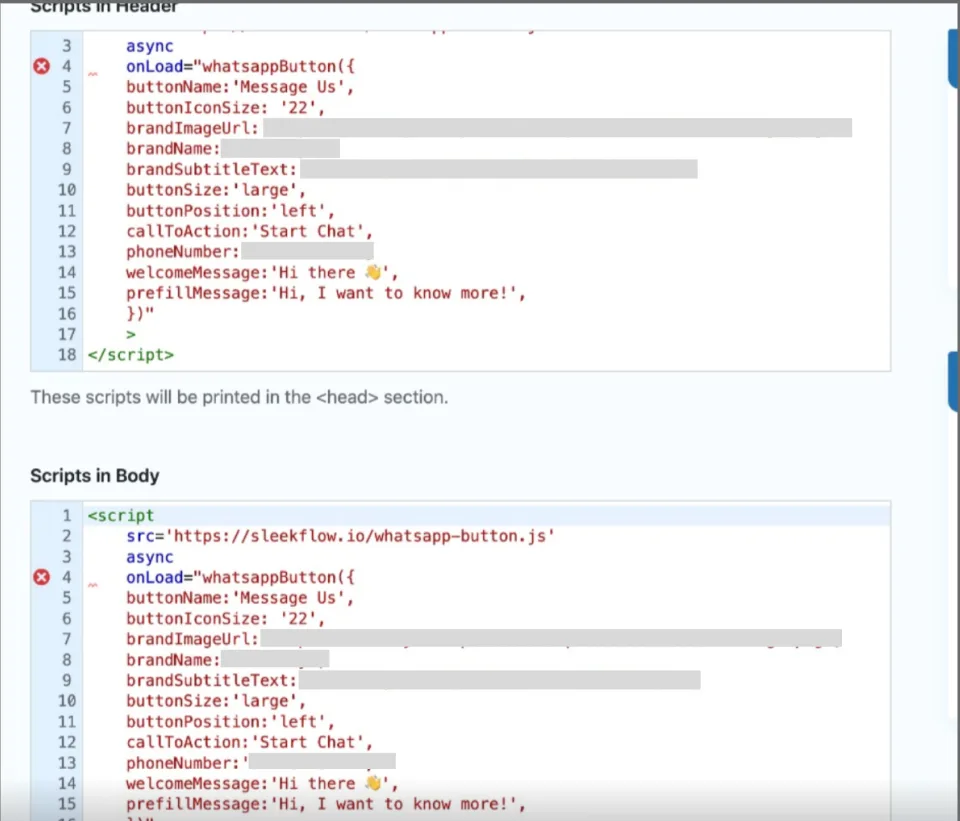
To fix it, remove the script from the header and leave only the one in the body. This should resolve the issue.
3. My widget is not showing on my website, how can I fix it?
You can check and clear the cache using a plugin or your browser; different CMS may require different methods to clear the cache.
Clearing Cache in Wix
1. Go to the relevant page in your Wix Editor or Editor X.
2. In Wix Editor, click "Pages & Menu" on the left side. In Editor X, click "Pages" at the top.
3. Hover over the page and click the More Actions icon, then select "Settings."
4. Click "Advanced Settings."
5. Toggle the "Manually control caching for this page" option and choose whether to enable or disable caching.
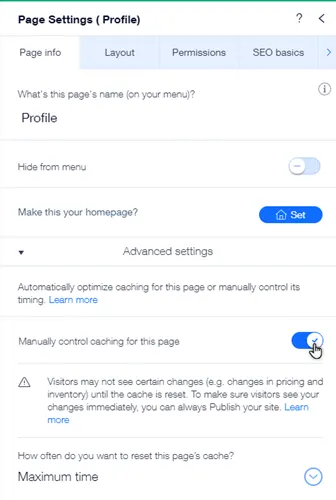
6. If enabled, select how often you want the page's cache to reset or choose "Never" to prevent caching.
7. If disabled, the page will be cached automatically. Alternatively, you can clear the cache using your browser settings.
Clearing Cache in Shopify
For Shopify, you can clear the cache using your browser, and the steps may vary depending on which browser you’re using.
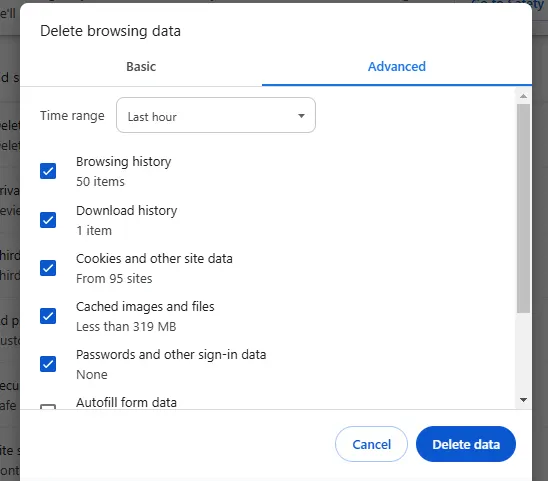
Chrome: Press Ctrl + Shift + Delete (or Cmd + Shift + Delete on Mac). From the Time range drop-down menu, select "All time." Ensure the box next to "Cached images and files" is checked, then click "Clear data."
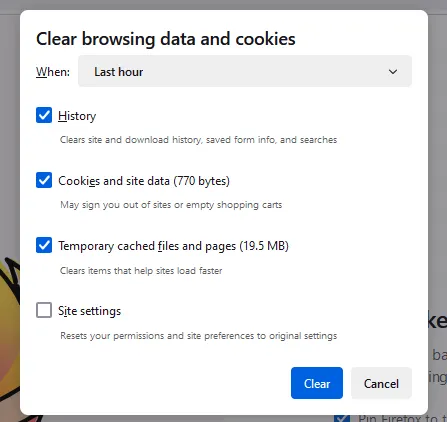
Firefox: Press Ctrl + Shift + Delete (or Cmd + Shift + Delete on Mac). In the Time range to clear drop-down, select "Everything." Ensure the "Cache" box is checked, then click "Clear now." Close and reopen Firefox.
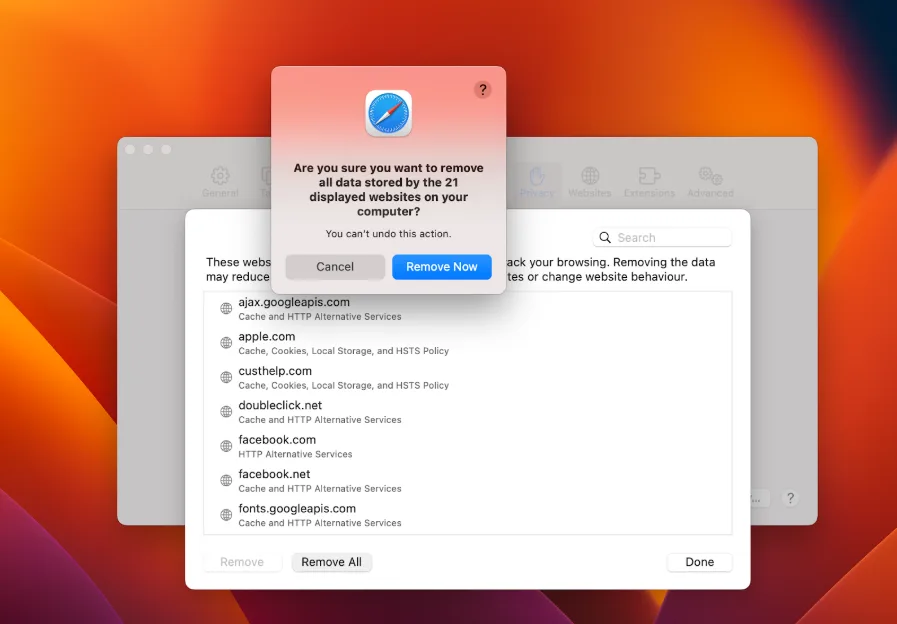
Safari: Open Safari and click on 'Safari' in the top left corner of your screen. From the dropdown, select 'Privacy,' then click 'Manage Website Data.' Finally, press 'Remove All' to clear the data.
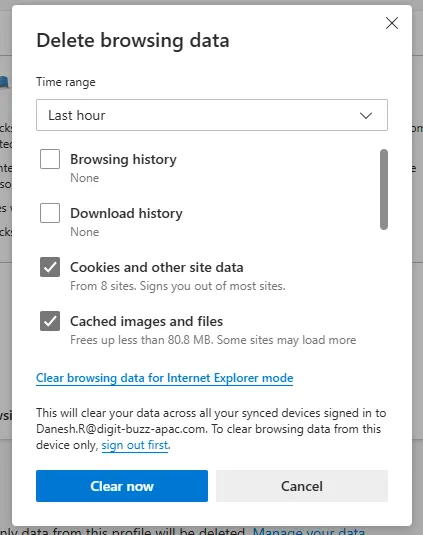
Edge: Press Ctrl + Shift + Delete (or Cmd + Shift + Delete on Mac). Ensure "Cached data and files" is checked, then click "Clear." Close and reopen Microsoft Edge.
Clearing Cache in WordPress
For WordPress, you can clear the cache within the site or by using a plugin. To clear the cache within the site, you can:
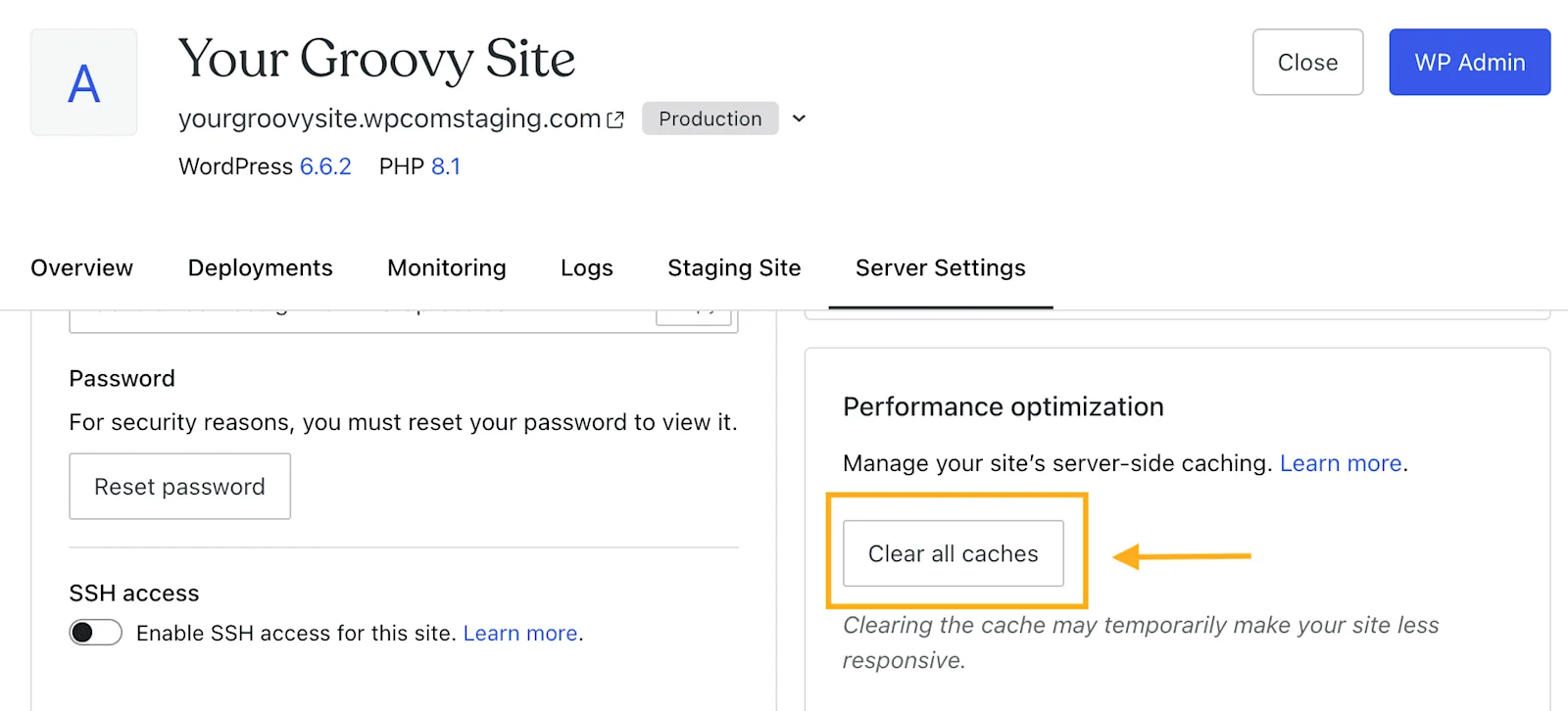
Click the W icon in the upper left corner of your dashboard to access the Sites page.
Select your site from the list of sites.
Go to the Server Settings tab on the site overview page.
Scroll to the Performance Optimization section.
Click Clear All Caches to clear edge and object caches together or clear them individually if needed.
Wait for the confirmation message that the caches have been cleared.
Source: WordPress
Also, plugins work best for all WordPress versions and offer more flexibility for cache management. Some top options to consider are WP Super Cache, W3 Total Cache, and WP Rocket.
4. How can I fix the issue if the WhatsApp button is still not showing the updated version?
The solution is the same as above. Clear your cache to ensure the updated version is displayed.
5. My widget design looks bad on my website, how can I fix it?
You cannot customize the padding or text size of the widget on your own; they are fixed. If the design appears off, you can check for the following potential issues:
Inspect CSS specificity: Use browser developer tools (e.g., Chrome DevTools) to inspect the affected elements. Look for styles applied by your site that might be overriding the widget’s CSS.
Namespace isolation: Ensure that your global styles (e.g., for <body>, <p>, <h1>, etc.) aren’t inadvertently affecting the widget’s elements. Adding more specific CSS selectors can help avoid conflicts.
Override safely: Use more specific CSS selectors targeting only the widget’s elements to prevent interference from other site styles.
6. How can I remove the "Powered by SleekFlow" from my widget?
Premium Plan or above users can contact our Customer Service team for assistance to remove “Powered by SleekFlow” from the chat widget.
7. How can I update the pre-filled message, logo, welcome message, and other details?
To update these elements, go to the SleekFlow WhatsApp Button Generator, fill in the new information (like the pre-filled message, logo, and welcome message), and generate a new code. Once you have the new code, implement it in your CMS to update the widget.
Best practices for welcome text and pre-filled message
A nice-looking widget is a good start, but the words you use are what convince a customer to click. When setting up your WhatsApp widget, you have two key opportunities to make a great impression: the welcome text (the bubble that pops up on your site) and the pre-filled message (the text that automatically appears in the user's WhatsApp chat after they click).
To make the jump from browsing to chatting smooth, try these best practices:
Crafting the perfect welcome text (The hook)
Your welcome text should be inviting, relevant, and show its value right away. It needs to let the user know that a real person or a helpful solution is just one click away.
Be human and conversational: Skip the robotic "Contact Support." Opt for something warmer and more approachable, like, "Hi there! 👋 Need help finding the perfect fit?" or "Got questions? We're here to chat!"
Match the page context: If a user is on your pricing page, your welcome text could say, "Looking for a custom quote? Let's talk numbers!" If they're on a product page, try something like, "Want to know if this is in stock?"
Set clear expectations: If your team only replies during certain hours, you can gently mention that. For instance, "Drop us a message! Our team typically replies within 5 minutes."
Optimizing the pre-filled message (The icebreaker)
The pre-filled message appears in the customer's WhatsApp chat, ready for them to send. Its main job is to remove the awkwardness of a blank screen and save the customer some typing.
Write from the customer’s perspective: The text should feel like something the user would naturally type. Use "I" statements, such as, "Hi, I'm interested in learning more about your premium subscription." This sounds more natural than, "Hello, tell me about your subscription."
Include dynamic context: The best pre-filled messages give your agents immediate context. For example: "Hi, I'm currently looking at the [Product Name] page and have a quick question!"
Keep It open-ended but specific: Give the customer a clear starting point but also let them add their own details. A message like, "Hi, I need help with my recent order. My order number is: " encourages them to fill in the blank.
What sets SleekFlow's WhatsApp live chat widget apart?
SleekFlow’s WhatsApp live chat button does more than just link to a messaging app—it’s the gateway to a complete, AI conversation inside WhatsApp.
When a visitor clicks, your AI agent greets them instantly, qualifies their needs, recommends products or services, schedules appointments, and guides them through the full customer journey—all within the familiar WhatsApp environment. Every interaction is captured, tracked, and ready to feed your CRM or analytics, so nothing gets lost.
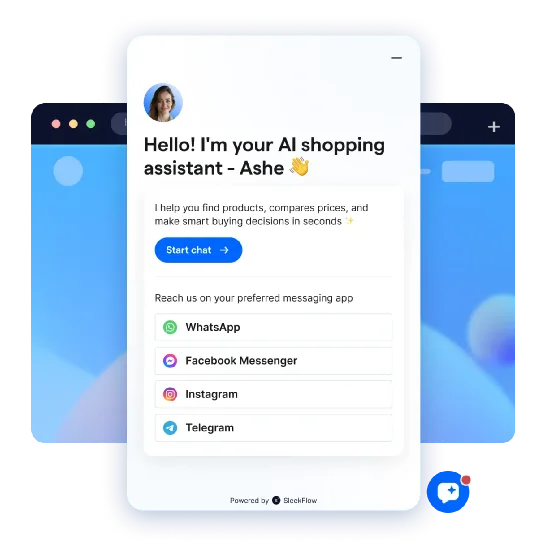
But not every visitor prefers to use WhatsApp. This is where the SleekFlow AI growth widget comes in. Embedded directly on your website, it allows visitors to start a conversation instantly—without leaving your site—while still offering options to reach you via their preferred channels, including WhatsApp, SMS, or Instagram.
LKF Concepts streamlined guest communication across multiple restaurants with SleekFlow
LKF Concepts, a major hospitality group in Hong Kong, is committed to creating memorable dining experiences. Their mission is to ensure a seamless customer journey, starting from the first point of contact.
Guests increasingly preferred using WhatsApp for inquiries, but the team's manual and fragmented approach led to inconsistent messaging and long response delays. This operational strain was compounded by ineffective email marketing campaigns that had low engagement.
LKF Concepts implemented SleekFlow's omnichannel platform to unify communications into a single inbox and automate responses with AI agents. They also used the platform to send targeted WhatsApp broadcast campaigns for promotions and streamline the opt-out process.
This strategic shift yielded significant improvements for LKF Concepts:
Boosted campaign engagement: A WhatsApp campaign sent to over 10,000 customers achieved a 60% read rate.
Reduced response times: By centralizing operations and using auto-replies, the team cut its average response time from several hours to under one hour.


