How to book appointments on WhatsApp and sync them to Google Calendar


TL; DR: Quick Summary
- You can book appointments on WhatsApp and push each one straight into Google Calendar, using Flow Builder, Zapier, and a Google account.
- Zapier's free plan caps you at two-step Zaps with no webhooks, so this setup usually needs at least the Professional plan.
- Nothing in this stack checks for a clash automatically. You have to add that safeguard yourself, or accept the risk.
- A same-day WhatsApp reminder alone cut no-shows by 7% and cancellations by 6% in a randomised Kaiser Permanente trial.
- Clinics, salons, tutors, home services, and consultants in Singapore are the businesses with the most to gain from this setup.
A customer messages your WhatsApp number, picks a time, and gets a confirmation. Behind the scenes, nothing updates your calendar unless you build the pipe yourself, and most guides skip the part where that pipe breaks.
This one doesn't. Below is the specific route from a WhatsApp message to a Google Calendar entry, what it costs, and what it can't do.
What does it mean to book appointments on WhatsApp?
Booking appointments on WhatsApp means a customer picks a date, time, and service inside a WhatsApp chat, rather than by phone, email, or a separate booking page. The chat becomes the interface for choosing a slot, and a tool such as SleekFlow's Flow Builder captures those details as structured data.
WhatsApp itself has no calendar. Every booking gets handed off to something else, whether that's a human checking a paper diary or an automation writing to Google Calendar, the version this article covers. For the wider mechanics of running bookings on WhatsApp beyond this specific setup, see SleekFlow's guide to WhatsApp booking systems.
Why sync WhatsApp bookings to Google Calendar in the first place?
Syncing matters because WhatsApp is where Singapore customers already are, with the country's internet penetration sitting at 98.4% and WhatsApp as the default chat app, and a calendar is where your staff already work. The sync removes the re-typing that causes double-entered or missed appointments. WhatsApp also carries a 98% open rate, far ahead of email.
That speed only helps if the booking lands somewhere staff actually check. A confirmation stuck in a chat thread does nothing for the tutor who plans their day off Google Calendar, not off WhatsApp.
What you need before you start syncing appointments
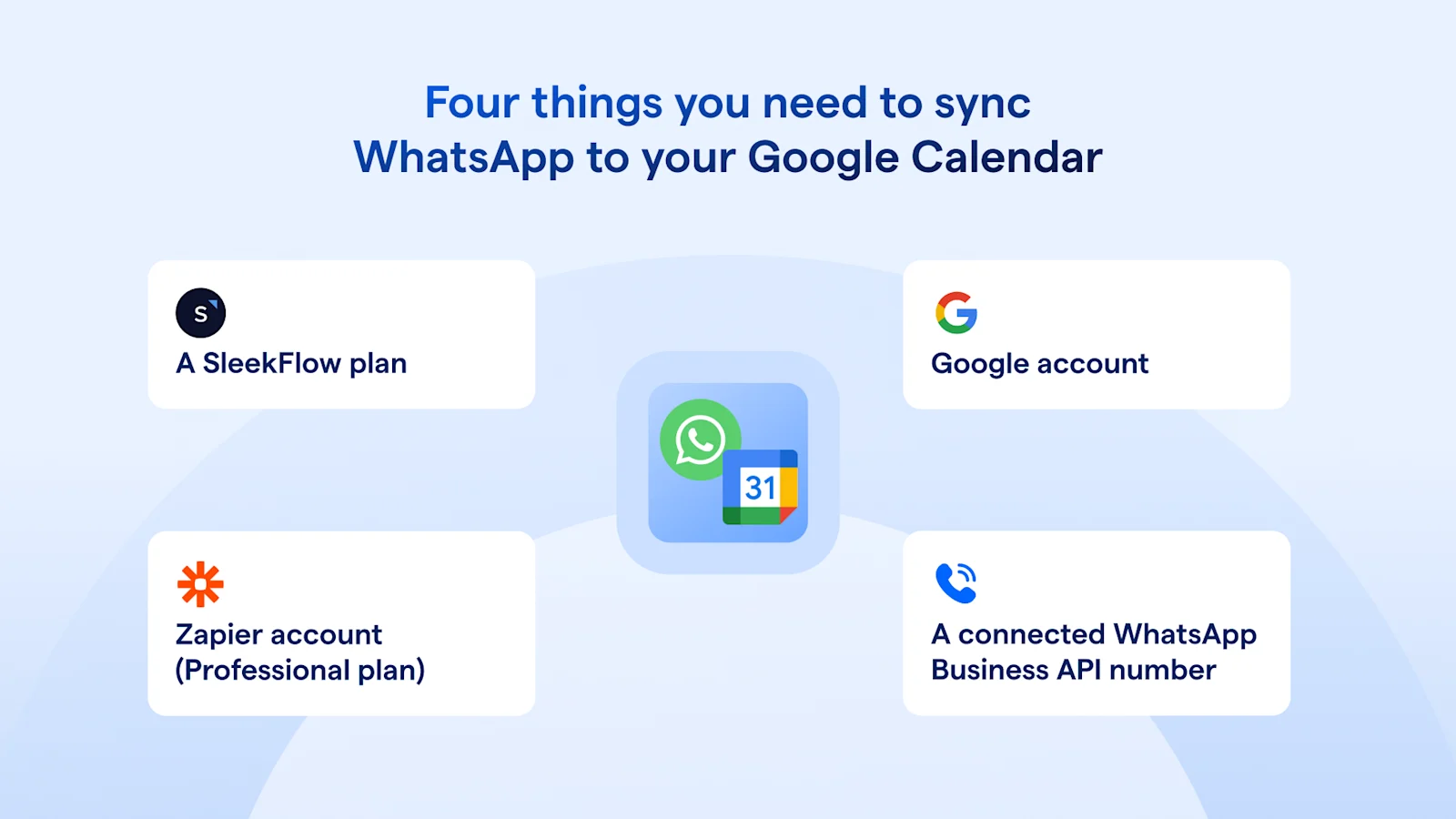
You need four things: a SleekFlow plan, a connected WhatsApp Business API number, a Zapier account on at least the Professional tier, and a Google account with the target calendar.
That Zapier tier matters more than it sounds. Zapier's free plan is capped at two-step Zaps and excludes webhooks entirely; Professional, from US$19.99 a month billed annually, adds multi-step Zaps and webhook support. A booking Zap needs a trigger, a formatting step, and a calendar-creation step, three steps minimum, so free won't run it.
How does booking on WhatsApp and syncing to Google Calendar actually work?
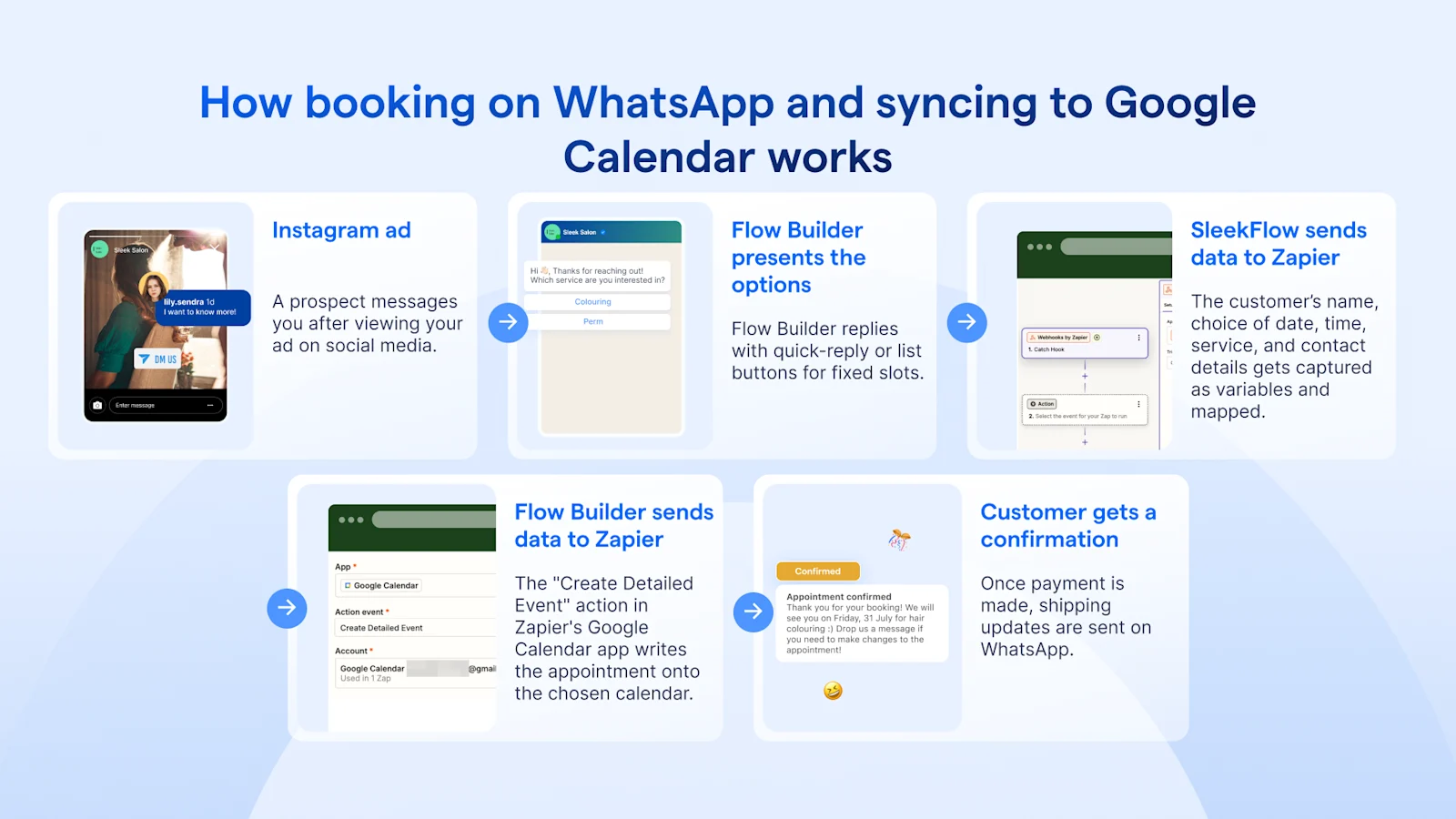
The path runs from a WhatsApp message through Flow Builder, over a webhook, into Zapier, and out to a Google Calendar event, with confirmation sent back once the booking is captured. 7 steps carry it end to end.
Step 1: The customer starts the booking
They message your WhatsApp Business number from an ad, a link, a QR code, or an existing chat, and a keyword or menu choice drops them into your booking Flow.
Step 2: Flow Builder presents the options
Flow Builder replies with quick-reply or list buttons for fixed slots, or a link to a booking form when you need more detail than buttons can carry.
Step 3: The customer picks a slot or fills the form
Their choice of date, time, service, and contact details gets captured as variables inside the Flow.
Step 4: Flow Builder sends the data to Zapier
A webhook step in the Flow posts the captured variables to a Zapier "Catch Hook" trigger the moment the customer confirms.
Step 5: Zapier maps the fields
Incoming values such as name, date, time, and service line up against the fields Google Calendar expects.
Step 6: Zapier creates the calendar event
The "Create Detailed Event" action in Zapier's Google Calendar app writes the appointment onto the chosen calendar, using the fields mapped in step 5.
Step 7: The customer gets a confirmation
Flow Builder can confirm the moment the customer submits, or Zapier can confirm only after the event is created. The first replies fast but can't promise the event landed; the second is slower but only fires once it has.
Which businesses benefit most from booking on WhatsApp?
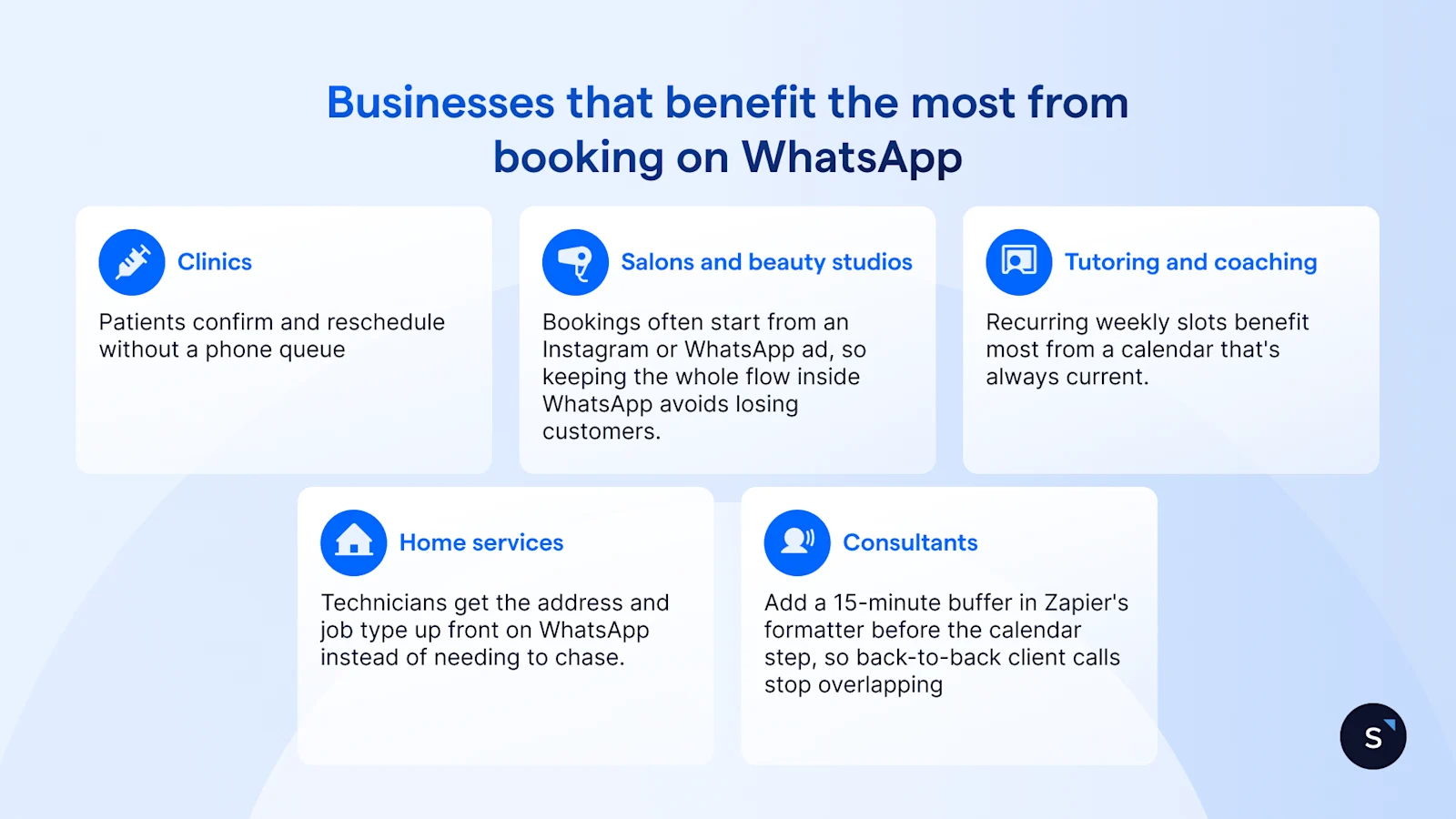
Clinics, salons, tutors, home-service providers, and consultants gain the most, because each runs on fixed time slots, repeat customers, and a real cost every time someone doesn't show up.
Clinics. Patients confirm and reschedule without a phone queue, and the synced calendar keeps front-desk and practitioner views identical.
Salons and beauty studios. Bookings often start from an Instagram or WhatsApp ad, so keeping the whole flow inside WhatsApp avoids losing customers to an app download.
Tutoring and coaching. Recurring weekly slots benefit most from a calendar that's always current, since parents reschedule often.
Home services. Technicians get the address and job type up front on WhatsApp, instead of chasing it by phone after the booking's made.
Consultants. Add a 15-minute buffer in Zapier's formatter before the calendar step, so back-to-back client calls stop overlapping.
Manual booking vs dedicated booking software vs DIY integration
Stay manual only if a missed sync costs you nothing. Build the DIY route when you already run SleekFlow and want control over the fields and confirmation logic. Choose dedicated booking software when double-booking protection matters more than owning the pipeline.
How SleekFlow customers run bookings like this on WhatsApp
SleekFlow is the AI suite for revenue-driving conversations, and Flow Builder is the part of it that turns a WhatsApp message into structured data another tool can act on.
Esperia Volleyball Academy, a Dubai academy serving kids and adult players, needed website leads to reach the right coach without manual copying between systems. A booking form feeds a Google Sheet; Zapier watches that sheet, updates the contact in SleekFlow, and applies a label that fires a Flow Builder automation assigning the lead. It's the same label-triggers-Zapier pattern this article uses for Google Calendar, aimed at a different destination. The result: 3 channels centralised in one inbox and 9 staff sharing the same conversation history.
Sun and Moon Massage, a three-branch business in Hong Kong, used to lose bookings to a single shared phone and a backlog of unanswered messages. Flow Builder now answers pricing and hours questions automatically, freeing staff to focus on confirming the appointment. The result: booking conversion climbed to 30%, according to founder Suki Tsui. See how Flow Builder handles a booking conversation before you connect anything to Zapier.
Want to outcompete your peers with SleekFlow's help?
Book your personalised demo with SleekFlow today and unlock the potential of seamless communication


