Google customer reviews integration: how to manage reviews in one inbox


TL; DR: Quick Summary
- A Google reviews integration adds new Google Business Profile reviews to a business's existing messaging inbox for replies.
- More than half of customers, 53.3%, expect a review reply within 7 days, per ReviewTrackers.
- A verified Google Business Profile lets reviews appear automatically in the inbox, with replies posted publicly on Google.
- Route low-star reviews to a manager and keep every AI-drafted reply reviewed by a person before it sends.
- Teams that answer reviews from the inbox respond faster and miss fewer, with no separate Google login needed.
A branch manager checks her Google Business Profile dashboard once a week.
On a Tuesday in early October, she finds a one-star review posted nine days earlier, about a mixed-up order. By the time she replies, the customer's already told three friends not to bother.
Her WhatsApp and Instagram messages get answered within the hour, because they land in the team inbox everyone already watches. The Google review didn't, because nobody's job was to check a second dashboard.
A Google customer reviews integration closes that gap. New reviews arrive in the same inbox, and get answered like any other customer message.
What is a Google customer review integration?
A Google reviews integration is a connection that brings a business's Google Business Profile reviews into its existing messaging inbox, so a team replies to them the way it replies to WhatsApp or Instagram messages. It is not the same as Google Customer Reviews, a separate Merchant Center survey programme, and the difference matters enough to state plainly before going further.
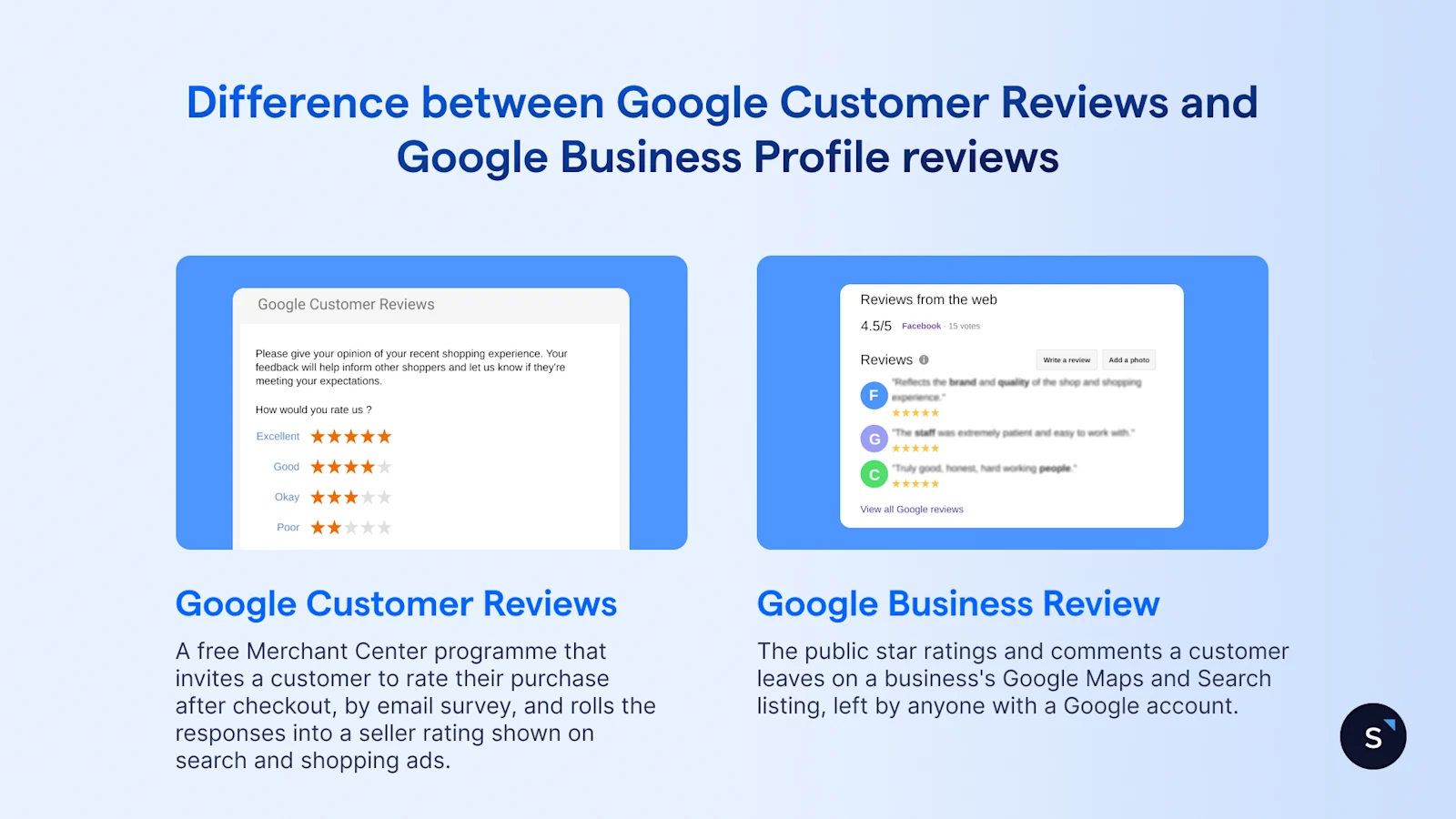
Google Customer Reviews (the Merchant Center programme)
Google Customer Reviews is a free Merchant Center programme that invites a customer to rate their purchase after checkout, by email survey, and rolls the responses into a seller rating shown on search and shopping ads. It's a checkout-feedback feature for online stores, a separate product from the review type this guide covers.
Google Business Profile reviews (what this guide covers)
Google Business Profile reviews are the public star ratings and comments a customer leaves on a business's Google Maps and Search listing, left by anyone with a Google account. This is the review type a Google reviews integration brings into an inbox, and it's what the rest of this guide covers.
Once a review is in the inbox, writing the reply itself follows Google's own rules on tone, length and what to leave out, which our guide to replying to a Google review covers in full.
Why do Google reviews get missed or answered late?
Google reviews get missed or answered late because they sit in a separate Google dashboard nobody opens daily, while every other customer message already lands in a shared inbox. Replying depends on one person remembering to check, and once a business has more than one location, no one clearly owns it.
ReviewTrackers finds that 53.3% of consumers expect a reply within 7 days, a tighter clock than a once-a-week dashboard check can meet. That's a vendor survey, not a Google-published figure, but it points at a real expectation: a customer who leaves a review is watching for a reply, not just leaving feedback into the void.
How does the SleekFlow Google reviews integration work?
Connecting SleekFlow's Google reviews integration takes four simple steps, and once set up, new reviews appear automatically in the omnichannel inbox for the team to answer. A reply sent from the inbox posts publicly under the review on Google, the same as if it were written straight from Google's own interface.
Connect your Google Business Profile to SleekFlow using your Google sign-in.
Choose which business locations to include.
New reviews appear automatically in the inbox, alongside WhatsApp, Instagram, and your other channels.
Your team replies from the inbox, and the reply posts publicly under the review on Google.
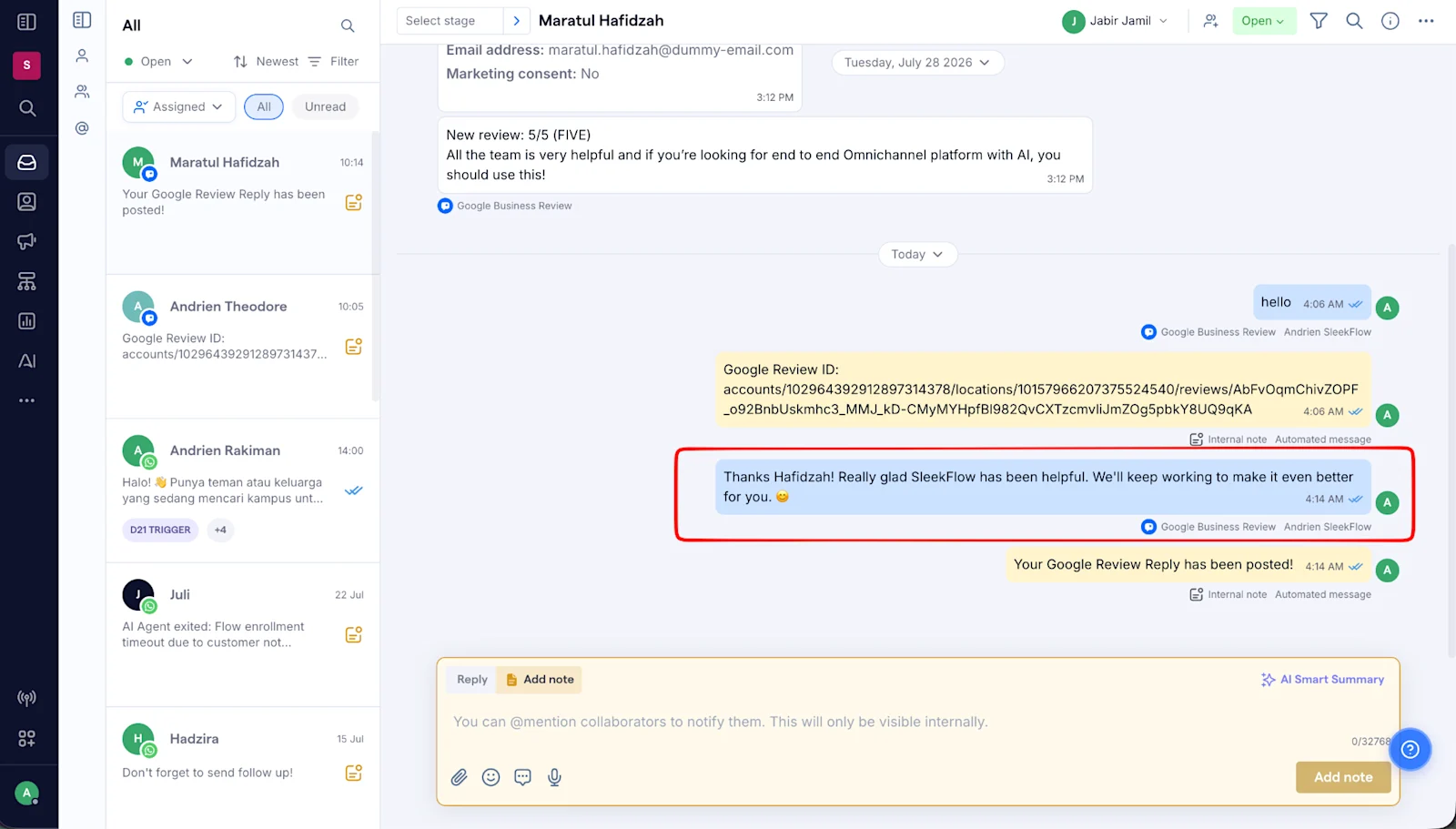
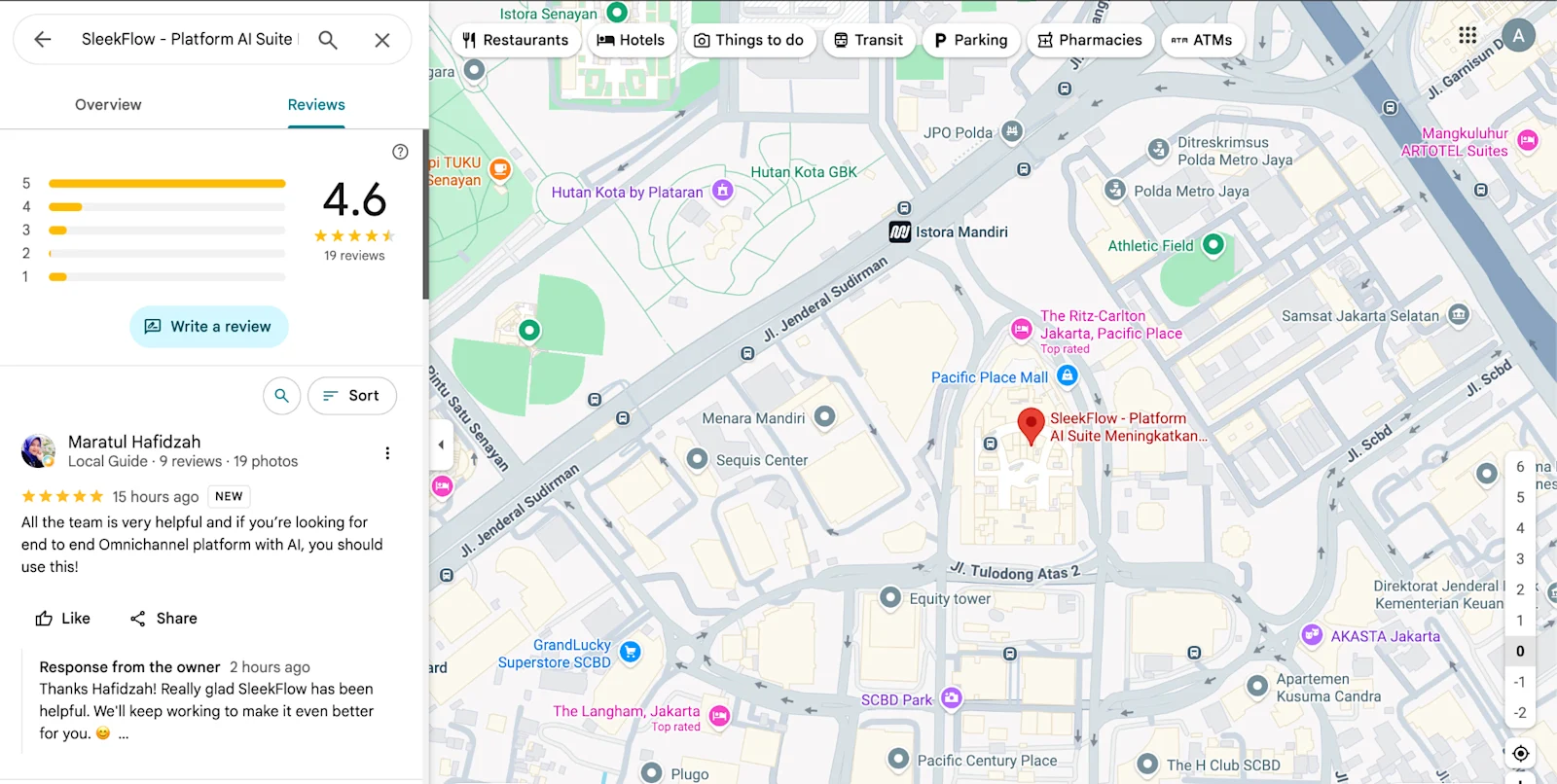
What can your team do once a Google review is in the inbox?
Once a Google review is in the inbox, a team can assign it to the person responsible, add internal notes, apply labels, use AI-drafted wording as a starting point, and track how quickly reviews get answered. A person still reviews and sends every reply, since Google's own policy restricts automated ones.
Assign a review to the team member or branch responsible for it.
Add internal notes so a manager has context before a reply goes out.
Apply labels to track themes, like delivery issues or staffing complaints.
Use AI-drafted reply wording as a starting point, which a person edits before sending.
See response-time reporting across reviews, the same way a team already tracks WhatsApp or email reply times.
One workflow worth setting up: route anything at two stars or fewer to a manager automatically, so a sensitive reply never waits for someone to notice it. Adjust the threshold to fit the business, since the right cut-off depends on how reviews usually come in.
Replies are written and sent by a person, not generated and posted on their own. Google's Business Profile API policy requires a business's specific and express consent before any review reply is automated, so a person stays in the loop by default and by rule.
Can you manage reviews for several locations and teams?
Reviews from every connected Google Business Profile location land in the same inbox, and each one can be assigned to the team responsible for that branch, so no location's reviews wait in a separate dashboard. A written reply policy keeps tone and timing consistent once more than one person is replying.
Our guide to replying to a Google review sets out what a reply policy should cover, including who signs off on a sensitive reply before it posts.
Check your plan for how many locations it supports, and confirm with your SleekFlow contact whether role-based permissions inside the inbox apply to the reviews channel the same way they apply to other channels.
Should you use your inbox, a review tool or the API?
The right approach depends on how many locations a business has and how its team already works. A business already answering WhatsApp or Instagram from a shared inbox gets the most value from adding reviews there, while a business that needs deep analytics across review platforms, or wants to build something custom, has two other paths worth knowing.
An inbox integration covers receiving and replying to the reviews a business already has. Asking customers for new reviews is a separate step, covered in our guide to collecting Google reviews over WhatsApp, and a business that wants to benchmark reviews across several platforms at once may still want a dedicated tool alongside the inbox.
What do you need before you connect your Google Business Profile?
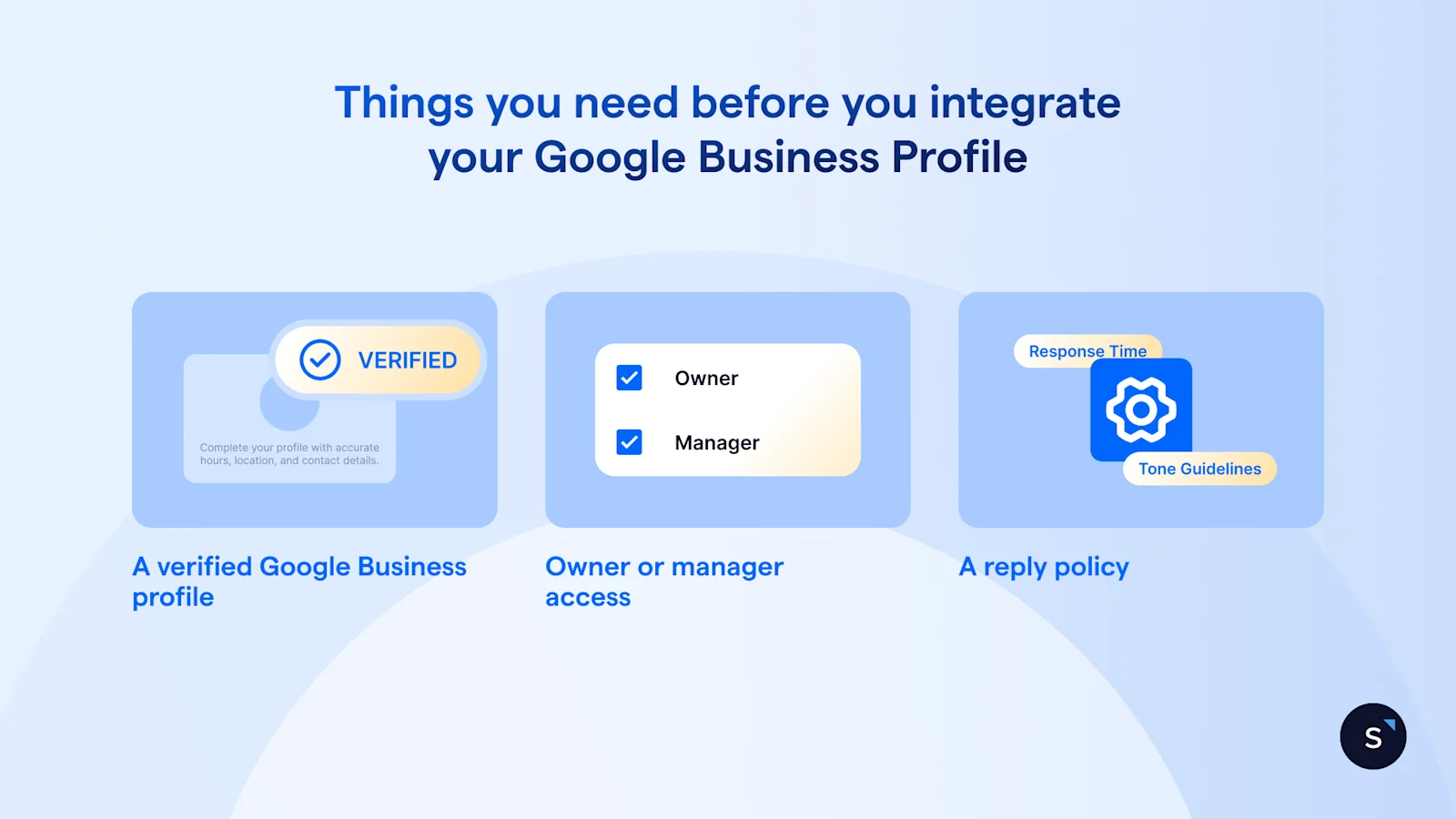
Before connecting, a business needs a verified Google Business Profile, since Google only allows replies once a profile is verified, plus a Google account with owner or manager access to complete the connection. A written reply policy helps too, since more than one person will likely be replying once reviews are easy to see.
A verified Google Business Profile. Google requires verification before a business can reply to reviews at all.
Owner or manager access on the Google account doing the connecting.
A reply policy, covering tone, response time and who signs off on a sensitive reply.
Connecting uses Google's own sign-in, so access is granted through Google rather than a shared password, and it can be removed from the Google account side at any time. See SleekFlow's Trust Center for how that access, and the data behind it, is protected.
What teams get when Google reviews and customer conversations share one inbox
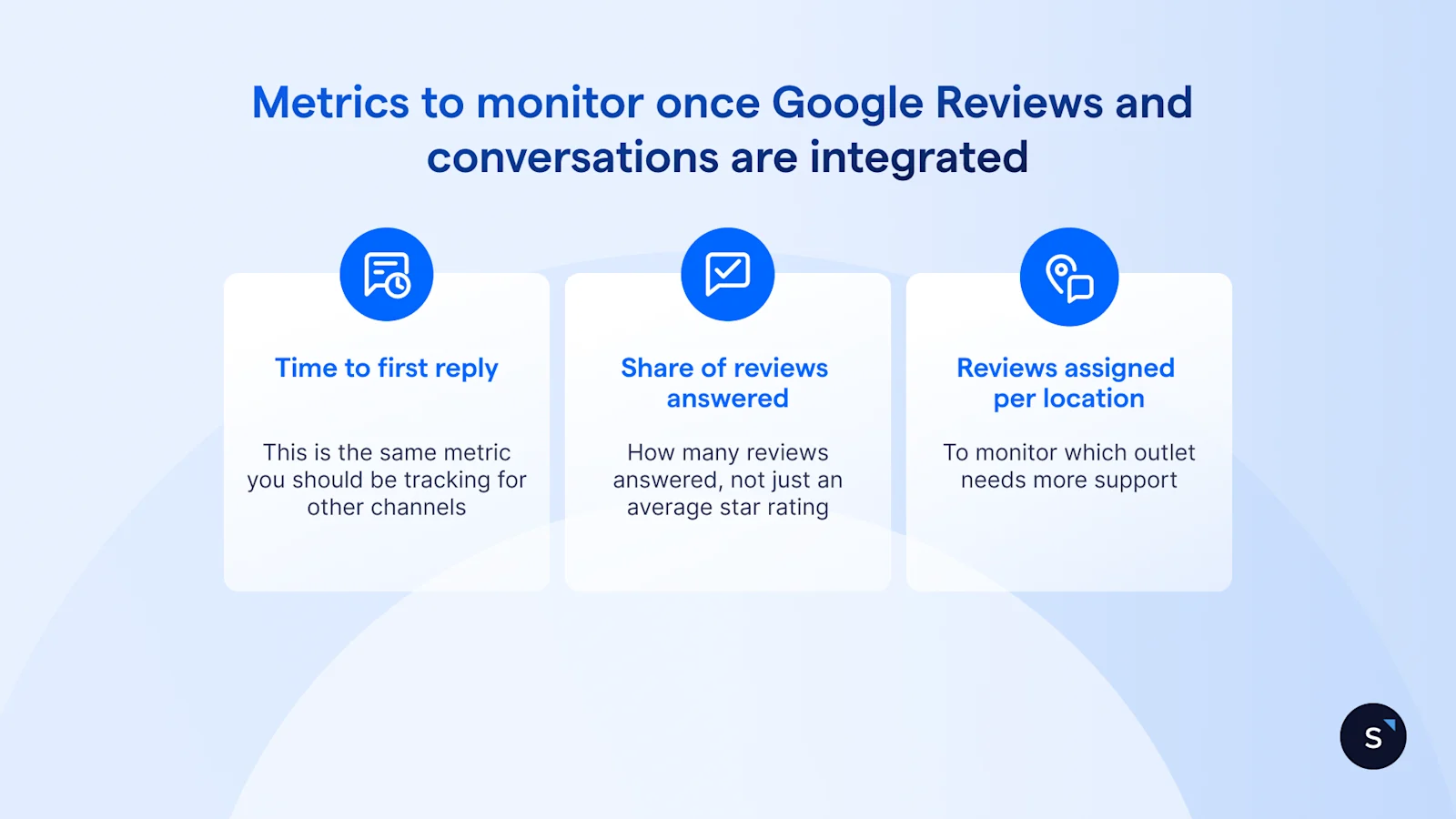
Picture a retail chain with branches in Singapore and Johor Bahru, both already answering WhatsApp and Instagram from one shared inbox. Once Google reviews join that inbox, a review from the Johor Bahru branch gets assigned straight to that branch's lead, instead of sitting unread in a Google dashboard nobody on that team checks. A critical review about a late delivery routes to a manager automatically, and the reply goes out from the inbox that same day, posted publicly under the review on Google.
What to track:
Time to first reply on Google reviews, establishing a benchmark against other primary messaging channels.
Share of reviews answered across all locations to prevent negative feedback from going unnoticed.
Reviews assigned per location to identify operational bottlenecks and reallocate support where needed.
Want to outcompete your peers with SleekFlow's help?
Book your personalised demo with SleekFlow today and unlock the potential of seamless communication


