Shopify WhatsApp integration: 4 ways to connect your store


TL;DR: Quick Summary
- A Shopify WhatsApp integration links store events like orders and abandoned carts to WhatsApp messages.
- Kantar research for Meta found 72.4% of consumers are more likely to buy from brands that offer messaging.
- Shopify stores can add WhatsApp through a chat button, Meta's Shopify app, Zapier, or a WhatsApp API platform.
- Cart reminders and promotions need opted-in customers and approved templates, which Meta charges for per message.
- Stores that want cart recovery, order updates, and one shared team inbox need the WhatsApp Business API.
Your customers already use WhatsApp to ask about sizes, delivery dates, and discount codes. A Shopify WhatsApp integration lets your team answer those chats with the customer's orders and cart in view, and sends order updates and cart reminders without anyone typing them.
Kantar research commissioned by Meta found that 72.4% of consumers are more likely to buy from brands that offer messaging. For a Shopify store, a question asked on WhatsApp is often the last step before checkout.
There's more than one way to connect the two, and each option does a different amount of the work for you.
Below are the four options side by side, a step-by-step setup for the API route, sample cart recovery messages, and what WhatsApp messages cost.
What is a Shopify WhatsApp integration?
A Shopify WhatsApp integration connects your store's customer, order, and cart data to WhatsApp. It lets your team reply to shoppers with their order history beside the chat, and it sends automatic WhatsApp messages when something happens in your store, like a new order, a shipped parcel, or a cart left at checkout.
Why connect WhatsApp to your Shopify store?
Connecting WhatsApp to Shopify puts sales, support, and marketing in the app many shoppers already check all day. Customers get answers while they're still deciding, order updates arrive where they'll see them, and your team stops switching between the Shopify admin and a phone to find out what a customer bought.
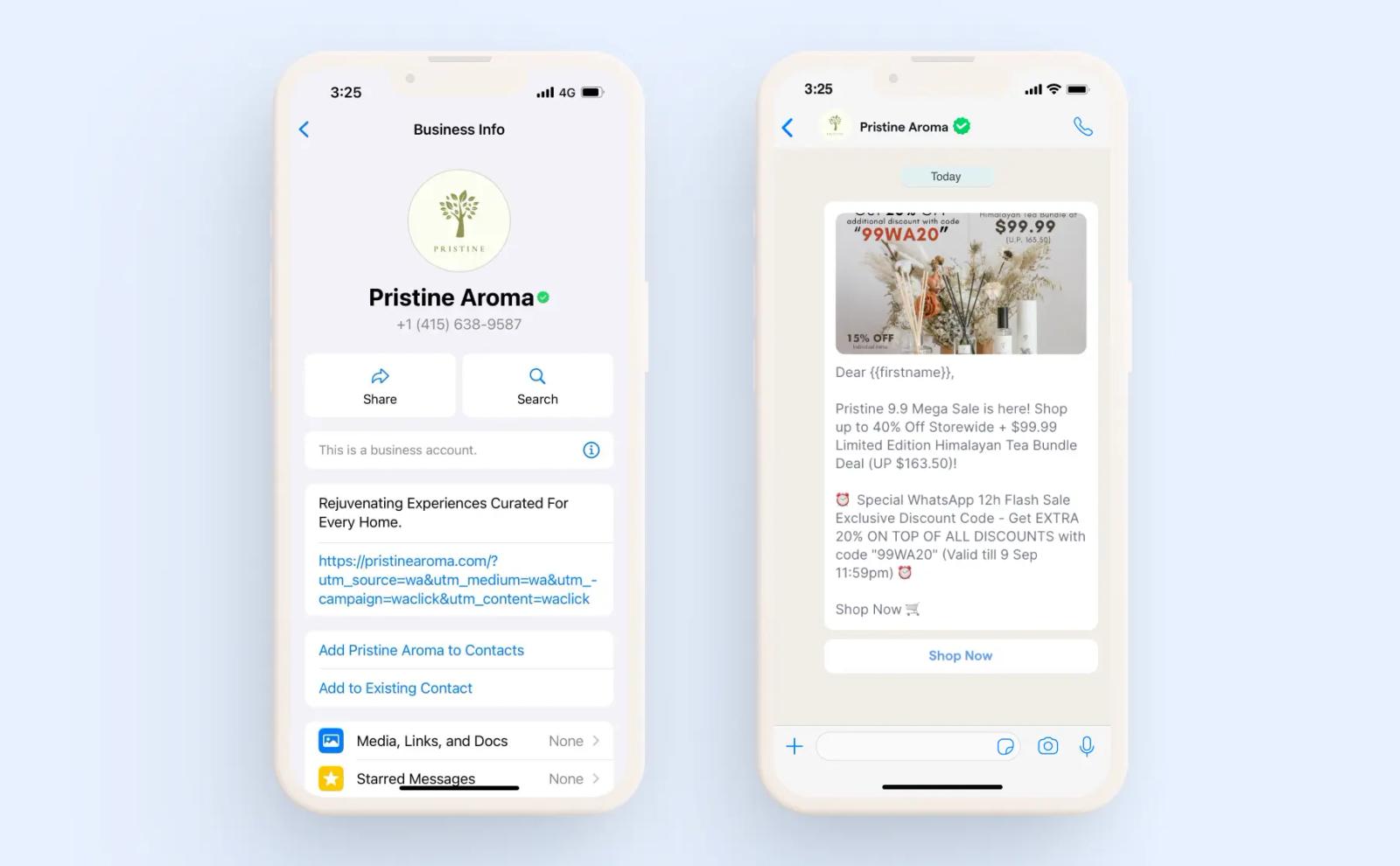
Pristine Aroma turned WhatsApp broadcasts into an 18% conversion rate
Pristine Aroma is a Singapore home fragrance brand that sells online into Malaysia, Indonesia, the USA, and Canada.
Problem: Email campaigns drew low engagement, and the team was handling customer chats from several platforms every day.
Approach: The brand connected its Shopify store and WhatsApp through SleekFlow, automated welcome messages for new leads, and sent seasonal WhatsApp Broadcasts to targeted customer segments.
Results from its 9.9 sale broadcast, a 20% discount code sent on WhatsApp:
- 18% conversion rate
- 56% open rate
- 16% click-through rate
The brand also reports an around 90% increase in team efficiency.
What are the ways to add WhatsApp to Shopify?
There are four common ways to add WhatsApp to a Shopify store: a chat button, Meta's WhatsApp app for Shopify, a no-code connector like Zapier, or a WhatsApp Business API platform like SleekFlow. They range from a free link that opens a chat to a full setup where your team and automations share one inbox with live store data.
1. A WhatsApp chat button
A floating button or link on your store opens a WhatsApp chat with your business number. SleekFlow's free WhatsApp Button Generator builds one with your number and a pre-filled message, and gives you the code to paste into your theme.
It suits a new store with a handful of questions a day.
The catch is that everything after the click is manual. There are no order updates or cart reminders, and your team answers each chat by hand in the WhatsApp Business app.
2. Meta's WhatsApp app for Shopify
Meta launched a WhatsApp app on the Shopify App Store in July 2025. It sends order updates and abandoned cart messages from pre-built templates, and it's free to install, with Meta's message charges billed separately.
Its listing describes outbound messages only. If your team needs to reply to customers together, assign chats, or see orders while they talk, you'll need a separate inbox.
3. A no-code connector like Zapier
Zapier links a Shopify event, like a new order, to a WhatsApp action. It's flexible for one-off workflows.
Each workflow is built and maintained by hand, though, and a multistep sequence like cart recovery takes several connected steps to run reliably.
4. A WhatsApp Business API platform like SleekFlow
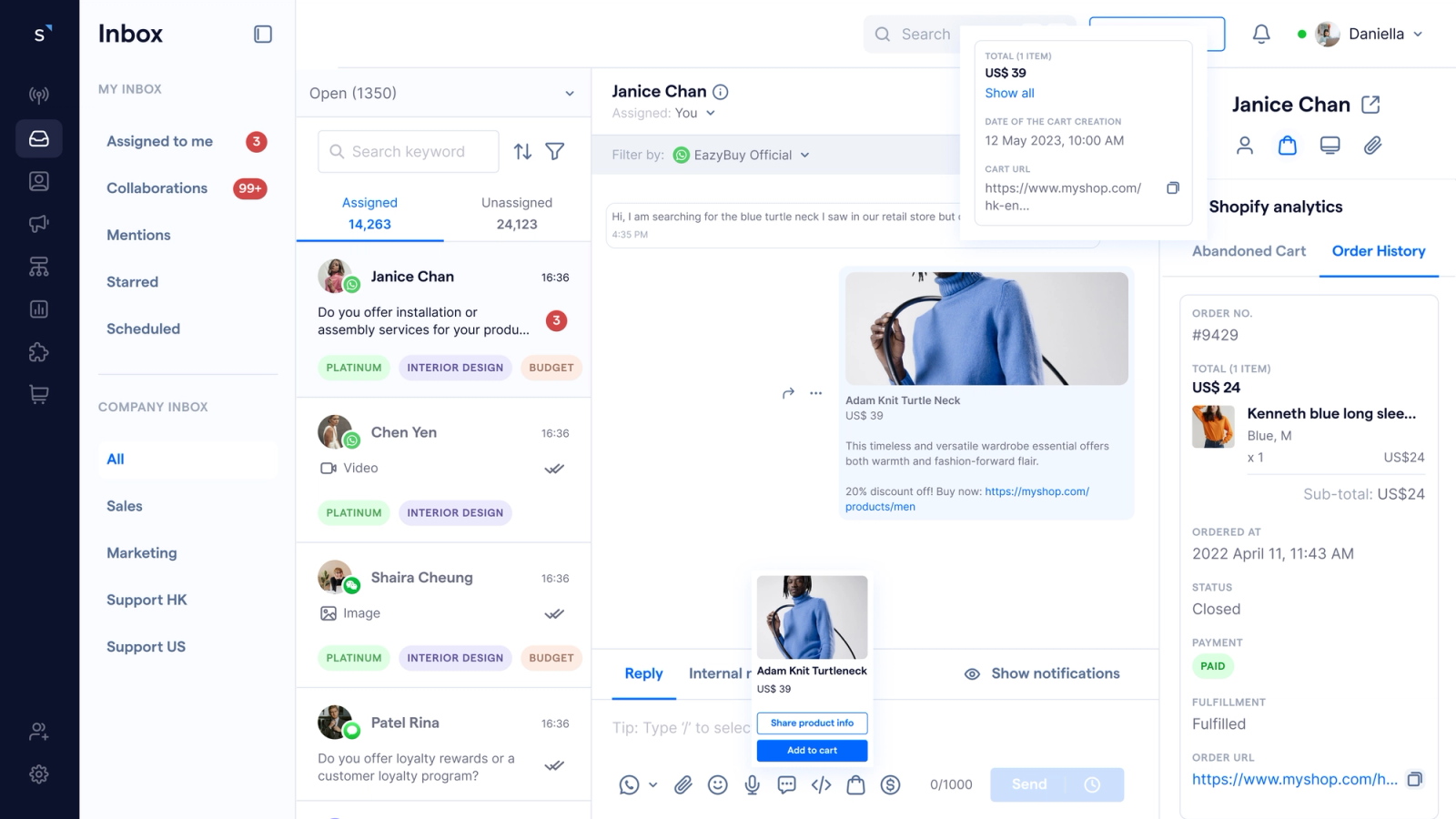
A WhatsApp Business API platform connects your number and your Shopify store in one place. SleekFlow syncs Shopify customers, orders, products, and abandoned carts, so your team sees them beside each chat and your automations can act on them.
It takes a little more setup than a button, and it's the option that covers sales, support, and marketing in one inbox.
How do you set up the WhatsApp Business API for Shopify?
To set up the WhatsApp Business API for Shopify, connect a WhatsApp Business API number to a platform like SleekFlow, connect your Shopify store, then turn on templates for order updates and abandoned carts. The SleekFlow application takes about 10 to 15 minutes, and Meta's business verification usually takes around 2 business days.
Step 1: Connect a WhatsApp Business API number
Apply through an official WhatsApp Business Solution Provider like SleekFlow. Per the Help Center, you'll need:
- A personal Facebook account with full access to your Meta Business Portfolio
- Two-factor authentication turned on for that Facebook account
- A completed Business Info page in Meta Business Portfolio
- A phone number that can receive a call or SMS from the United States
Your business also needs Meta business verification before a new number goes live. New to the API? Read our WhatsApp Business API guide.
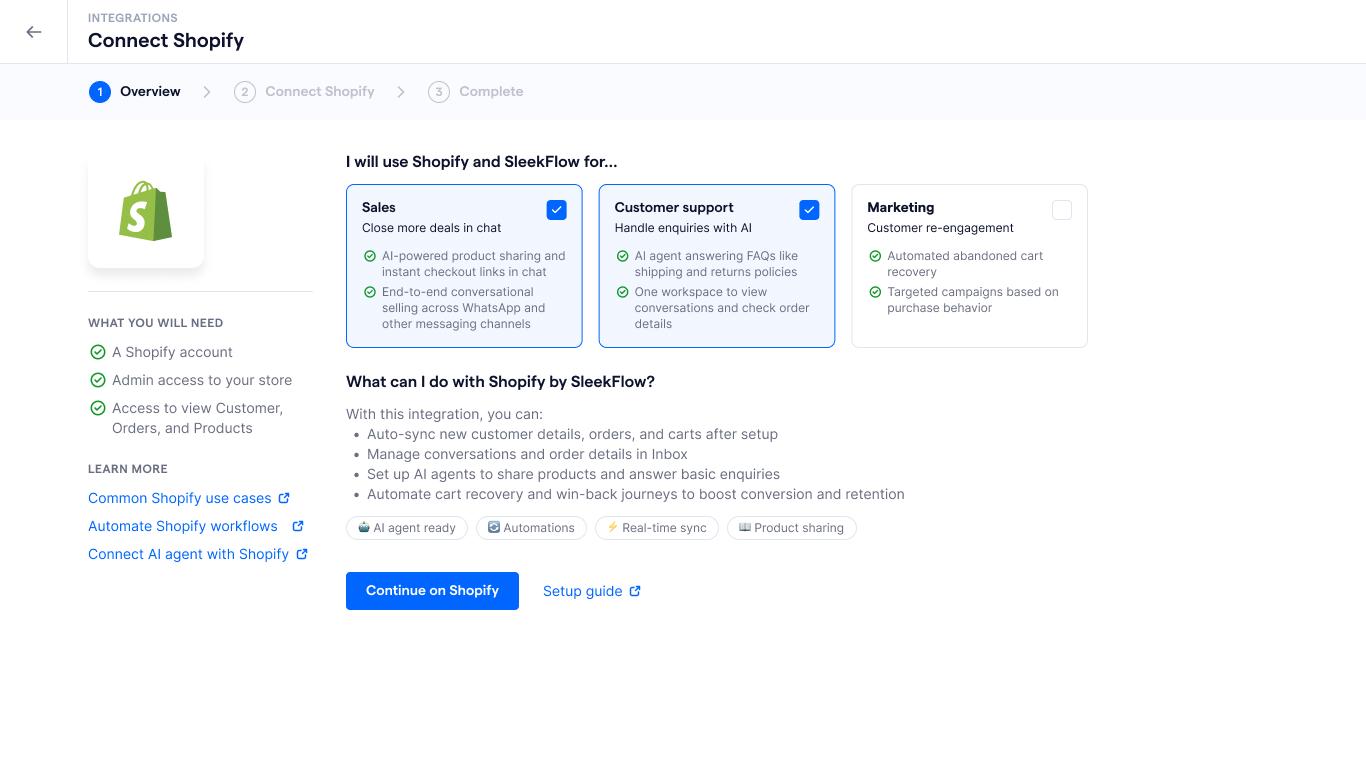
Step 2: Connect your Shopify store to SleekFlow
Before you start, make sure you have admin access to your Shopify store and permission to view customers, orders, and products. Then:
- Click the integration icon in the left panel, find Shopify under E-commerce, and click Connect.
- Choose what you'll use it for: sales, customer support, or marketing.
- Click Continue on Shopify, install the SleekFlow app, and approve the permissions.
- Back in SleekFlow, click Import data to bring in past customers and orders.
By default, only customers and orders created after you connect sync automatically, so run the import if you want your history. The full steps are in the Shopify integration guide.
Step 3: Turn on order update messages
SleekFlow includes ready-made Shopify templates for order update notifications, post-delivery feedback requests, post-purchase upsells, new customer follow-ups, and loyalty invitations.
Pick a template, choose the WhatsApp number to send from, and add details like the order number or tracking link. Then choose when it sends. If Meta needs to approve the message, SleekFlow submits it and publishes the automation once it's approved.
Step 4: Set up abandoned cart reminders
Start from the abandoned cart recovery template and use a short sequence. Cart reminders and discount offers count as marketing messages, so send them only to customers who've opted in to WhatsApp messages.
Message 1: a reminder with the cart link (30 minutes to 2 hours after the cart is left)
Hi [Name], you left a few things in your cart. It's saved here whenever you're ready: [Cart link]
Message 2: answer the usual doubts (1 day after)
Hi [Name], a quick note on your order: shipping is free over $[X], it should arrive by [date], and returns are easy. Your cart is here: [Cart link]
Message 3, optional: an incentive (a day or two later)
Hi [Name], here's 10% off your order with code [CODE], valid until [date]: [Cart link]
Keep the sequence to three messages at most, and stop it as soon as the customer orders. If you also send cart emails or SMS, space the channels out so the shopper doesn't get the same reminder in three places at once.
How much does a Shopify WhatsApp integration cost?
A Shopify WhatsApp integration has two costs: your WhatsApp platform's plan and Meta's charge for each message. On SleekFlow, the Shopify integration and automations start from US$109 a month on the Pro plan, and the first WhatsApp number is free. Meta then charges per message by type and country.
Plans and pricing vary by country, so check SleekFlow's plans and pricing for your market. SleekFlow offers a 7-day free trial of the Pro plan.
On Meta's side, per the WhatsApp Business Platform pricing page:
- Marketing and utility templates, like cart reminders and shipping updates, are charged per message.
- Service messages, your replies inside the 24-hour window after a customer writes in, have been charged since 1 October 2026, after 1,000 free a month per phone number.
- Chats from Click-to-WhatsApp ads and Facebook Page buttons get a free messaging window once you reply within 24 hours. The window lasts 7 days at most, and Meta can set it shorter for some businesses.
For rates by country, see our WhatsApp Business API pricing guide.
How can WhatsApp increase Shopify sales?
WhatsApp increases Shopify sales by reaching shoppers at the moments they'd otherwise drop off: a cart left at checkout, a question about delivery, or a gap since their last order. These 5 uses work best together.
1. Recover abandoned carts
Baymard Institute's research ranks extra costs like shipping, tax, and fees as the top reason shoppers leave checkout, ahead of slow delivery. A reminder that answers that doubt, or an agent who replies to "do you ship to Dubai?", brings shoppers back.
2. Keep customers updated after they pay
Send confirmations, dispatch notices, and delivery updates automatically. Use the same flow to warn customers early about a delay or cancellation, before they have to chase you.
3. Close the sale in the chat
Agents can send a Shopify checkout link based on the items a customer picked, or a Stripe payment link if you've connected Stripe, so the shopper goes straight to payment.
4. Reply with the full picture
With the integration, each customer's purchase history and open carts sit beside the conversation, so agents can answer "where's my order?" or suggest the right size without searching.
5. Sell again to the right people
Segment opted-in customers by what they bought and send relevant offers, like a phone case to someone who just bought a phone.
How Anigma Technologies wins back failed Shopify payments on WhatsApp
Anigma Technologies sells gaming PC components and accessories to gamers across the GCC from Abu Dhabi, through its online store and mall stores.
Problem:
- Shoppers paying with a buy now, pay later option often saw the payment fail on the first try, which left around 10 to 15 canceled Shopify orders a day.
- The team spotted these orders by hand and often reached the customer too late to save the sale.
Approach:
- Connected Shopify to SleekFlow, so each customer's details, orders, and abandoned carts show beside the chat.
- Set up an automation that checks whether a customer's last order has a voided payment, then sends a WhatsApp message offering help.
- Kept automatic WhatsApp reminders for abandoned carts, plus shipment tracking and review requests after each purchase.
Results:
- 70% of canceled Shopify orders recovered
- 13% of abandoned carts recovered
- 25% customer growth in two years
"It's often a simple issue for customers not to complete the checkout, such as when the purchase amount exceeds the payment gateway's installment limit. With a timely offer, like splitting the payment with cash and credit card, we can win them back most of the time."
Wael Ali, Marketing Manager, Anigma Technologies
A failed payment comes from a shopper who already chose to buy, so it's worth its own WhatsApp message, separate from your cart reminders.
Ready to connect WhatsApp to your Shopify store? Start a free trial or book a demo to see order updates and cart recovery working on your own store.
Frequently asked questions
How do I add a floating WhatsApp button to my Shopify store?
Create the button with SleekFlow's free WhatsApp Button Generator: add your number, a pre-filled message, and the side of the screen it sits on, then copy the code. In Shopify, go to Online Store, Themes, Edit code, open theme.liquid, paste the code just before the closing body tag, and save. For a widget that also handles web chat, the Help Center shows how to add SleekFlow's AI Growth Widget the same way.
Is there a free WhatsApp integration for Shopify?
A chat link is free, and Meta's WhatsApp app for Shopify is free to install, though Meta charges for the messages you send. Platforms with a shared team inbox and Shopify data in the chat charge a monthly plan. SleekFlow offers a 7-day free trial of the Pro plan, and your first WhatsApp number is free.
Do I need the WhatsApp Business API to connect WhatsApp to Shopify?
Not for a simple chat button. You need the WhatsApp Business API if you want automatic order updates, cart reminders, broadcasts, or several agents replying from one number. You apply for it through an official WhatsApp Business Solution Provider like SleekFlow, using a Meta Business Portfolio and a phone number that can receive a verification call or SMS.
Can I send abandoned cart reminders on WhatsApp without consent?
No. WhatsApp's Business Messaging Policy requires customers to opt in before you message them first, and cart reminders are sent as approved message templates. Collect consent at checkout or in a pop-up, say what you'll send, and make it easy to opt out. Our WhatsApp opt-in guide covers the details.


