WhatsApp Business Web: all you need to know


TL; DR: Quick Summary
- You can use WhatsApp Business Web to mirror your mobile app on a computer. This makes managing customer chats and files easier on a larger screen.
- WhatsApp Business Web is great for small teams because it lets you link up to 4 devices at once.
- The web version is perfect for chatting with customers manually. However, it doesn't support advanced features like mass broadcasts, chatbots, or interactive message buttons.
- If you need deep CRM integration, have a larger team, or want to use complex messaging automation, you should upgrade to the WhatsApp Business API.
Smartphones are part of our lives, and we’re already used to texting. But we all know that, for work, typing from a computer it’s much more comfortable and efficient.
WhatsApp Business web is developed for using the app on a computer. It functions as an extension of WhatsApp Business on your smartphone, synchronising all your messages and media files, allowing companies to manage customer communications seamlessly from their desktops.
For businesses looking to optimise their communication strategies, understanding and implementing WhatsApp Business Web is vital.
This way, your company stays connected across different devices, including smartphones, tablets, or computers.
Does WhatsApp Business have WhatsApp Web?
We all know the personal WhatsApp Web version. But something that you have to know if you run a business is that, yes, there’s also a version of WhatsApp Web for Business. That works pretty much the same way on the other version.
It can be used on laptops and desktops, for Windows and Mac devices.
There’s also a similar version of WhatsApp Business Web: the WhatsApp Business Desktop, that is actually a WhatsApp Business app for computers.
WhatsApp Business Web vs. WhatsApp Web: what’s different for businesses?
At first glance, WhatsApp Business Web and the standard WhatsApp Web look the same. But the business version was built specifically for commerce and customer management. While the regular version simply mirrors your personal chats, WhatsApp Business brings essential tools for your company right to your desktop.
Using the Business version in your browser gives you features that don't exist on a personal account, letting you manage customer chats more efficiently:
Quick Replies: Save pre-written answers for common questions and send them with a keyboard shortcut. This will dramatically cut down your team's response time.
Customer Labels: Organize your chats with labels like "New Customer" or "Pending Payment." These color-coded tags help you keep track of where every conversation stands.
Profile and Catalog Access: Share your business hours, products, and services directly from your computer.
What are the differences between WhatsApp Business Web and Desktop?
While both versions function similarly, there are a few key differences:
Access: You access the web version through a browser (like Chrome or Safari), while the desktop version is a dedicated app you download.
Device Compatibility: You can use the web version on any device with a browser, including tablets. The desktop app, however, requires a Windows or Mac device.
Remember, your linked devices might be logged out automatically if you don’t use WhatsApp on your primary phone for more than 14 days.
How to use WhatsApp Business Web?
To use WhatsApp Business Web in your browser, you only need to follow these simple steps:
Go to the WhatsApp Web website: https://web.whatsapp.com/
A QR code will appear.
Tap on the three dots in the top right corner and select "Linked Devices."
Scan the QR Code displayed on the WhatsApp Web website.
You’re connected!
How to use WhatsApp Business Desktop?
It’s possible to download the WhatsApp Business Desktop to your Mac or Windows device. Just follow the steps:
Download and install the WhatsApp Business Desktop app
A QR code will appear
Open WhatsApp Business on your smartphone.
Tap on the three dots in the top right corner and select "Linked Devices.
Scan the QR code displayed on the app.
You’re connected!
How to log out from WhatsApp Business Web and Desktop
Protecting your data and your customers' privacy is crucial, especially when you use a shared computer or public Wi-Fi. Logging out correctly prevents anyone else from seeing sensitive information.
Here’s how to end your session securely:
Open the WhatsApp Business Web or Desktop app.
Find the Settings icon (gear or cogwheel) at the bottom left.
Click it to open the settings.
Select Log out.
Alternative Method: You can also log out from your phone. Open the WhatsApp Business App, go to Linked Devices, choose the device you want to end, and tap Log Out.
Troubleshooting WhatsApp Business Web
Even the best platforms have problems now and then. If you notice your desktop connection is slow or not syncing, the fix is usually simple. Try these troubleshooting steps to get back to work quickly:
Check Your Connection: Make sure both your computer and your phone have a stable internet connection. A weak Wi-Fi signal is the most common reason for syncing issues.
Clear Browser Data: If you’re using WhatsApp in a browser, a full cache can cause problems. Try clearing your browser's cache and cookies, then refresh the page and scan the QR code again.
Update Your Browser or App: An old browser or WhatsApp Desktop app can create compatibility issues. Keep your software updated to the latest version.
Unlink and Relink: When all else fails, starting fresh usually helps. Log out of the session from your phone's "Linked Devices" menu and then reconnect by scanning the QR code again.
Why Use WhatsApp Business Web?
Most people prefer to work on a computer then on a smartphone.
The app supports up to 4 linked devices and 1 phone. This means that a single account can be operated on up to 4 devices with larger screens, such as laptops and desktops. WhatsApp Business Web is useful if your company has shared devices for communications. Your team can use up to 4 linked devices to manage customer service. But since all agents share one identity, it’s not possible to assign conversations or see who did what.
Sharing the same account with up to 4 agents, means that you all have access to the same files and chats.
From a desktop or laptop, it is much easier to send, receive and manage files from your customers.
You can use WhatsApp Business functions like quick replies and shortcuts.
How teams should use WhatsApp Business Web
WhatsApp Business Web works well for small teams that need desktop access, but its limitations require some coordination. Since the standard business app only allows one phone and four linked devices at once, your team needs clear rules to avoid confusion.
To work efficiently and avoid sending multiple replies to the same customer, set up a clear protocol for how you handle chats.
Claim conversations: The first person to reply should add a label like "In progress-[Agent Name]" to let others know the chat is being handled. This prevents team members from sending conflicting messages.
Establish label conventions: Use labels to organize your workflow. You could use tags like "New Lead," "Tech Support," or "Resolved" so everyone knows the status of a conversation just by looking at it.
Create a handover checklist: When shifts change or a conversation needs to be escalated, have a simple process. This might include updating the label, adding an internal note, and telling the next agent what the customer needs.
Implement security rules: If you use shared computers, security is a top priority. Make sure agents lock their screens when they step away and log out at the end of their shifts. You should also regularly check the connected devices in your phone's "Linked Devices" menu and remove any you don't recognize.
What are the limitations of WhatsApp Business Web?
While WhatsApp Web for Business is an excellent tool for business communications, it has some limitations that may be an obstacle for companies expanding their operations.
Broadcast List
It is not yet possible to send mass messages through the web version of the app. To use the broadcast list feature, you must use the mobile version of the app (for up to 256 messages) or a WhatsApp Business API (for a higher volume of messages).
How Le Dessert overcame WhatsApp's 256-contact broadcast limit with SleekFlow
Le Dessert, a rapidly growing French pâtisserie, used the standard WhatsApp Business app to communicate with a VIP customer base of over 10,000 members.
The app's 256-contact broadcast limit made it impossible to efficiently announce seasonal specials or new products to their entire customer list, creating a significant marketing bottleneck.
Le Dessert upgraded to SleekFlow, using the WhatsApp Business API to send personalized, large-scale broadcasts. They utilized dynamic variables to maintain a high-end, personal touch in their mass communications.
By removing the contact limit, Le Dessert was able to:
Drive a 100% increase in sales during crucial retail periods like their Galette des Rois campaign by sending promotional messages to their entire database at once.
Eliminate a major operational hurdle, paving the way for a 15% growth in overseas customers.
Multiple Logins
You can access the same WhatsApp Business account on up to 4 web devices simultaneously. This is insufficient for companies with a high volume of messages and employees.
Scheduling Messages
Through the WhatsApp Business app, you can only schedule away messages and greetings. However, if you want to schedule messages based on specific conditions, such as a new entry in the database, events, or holidays, the tool is limited.
Limited Conversation Automation
With the WhatsApp Business Web, you can automate ready responses in a very limited number, but you cannot deploy AI agents, build multi-step conversational flows, or automate lead qualification — capabilities that directly impact your speed-to-lead and conversion rate.
CRM and Third-Party App Integrations
To integrate CRMs or third-party apps, you will need the WhatsApp API. It is not possible with WhatsApp Business Web.
Lack of Interactive Messages
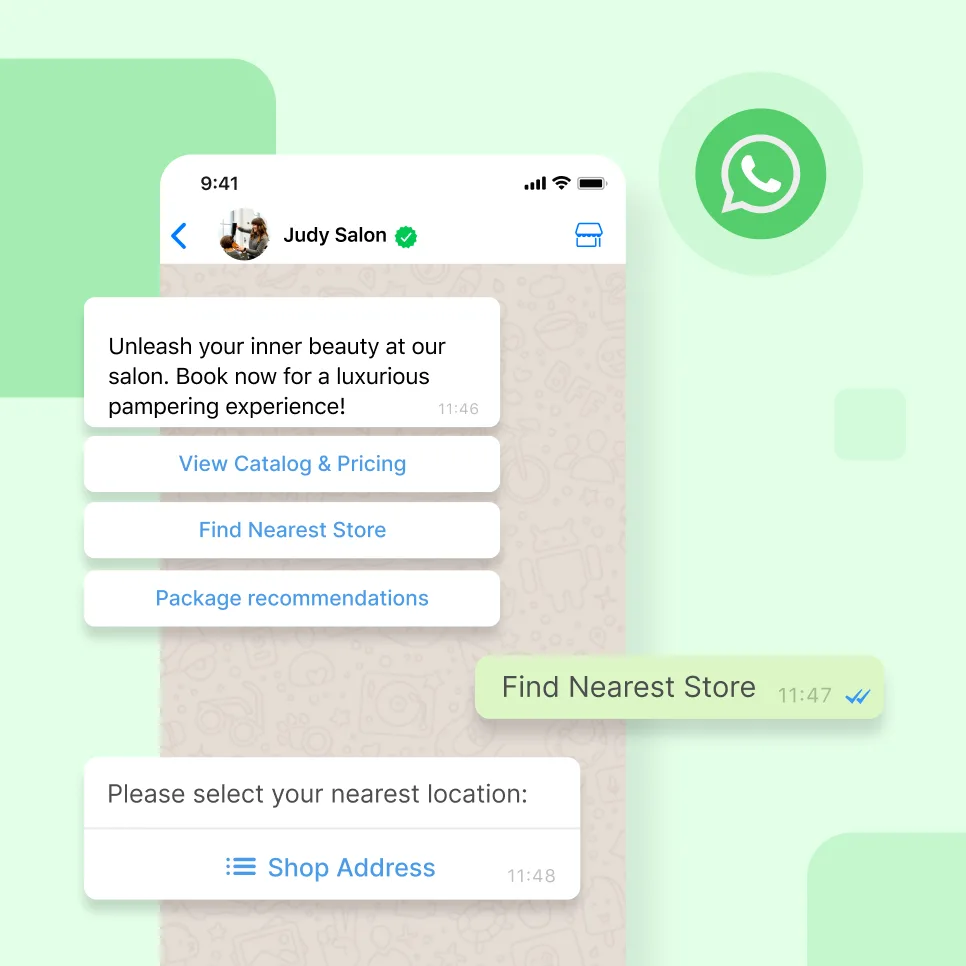
WhatsApp Business Web does not support interactive messages on WhatsApp, which include message lists and reply buttons.
Solution: You can enjoy all the above functionalities, manage contacts, and automate conversations using access to the WhatsApp Business API offered by SleekFlow.
Why growing businesses upgrade to the WhatsApp Business API with SleekFlow
WhatsApp Business Web is a great place to start when your team is small. But once your message volume increases and your sales process gets more complex, the free app won't be enough. If you want AI to work with your agents, you'll need to upgrade.
The WhatsApp Business API, which you can access through an official provider like SleekFlow, is built for that kind of scale.
With the API, WhatsApp becomes more than a messaging tool—it turns into a full revenue channel. AI agents can qualify leads, handle objections, suggest products, schedule bookings, and take payments, all inside a single WhatsApp chat, 24/7. Businesses using SleekFlow's AI have reported saving up to 60% on headcount costs and speeding up their sales cycle.
SleekFlow is an official WhatsApp Business Solution Provider. That means you get access to the entire API suite—verified, stable, and compliant—plus a platform designed for agentic commerce. Here’s what you can do:
Deploy AI agents trained on your company's knowledge and procedures. They can handle qualifications, recommendations, negotiations, and payments with playbook-driven precision, not just rigid scripts.
Run personalised broadcast campaigns to different customer segments based on their lifecycle stage, purchase history, or engagement. You can do this at scale while staying within WhatsApp's guidelines.
Sync your WhatsApp conversations with CRMs like HubSpot and Salesforce. You can also connect your Shopify data so AI agents can check inventory, recommend products, and create payment links right in the chat.
Manage unlimited agents in a shared inbox with smart routing rules based on language, source, or intent. Managers get full visibility into team performance, response times, and conversion rates.
Upgrade to the API without losing your existing WhatsApp Business App number. SleekFlow's coexistence feature lets you keep up to six months of chat history during the move.
WhatsApp Business Web vs. WhatsApp Business app vs. WhatsApp Business Platform (API)
Choosing the right version of WhatsApp depends on your team's size, how many messages you send, and whether you need advanced automation. Here’s how the three options stack up:
Checkmob reduced response time and increased qualified demos with SleekFlow
Checkmob, a rapidly expanding field sales management platform, was managing its early sales pipeline manually.
The Inside Sales team spent too much time on repetitive administrative tasks, such as answering routine questions, manually qualifying leads, and arranging demos. This created a bottleneck, leading to slow response times and delayed conversions.
Checkmob implemented SleekFlow’s AgentFlow, an AI-driven automation tool, to manage the initial stages of customer interaction on WhatsApp. The AI agent handles first contact, qualifies leads, and schedules demos automatically, freeing up the sales team to focus on high-value activities.
A remarkable 70% reduction in response time, ensuring instant engagement.
A 20% increase in successfully qualified demo bookings.
Sales teams recovered 30% of their time, redirecting focus toward high-intent closing.
Connect to WhatsApp Business API now!
Connect to WhatsApp Business API and unlock powerful tools to engage your audience.


